



A replacement screen that stays black, a charging-port return that is actually a board fault, or a restart after back-glass work can consume the margin on an otherwise straightforward repair. This iPhone 15 Pro Max repair guide connects documented workshop cases with a practical test sequence, so technicians and wholesale buyers in Colombia, Ecuador and other markets can separate a faulty assembly from a fault elsewhere in the phone. For the broader sourcing framework, start with our iPhone spare-parts guide for wholesalers.
📘 Summary
Diagnose the symptom before ordering a part. The cases below report real repairs, but a matching symptom or current reading alone does not establish the same fault on another phone.
🔍 Key Highlights
- Confirm the exact iPhone 15 Pro Max model and board variant; do not substitute a Pro-only component map.
- Separate no power, no image, no touch and timed restarts before replacing assemblies.
- Keep reported readings with their test conditions: the supplied bench photo shows 4.20 V and 0.130 A, not a universal setup.
- Back up data where possible, obtain consent before erasing actions, and reserve powered board testing and microsoldering for trained technicians.
- For Colombia, Ecuador and global orders, record compatibility, batch and test results separately from the BETA product SKU.
Table of Contents
Start Here: Identify the Fault Before Replacing Parts
A black display does not necessarily mean the phone is dead. Equally, a phone that runs from a bench supply has not passed a battery-path test. Start by recording what the device actually does, rather than the name of the part the customer thinks it needs.
Confirm the Exact Model and Board Variant
Check the model number in Settings when accessible, or use reliable device identification when it is not. Compare the board layout with the reference for that revision before choosing a probe point. A phone imported into Colombia or Ecuador may be a different regional variant from the one expected by the repair shop; the destination country is not a compatibility specification. Use our model-number and regional-compatibility guide alongside Apple’s model identification.
Separate No Power, No Image, No Touch and Restarting
| Observed symptom | First distinction | Do not assume |
|---|---|---|
| Black screen; sounds or vibration remain | Alive with no image versus no power | Every black screen needs a display |
| Image present; touch absent | Touch path versus a frozen system | The USB-C controller is automatically faulty |
| Repeated startup or later restart | Boot loop versus a timed sensor-related restart | All restart logs identify the same flex |
| No battery boot; bench-supply response | Battery path versus wider board behavior | One supply reading proves an IC fault |
Record Repair History and Protect Customer Data
Record the drop, liquid exposure, previous glass or port work, accessories used, software state and customer priority. Agree whether the job is functional repair, data recovery, or both. Avoid a restore as a casual diagnostic shortcut: it can erase data without resolving the hardware fault. Stop if the battery is swollen, damaged or overheating, and follow the model’s safety procedures before opening the device.
Apple-Documented Checks Before Board-Level Repair
Apple’s troubleshooting procedures help exclude accessory, setting and assembly problems before a board is separated. Their existence is not evidence of a manufacturing defect or a failure-rate claim. Start with the iPhone 15 Pro Max repair manual and select the procedure that matches the symptom.
Wired and Wireless Charging Checks
Use verified working charging accessories, inspect the port, and compare wired with wireless behavior under the relevant procedure. Remove the wired cable when evaluating wireless charging. Debris or a poor accessory connection should be excluded before a charging assembly is condemned; use only the cleaning method permitted by the manual. See Apple’s battery and charging troubleshooting.
Charging Limits and Temperature-Related Pauses
A charging pause or an apparent limit is not automatically a bad battery. Check the selected charge limit, battery temperature and on-screen explanation before ordering parts. Apple describes charge-limit behavior separately from hardware diagnosis in its charging-limit guidance.
Display, Camera and Audio Checks
| Function | Useful first check | Next decision |
|---|---|---|
| Display and touch | Distinguish moving image, frozen system and absent touch | Follow display troubleshooting before board work |
| Camera | Clean lens; remove potentially interfering accessories; compare camera modes | Separate accessory, assembly and board causes |
| Audio | Compare recording, calls and video audio | Document which function fails before selecting an assembly |
Use Apple’s display checks, camera checks and sound checks for the applicable test sequence. These checks complement the independent repair cases below; they do not validate every component-level inference in those cases.
Case 1: The Phone Boots but the Screen Stays Black
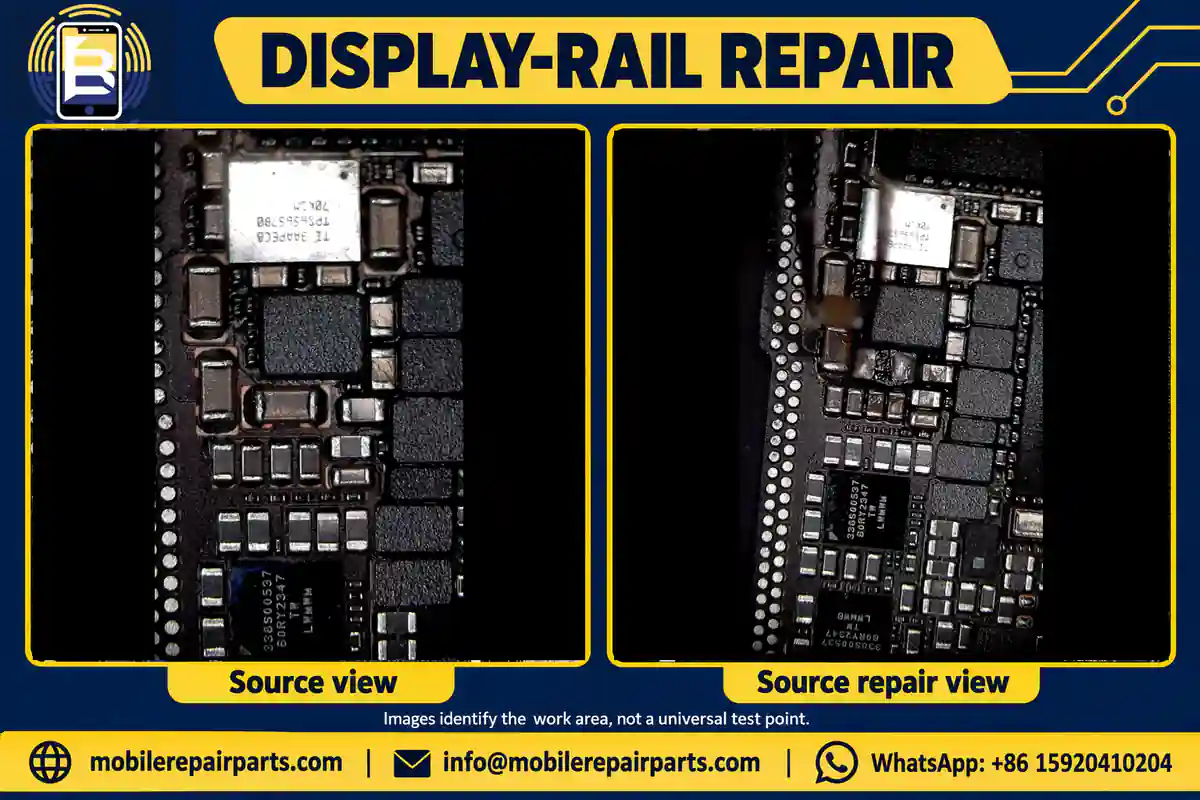
In the FixItLads no-display case, a working reference screen did not restore the image. The workshop reported a short in the display-power area near the TPS65657 device and restored operation after replacing a failed capacitor. The published account does not supply a numerical rail reading or an unambiguous capacitor designator.
Rule Out the Display Assembly
- Document signs of life such as vibration, sound or computer recognition. Do not interpret a dark screen alone as no power.
- Disconnect power before inspecting or reseating display connections. Examine the socket, flex and surrounding area for damage.
- Use an exact-model display independently verified on a working device. A newly supplied screen is not automatically a known-good reference.
Investigate the Reported Display-Rail Short
If the reference display also stays black, refer the job for board diagnosis. Use the matching schematic to identify the display-power path; record the meter mode, lead orientation and comparison board before interpreting an unpowered measurement. The photographs below locate the source’s work area, not a ready-made voltage-injection point. Do not invent a rail target, injection current limit or heating profile absent from the repair record.
Verify the Repair Before Final Assembly
- After the localized repair, compare the original and verified reference displays under the same conditions.
- Check image, brightness, touch and repeated startup before sealing the phone.
- If data recovery is the priority, complete and verify the agreed backup as soon as the device is stable.
| Case evidence | Measurement limit | Repair-shop / wholesale action |
|---|---|---|
| Reference screen did not restore image | No published rail voltage or capacitor ID | Do not reject an entire screen batch from this symptom |
| Shorted capacitor reported near display-power circuitry | Source photograph is not a probe map | Localize the fault before replacing components |
| Image and access recovered after repair | Not proof that every similar case has the same cause | Document the original screen’s retest result |
Case 2: No Charging and No Touch
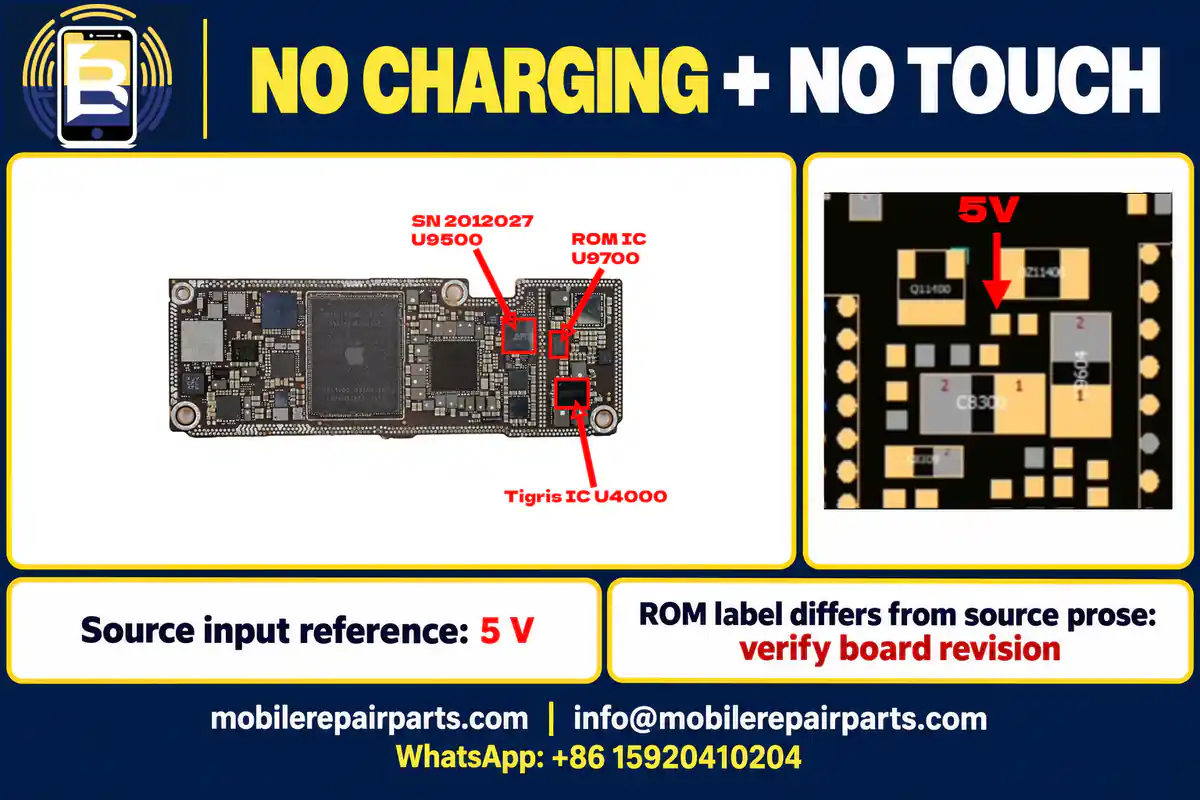
The RepairWiki charging-and-touch case links this combination to the USB-C controller and associated ROM. It identifies the controller as SN2012027 / U9500. There is a reference conflict: the supplied photograph labels the ROM U9700, while the prose uses other designators. Preserve that discrepancy rather than choosing a number by guesswork.
Confirm Both Symptoms and Check the Charging Input
- Confirm that charging and touch fail independently; exclude a frozen operating system and faulty accessories.
- Check exact-model, verified working display and battery assemblies before escalating to board work.
- A trained board technician should match the reference layout before locating the marked input. The source marks 5 V with the charging connection present. Avoid live probing until the point, ground reference and safe access are confirmed.
Inspect the USB-C Controller and Associated Memory
Finding 5 V establishes input at that point; it does not prove the controller is healthy. Trace the relevant supplies and connections using the exact board reference. The reported repair used a matched donor controller and memory. That is the case author’s repair, not proof that every similar device requires both components. Resolve the ROM reference against the actual board before any removal.
Retest Charging, Touch and USB Functions
The source reports approximately 9 V and 2 A or more after repair, depending on battery state. Treat that as the reported negotiated charging behavior, not a universal pass threshold. Retest touch across the panel, stable charging, cable orientation and supported USB data/audio functions before returning the device.
| Reference | What it means | What still needs verification |
|---|---|---|
| 5 V at the source-marked input | Input supply is present at that test point | Controller operation and downstream conditions |
| SN2012027 / U9500 | Controller identified by the source | Exact revision and associated memory identity |
| About 9 V, 2 A+ after repair | Reported charging result | Battery state, accessories and functional stability |
| ROM image/prose mismatch | Unresolved source labeling | Never remove a guessed component |
Case 3: Dead on Battery but Responsive to a Bench Power Supply
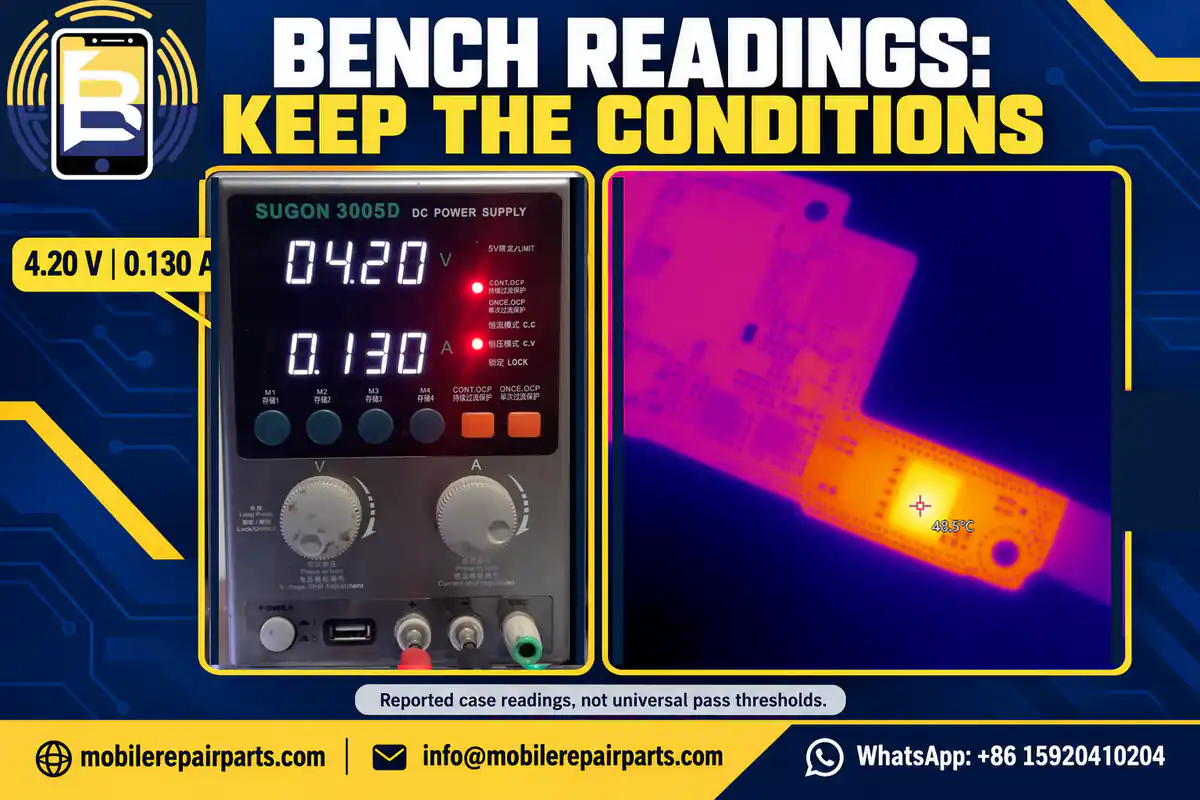
The RepairWiki dead-and-not-charging guide covers the Pro and Pro Max family. It reports 0.105–0.130 A before a boot prompt and startup when prompted from a bench supply. The supplied photograph shows 4.20 V and 0.130 A. A thermal image records 48.5 °C in the investigated area. Neither number alone identifies the failed part.
Validate the Battery and Connector
- Record the battery condition and behavior with a verified, exact-model test battery.
- With power removed, inspect the battery flex and board socket before interpreting a failed battery boot as a board IC fault.
- For a trained bench-supply test, use the correct battery-interface adapter and the model-specific procedure. Confirm polarity, current limiting and safe connection before enabling power; the photograph does not disclose the current-limit setting.
Interpret the Reported Current Draw
Record supply voltage, current limit, connected assemblies and whether the boot trigger has been applied. Compare like-for-like conditions with a matching working board. The pictured 0.130 A is a case observation, not an acceptable standby-current specification. Likewise, a thermal hotspot is a localization clue: nearby faults or normal operation can also produce heat.
Localize the Fault Before Replacing an IC
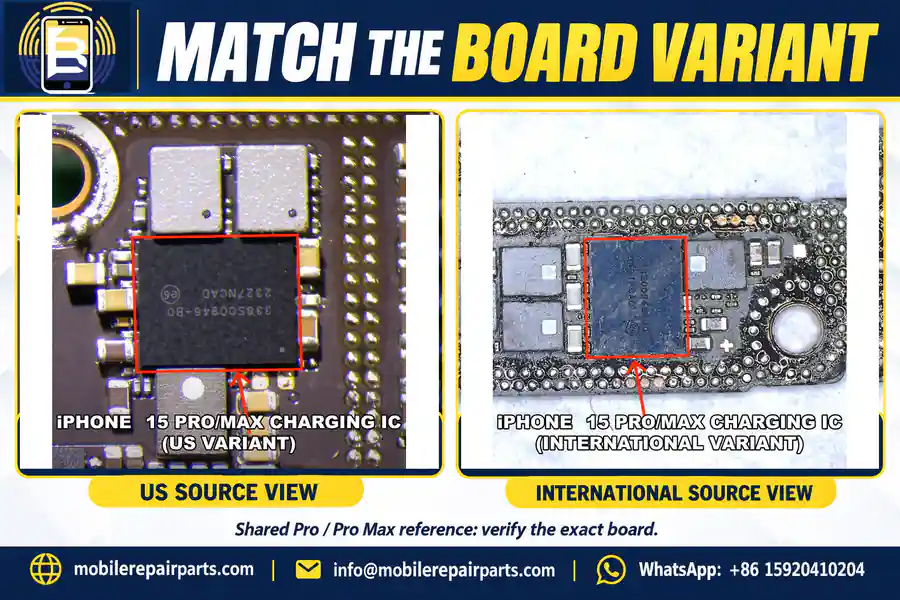
The guide reports charging-IC replacement after investigation. Validate the circuit evidence before reproducing that repair, and compare the correct regional layout. The next images are the source’s shared Pro/Pro Max charging-IC references, not interchangeable maps for every board revision.
| Observed reference | Not a universal rule | Required follow-up |
|---|---|---|
| 4.20 V / 0.130 A in the photograph | Not a complete bench-supply setup | Record current limit and connection conditions |
| 0.105–0.130 A before boot prompt in the text | Not an IC-specific fault signature | Compare against a working matching board |
| 48.5 °C in the thermal image | Not a replacement threshold | Correlate heat with circuit measurements |
| US and international component views | Not a destination-country shortcut | Match actual board construction before rework |
Case 4: Battery Percentage Stuck at 1%
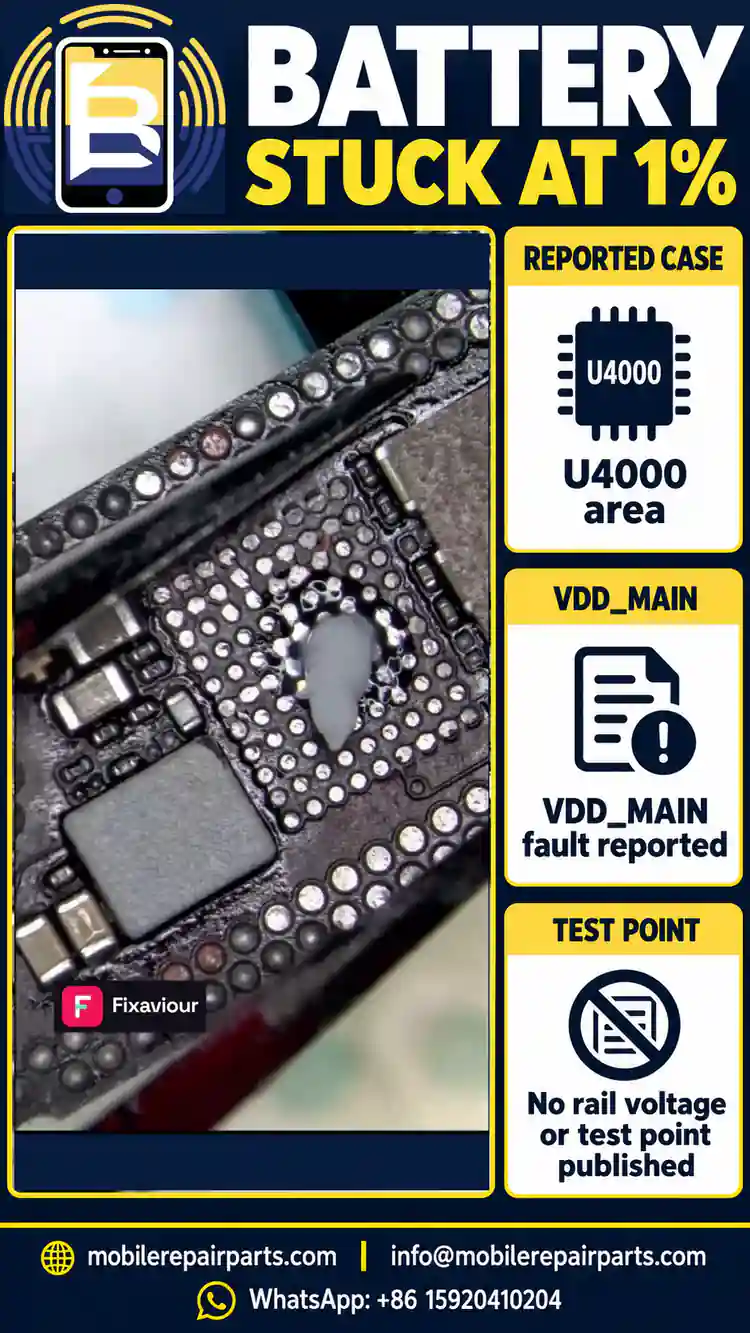
The Fixaviour charging-board case reports a device stuck at 1%, a missing VDD_MAIN output attributed to U4000 / 343S00946-B0, and recovery after board work. Its account reports roughly 25 W input afterward. It does not publish the measured rail voltage, a reproducible probe point or a validated rework profile.
Separate Battery-Data Faults from Charging-Circuit Faults
- Record whether the percentage is fixed, whether the phone operates from the battery, and whether external input changes its behavior.
- Compare an independently verified compatible battery and inspect its connector with power removed.
- If the reference battery behaves the same way, use the matching schematic to distinguish power delivery from battery-data communication. Do not assign a charging IC from the percentage symptom alone.
Investigate the Reported Main-Power Output Fault
The workshop photograph is evidence of the worked area, not a voltage map. A specialist must identify the actual circuit and establish the test conditions before measurement or rework. Keep the source’s reported U4000 diagnosis separate from the evidence still needed on the phone on your bench.
Confirm Charging and Battery-Percentage Recovery
Check sustained charging, an increasing battery percentage, battery-powered startup and stable operation after disconnecting the charger. Record temperature and test duration. A momentary power reading does not demonstrate successful battery charging, and 25 W is not a mandatory target for every battery state or accessory combination.
| Reported finding | Evidence boundary | Practical action |
|---|---|---|
| Battery stayed at 1% | Symptom is not component identification | Test battery and connector before board escalation |
| VDD_MAIN fault attributed to U4000 | No numerical rail measurement published | Use exact board reference; do not invent voltage |
| Approximately 25 W after repair | Reported input, not constant charging power | Verify percentage recovery and battery operation |
Case 5: Repeated Restarts After Back-Glass or Charging-Port Repair
A restart after assembly work deserves a repair-history and panic-log check before another part order. The RepairWiki restart guide and iFixit’s SMC panic reference discuss required sensor/assembly communication. Apply the Pro Max entry and the actual log, not a code copied from another model.
Read the Panic Log Before Ordering Parts
- Record whether the device loops during startup or reaches the system and restarts later. Time the behavior rather than calling every restart a boot loop.
- When accessible, open Settings, Privacy & Security, Analytics & Improvements, then Analytics Data, and retain the relevant recent panic-full entry.
- Check whether the log actually reports the SMC/sensor assertion in question. Preserve the full context; an isolated hexadecimal value is insufficient.
Inspect Required Flex Assemblies and Connections
For the applicable Pro Max log, the references associate 0x100000 or 0x300000 with the charging-port path, 0x400000 with the wireless-charging path, 0x700000 with both paths, and 0xa1 with battery-data communication. These are investigation leads, not automatic replacement instructions. Disconnect power before inspecting connections and retest with verified assemblies connected as the procedure requires.
Validate the Repair with Repeated Testing
- Repeat operation beyond the previously observed restart interval and record the actual duration.
- Recheck for new relevant panic entries, then test the functions of the assembly that was disturbed.
- Do not leave a required flex disconnected as a finished repair, even if a particular symptom temporarily disappears.
| Log clue in the cited references | Investigate | Return evidence |
|---|---|---|
| 0x100000 / 0x300000 | Charging-port assembly and its path | Log, connector inspection and reference-part result |
| 0x400000 | Wireless-charging assembly and its path | Before/after log and function tests |
| 0x700000 | Both associated paths | Confirm full assembly configuration |
| 0xa1 | Battery-data communication path | Battery and connector comparison, not blind replacement |
Case 6: Restore Error 9 After an Aftermarket Back-Glass Repair
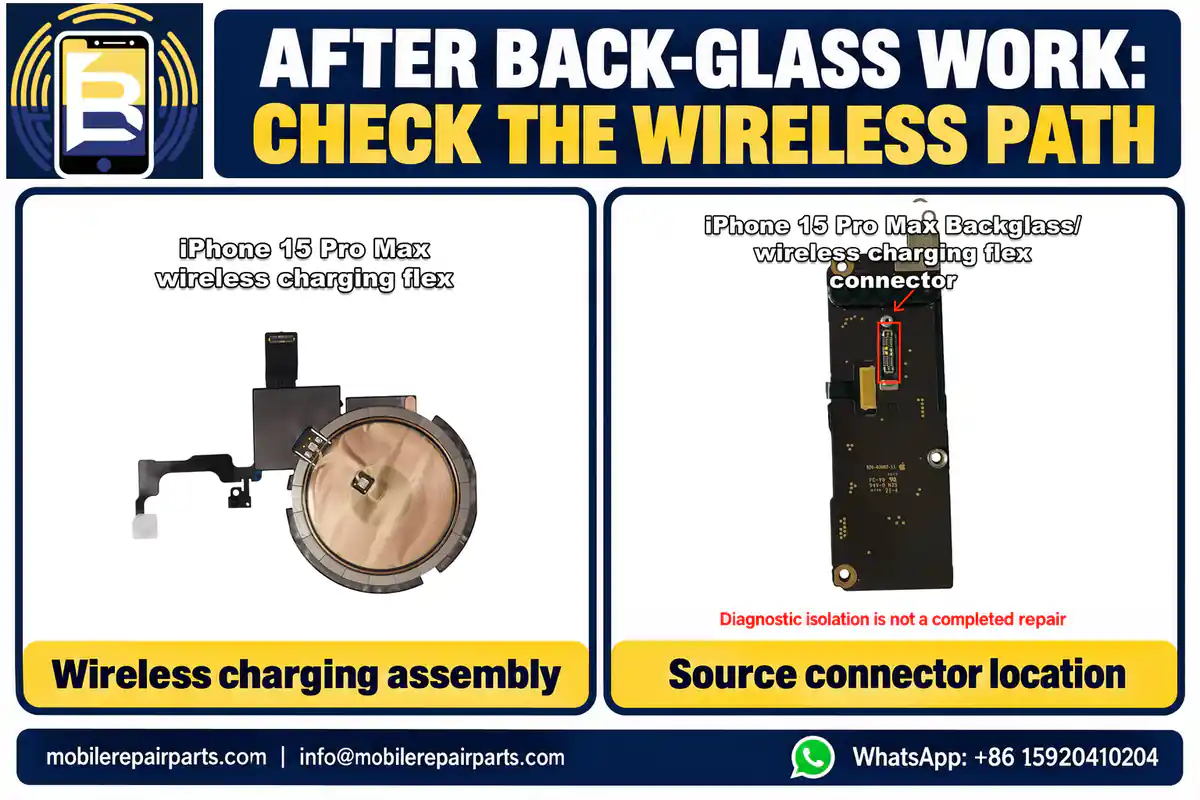
In the documented back-glass/Error 9 case, isolating the wireless-charging assembly changed the restore outcome. That history is useful when the fault begins immediately after glass work. It does not mean that every Error 9 is caused by a wireless flex, or that a visual mark alone proves an assembly is counterfeit.
Check Repair History Before Repeating a Restore
- Record the exact restore error and whether it appeared before or after the glass replacement.
- Protect accessible data and obtain explicit approval before any action that may erase the device.
- Exclude the relevant cable, computer and connection issues rather than repeatedly restoring without a diagnostic reason.
Isolate the Reported Wireless-Charging Assembly Fault
Use the model procedure to inspect the wireless assembly, its flex routing and its connector with power removed. The supplied photographs identify the assembly and connection used in the source. A controlled isolation test belongs to diagnosis; it is not an instruction to operate the customer’s phone permanently without that assembly.
Complete a Functional Repair, Not Just a Successful Restore
Fit the correctly matched, tested assembly when the evidence supports replacement. Then verify startup stability, wireless charging and relevant NFC/MagSafe functions. A successful restore alone does not prove that the phone is ready for delivery.
| Case clue | Diagnostic boundary | Final validation |
|---|---|---|
| Error 9 followed back-glass work | Not a universal Error 9 explanation | Retain repair history and exact error |
| Assembly isolation changed the outcome | Disconnected flex is not the completed repair | Retest with the correct assembly fitted |
| Wireless assembly implicated | No electrical readings published | Charging, relevant wireless functions and restart stability |
Case 7: Camera Focus Problems After a Drop
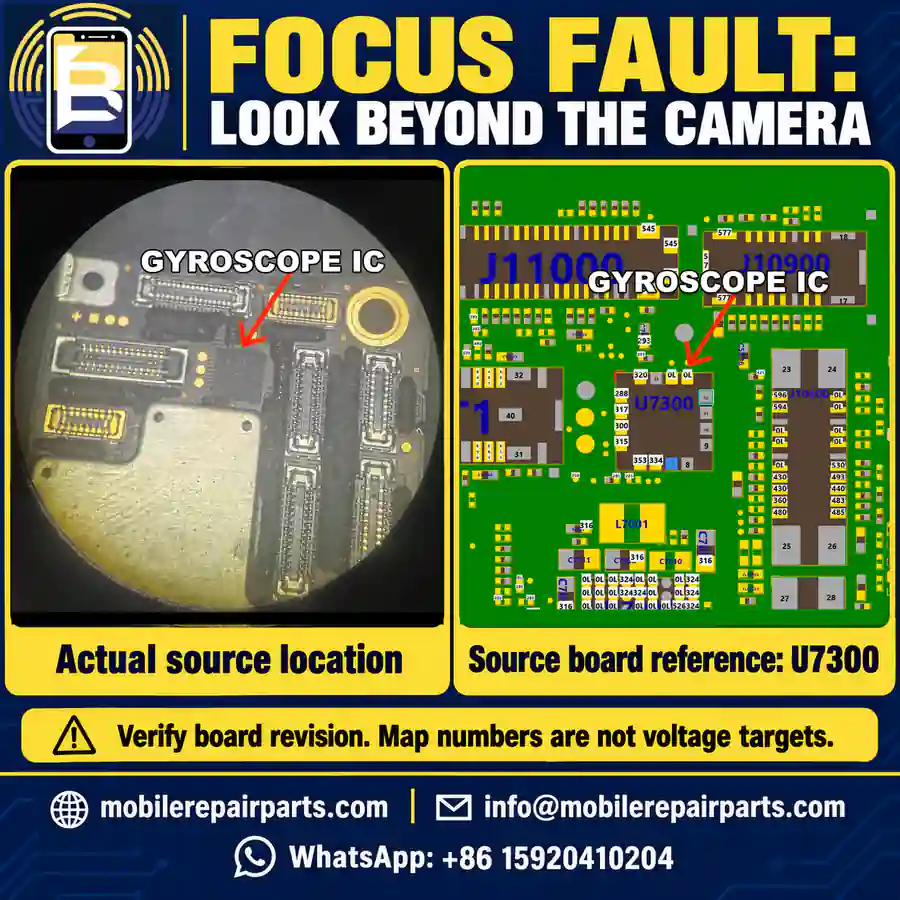
The RepairWiki focus case describes a Pro/Pro Max-family device with focus trouble after a drop, a reference camera that did not resolve it, and recovery after gyroscope-related board repair. The accompanying board reference labels the component U7300. Confirm the exact layout before using that designation on another board.
Rule Out Accessories and the Camera Assembly
- Clean the lens, remove potentially interfering accessories and compare focus in the relevant camera modes before opening the phone.
- Document any related compass or orientation behavior reported in the case, without assuming those symptoms prove a gyroscope fault.
- With power removed for connection work, inspect the camera flex/socket and compare a verified compatible reference assembly.
Evaluate the Reported Gyroscope-Related Fault
If the camera substitution does not change the fault, escalate for board investigation rather than ordering another camera immediately. The source supplies a component-location photo and board reference but no verified supply voltage or rework settings. The small numbers printed on the board reference are not established voltage targets; their measurement mode and conditions are not documented here.
Retest Focus, Stabilization and Related Functions
After a supported repair, compare near and distant focus, the affected camera modes and video behavior, then revisit the related orientation complaint. Preserve a before/after test record. A source-reported donor substitution is not proof of interchangeability: match the component specification and board revision before selecting a donor.
| Case evidence | What it does not prove | Next decision |
|---|---|---|
| Focus fault persisted with reference camera | Every such fault is gyroscope damage | Investigate board conditions before another camera order |
| U7300 shown on source board reference | All regional/revision layouts are identical | Match physical board and reference |
| Repair reported successful | A universal voltage or heating recipe | Retest focus and related reported symptoms |
Audio and Microphone Checks After Repair
Test Recording, Calls and Video Audio
Do not close a charging-port or glass job after checking charging alone. Compare voice recording, a call and video audio, noting the failed mode and conditions. A single successful recording cannot clear every audio path. Our iPhone microphone-location and diagnostic guide helps organize this follow-up without assuming that every generation uses the same assembly arrangement.
Match the Failed Function to the Correct Assembly
Use the exact-model procedure to distinguish an obstructed opening, damaged flex, connector fault and board problem. Check the functions affected by the work just performed. For a wholesaler, a return description such as ‘microphone does not work’ needs the device model, failed test mode and reference-part result before a replacement assembly is chosen.
Repair Tools and Replacement Parts: What You Actually Need
Tools for Module-Level Diagnosis
Begin with model-appropriate opening tools, ESD precautions, safe battery handling, magnification, verified charging accessories and reference assemblies. Organize the bench around the tests offered, not the number of tools owned. Our repair-tools guide separates everyday replacement work from advanced board repair.
Equipment for Board-Level Repair
Board diagnosis adds a suitable multimeter, microscope, current-limited supply with the correct interface, and thermal inspection where useful. The site lists the Relife DT-02 multimeter and Sunshine SZM6745-B1 stereo microscope; check their specifications against the intended task. Purchasing equipment does not substitute for training, calibration, a board reference or a safe procedure.
Verify Replacement Parts Before Ordering
Compare the diagnosed requirement with the product specification before ordering an iPhone 15 Pro Max replacement display, model-specific battery, charging assembly or wireless-charging coil. A catalog label does not establish genuine Apple provenance, pairing status or suitability for a specific board fault. Verify those requirements separately.
Wholesale Parts Checks for Colombia, Ecuador and Global Buyers
Verify the Device Variant, Not Just the Destination Country
Ask the buyer for the exact device model, regional configuration and part specification. Keep the destination as an order/shipping field, not a substitute for technical compatibility. Use the parts-compatibility matrix when organizing mixed-model orders.
Separate Defective Parts from Board-Level Faults
A screen that works on the shop’s reference phone but stays black on the customer’s device needs investigation, not immediate batch rejection. Conversely, a part that fails on a validated reference must not be cleared simply because another device also has board damage. Record both comparisons and keep uncertain units on hold.
Record Batch Tests and Handle Returns with Evidence
For an order going to Colombia, Ecuador or another market, retain the company product SKU, quantity, compatibility description, batch reference and agreed return procedure. BETA’s SKU convention is the company prefix plus its assigned product number, such as BETA-151629; this is a format example, not an assignment to any product in this article. Model, region, grade and test status belong in separate fields.
| Return record | Useful evidence | Decision supported |
|---|---|---|
| Exact model and assembly | Device identification and connector photos | Compatibility versus incorrect fulfillment |
| Symptom and repair history | Before/after observations; relevant log | Part fault versus disturbed circuit |
| Reference-part comparison | Working reference and test conditions | Whether the removed/supplied part failed |
| Batch and product SKU | Invoice, label and tested quantity | Traceable review without rejecting untested stock |
Final Post-Repair Quality-Control Checklist
- Repeat the original failing test with the final assemblies fitted and record the result.
- Check startup, battery operation and charging with the appropriate verified accessories.
- Test display/touch, cameras, audio, relevant sensors and wireless functions affected by the repair.
- Observe stability beyond the previously recorded restart interval; save any new relevant logs.
- Inspect connectors, flex routing, fasteners and assembly condition using the model procedure before final closure.
- Document actual readings, equipment setup, observation duration, remaining limitations and customer consent for any data-affecting action.
A useful repair report explains why the original symptom changed and what was retested. That evidence helps the technician finish the job and gives the wholesale supplier a defensible basis for handling a parts claim.
Frequently Asked Questions
Does an iPhone 15 Pro Max black screen always require a new display?
No. Check whether the device is alive, inspect its connections safely and compare a verified compatible display. A documented workshop case remained black with a reference screen and required a localized display-power repair.
What do 4.20 V and 0.130 A mean in the bench-supply photo?
They are the voltage and current shown in that source photograph. They do not disclose the current-limit setting or establish a universal setup, standby-current specification or component diagnosis. Use the correct procedure and record the complete test conditions.
Does 5 V at the U9500 input prove the USB-C controller works?
No. It establishes supply at the identified input point under the test conditions. It does not prove controller operation or rule out downstream faults. Confirm the exact board reference before powered testing.
Can a wireless-charging flex cause Error 9 after back-glass work?
It was implicated in the cited repair case. That is not a universal explanation for Error 9. Use the repair history and controlled diagnosis, obtain consent before erasing actions, and complete testing with the correct assembly fitted.
Should a camera be replaced again if a verified reference camera does not fix focus?
Not automatically. Exclude accessory and connection issues, then investigate the board if the evidence supports escalation. The cited Pro/Pro Max-family case reported a gyroscope-related repair; it does not prove that every focus fault has that cause.
What should wholesale buyers in Colombia and Ecuador request with a replacement-parts order?
Request exact-model compatibility, the assigned product SKU, the relevant quality/specification information, batch identification and agreed test/return conditions. Country of destination alone does not identify the phone’s regional variant.
Sources and Technical References
This guide distinguishes Apple’s model-specific troubleshooting from independent repair reports. The seven cases are examples, not a ranking of the most common failures. Photos supplied or licensed for this article retain their role as source evidence; shared Pro/Pro Max images are identified as such. Missing measurement conditions, numerical targets and rework profiles have not been invented.
Official references: Apple iPhone 15 Pro Max repair manual and the linked charging, display, camera and audio procedures. Independent cases: FixItLads display repair; Fixaviour charging-board repair; and the RepairWiki case links provided in their respective sections. The associated ROM designator remains inconsistent within its source and must be resolved against the actual board before rework.