


A replacement screen works on the bench, yet the original panel stays black. A phone returns after a charging repair because it still restarts. These are the situations where another parts order can cost more without fixing anything. This iPhone 16 Pro Max repair guide combines reported workshop cases with repeatable checks for technicians and wholesale buyers in Honduras, Latin America and worldwide. Start with diagnosis, then use our iPhone spare parts guide for wholesale buyers to turn the result into an accurate purchase specification.
📘 Summary
Do not diagnose an iPhone 16 Pro Max by the last part replaced. Separate accessory faults, missing sensor communication, display power faults and battery-sense problems before ordering another assembly.
🔍 Key Highlights
- Read the latest panic log for recurring restarts; a sensor code is a diagnostic lead, not proof that a particular part is defective.
- One community board-repair report identifies a missing −10 V display rail; an aftermarket panel showing an image does not clear every original-display power circuit.
- Test touch with and without the customer’s protector before rejecting a screen. Label the supplied panel construction and feature limitations.
- Persistent bootlooping after a known-good battery can require battery-sense-line diagnosis, not repeated battery purchases or data-erasing restores.
- Specify exact-model parts, assembly contents, adhesives, test evidence and repair-completion requirements before cross-border dispatch.
Table of Contents
Start Here: Match the Symptom to the Next Check
The useful repair trick is not a shortcut around diagnosis. It is a check that rules out an unnecessary purchase. Record what fails, when it started and whether the problem existed before opening the phone. The symptoms below are diagnostic scenarios, not a ranking of the most frequent iPhone 16 Pro Max defects.
| Symptom | First useful check | Costly assumption to avoid | Before ordering |
|---|---|---|---|
| Recurring restart after repair | Save the latest panic log and repair history | Replace the last-fitted part without isolation | Record the complete log and controlled substitution result |
| Original display black; substitute gives image | Verify both panels and inspect the display power path | An image on one panel clears the whole board | Request board-level diagnosis before returning another screen |
| Bootloop despite a known-good battery | Separate power/sense-path diagnosis from software recovery | A second new battery must solve it | Preserve data and record connector/line tests |
| Touch misses or stops responding | Remove obstructing accessories; reproduce the fault | Every touch issue means a bad screen | Record software version, damage and touch-test result |
| Wired charging fails | Try a known-good cable and adapter; inspect the port | USB-C means every charging part is equivalent | Identify the exact connector or assembly supplied |
| Camera image is blurred or unstable | Inspect exterior glass and compare camera modes | Broken cover glass always means a failed module | Separate optical damage from module and repair-status issues |
| Audio is muffled or missing | Compare recordings, videos and a call | A microphone fault always requires a charging flex | Identify the affected audio path and assembly |
| A new part works but a repair message remains | Check supported repair-completion steps | A programmer makes a part genuine or universally compatible | Agree calibration and used-part limitations |
| Battery is damaged or difficult to remove | Stop and follow the model-specific safety procedure | Another iPhone’s removal method is safe here | Confirm exact battery, adhesive and handling requirements |
Before any internal work, back up customer data where possible, obtain permission for diagnostic tests and follow the iPhone 16 Pro Max repair manual. Opening and battery work require appropriate training and equipment. This guide is a diagnostic and purchasing aid, not a substitute for the complete service procedure.
iPhone 16 Pro Max Restarting After Repair: Read the Panic Log First
A timed restart and a phone stuck continuously on the logo need different investigations. For a device that boots long enough to use Settings, preserve the latest crash record before reopening it. Record whether the problem followed a drop, liquid exposure, back-glass work or an earlier replacement.
Capture the Log Before Swapping Parts
In Settings, open Privacy & Security, then Analytics & Improvements and Analytics Data. Look for a recent panic-full file. The Repair Wiki Pro-series restart guide associates Sensor Array value 3145728 (0x300000) with the lower charging/sensor path and specifically flags the Pro Max bottom-microphone/air-pressure module. It also lists 2097152 (0x200000) and battery-data code 169. These community mappings are clues, not an official fault-code specification.
Check Connections and Use a Proven Test Assembly
The same guide recommends checking torn flexes, damaged or corroded connectors and the lower sensor module, then testing with a known-good matching assembly. Keep required sensor connections present: unplugging a monitored flex can itself cause restarting. A new replacement is not automatically a known-good diagnostic reference.
A separate iPhone 16 Pro Max owner report describes freezing and 0x300000 after a previous screen replacement, but does not document a completed repair. It supports investigating the symptom—not claiming that the suggested microphone replacement succeeded.
- Save the complete log locally with customer permission; remove personal identifiers before sharing it.
- Power down and disconnect the battery before changing internal connections, following the model manual.
- Change one suspected assembly at a time, restore required connections, then repeat the original operating conditions.
- Record observation time, restart count and whether a fresh log matches the previous fault. Do not declare success from one boot.
For a wholesale claim, send the log, exact replacement identity and before/after test record together. This lets the supplier review a specific assembly instead of treating every restart as a defective screen, battery or complete charging kit.
Screen and Touch Problems: Test Before Condemning the Display
An unresponsive area does not, by itself, prove that a replacement screen is defective. Begin with external checks and a repeatable touch test. If the symptom appeared immediately after fitting, inspect the installation history before ordering another panel.
Separate Software and Accessory Issues from Hardware Damage
Remove a case or protector that may interfere, check for contamination and document whether the issue occurs across apps. Use Apple’s display troubleshooting guidance and the model manual for further inspection. Do not repeatedly reconnect internal parts while powered or force a connector into position.
Historical reports need a date. Apple’s iOS 18 update notes describe an iOS 18.0.1 fix for temporary touch unresponsiveness in certain conditions on iPhone 16 and iPhone 16 Pro models. That is not evidence that every touch complaint in 2026 is the same unresolved software fault—or a reason to ignore physical damage.
A Real Accessory Check: Touch Improved After Protector Removal
In this first-hand aftermarket-display discussion, the writer’s Pro Max update reports that removing a tempered-glass protector restored usable touch. That is an individual result, not proof that every protector or replacement panel has the same problem.
- Record missed strokes or repeated letters with the customer’s protector and case installed.
- Remove those accessories and repeat the same typing and edge-touch task without changing software or panel.
- If the fault disappears, test the intended replacement protector before sealing the repair or returning the panel.
- If it persists, continue installation, software and hardware diagnosis; do not invent a universal protector-thickness limit.
Make Screen Acceptance Tests Part of the Wholesale Agreement
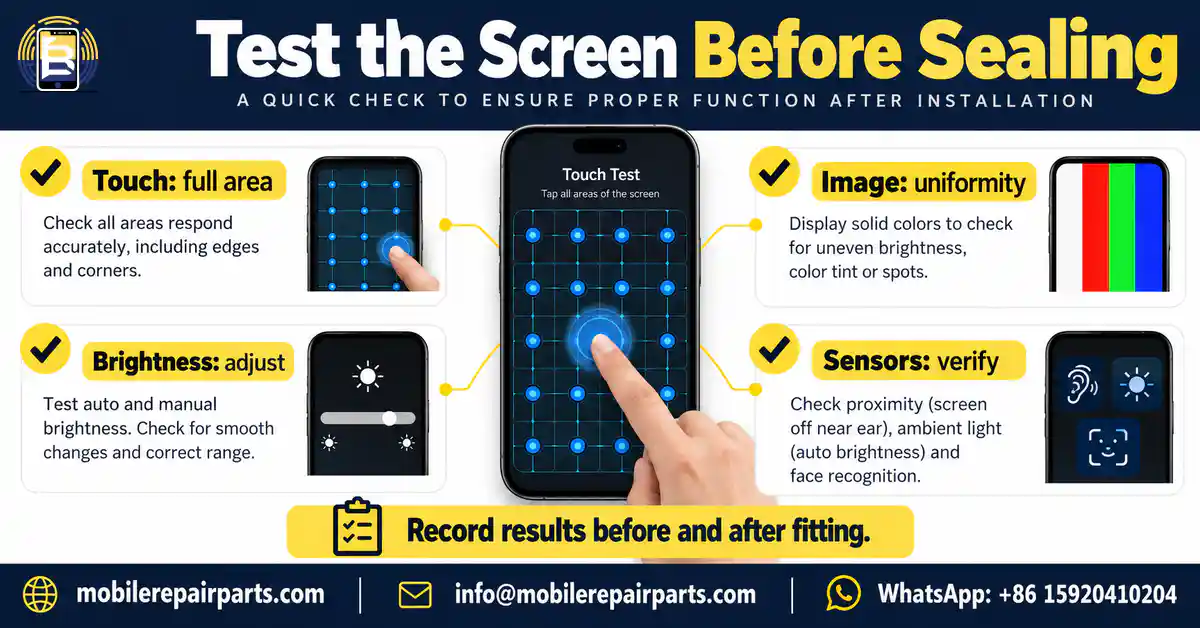
- Test the full touch area, including edges, with a repeatable grid or drawing task.
- Check image uniformity, visible lines, brightness adjustment and flicker under consistent conditions.
- Verify relevant front-camera, sensor and call behavior after reassembly.
- Record the supplied panel construction and any stated feature limitations separately from test results.
- Photograph the part and connector condition before fitting; retain packaging and batch details.
- State OLED/LCD construction and any refresh-rate limitation in the quotation; the word OLED alone does not prove original-equivalent refresh performance.
Review the iPhone 16 Pro Max replacement screen listing against the actual quotation. Ask which functions and repair-completion steps are supported by the offered version. A device’s original display specifications do not automatically describe every aftermarket panel sold for it.
Original Screen Black but Aftermarket Screen Works: Check the Display Rail
Case study 1 — original OLED black, substitute panel working. A published Pro/Pro Max repair report describes a phone that remained powered while its original display showed no image. An aftermarket panel displayed an image. The author found a missing negative display supply and reports recovery after U9400 display-PMIC repair. This is one reported repair, not proof that every original-panel blackout has the same cause. The workflow below adds measurement controls and decision points; it is not a record of tests performed by BETA.
- Establish the comparison. Record exact model, board revision, panel identity and signs that the phone is running. Verify the reference panel independently. Turn the device off and disconnect its battery before each display connection change; do not assume that a newly purchased panel is known-good.
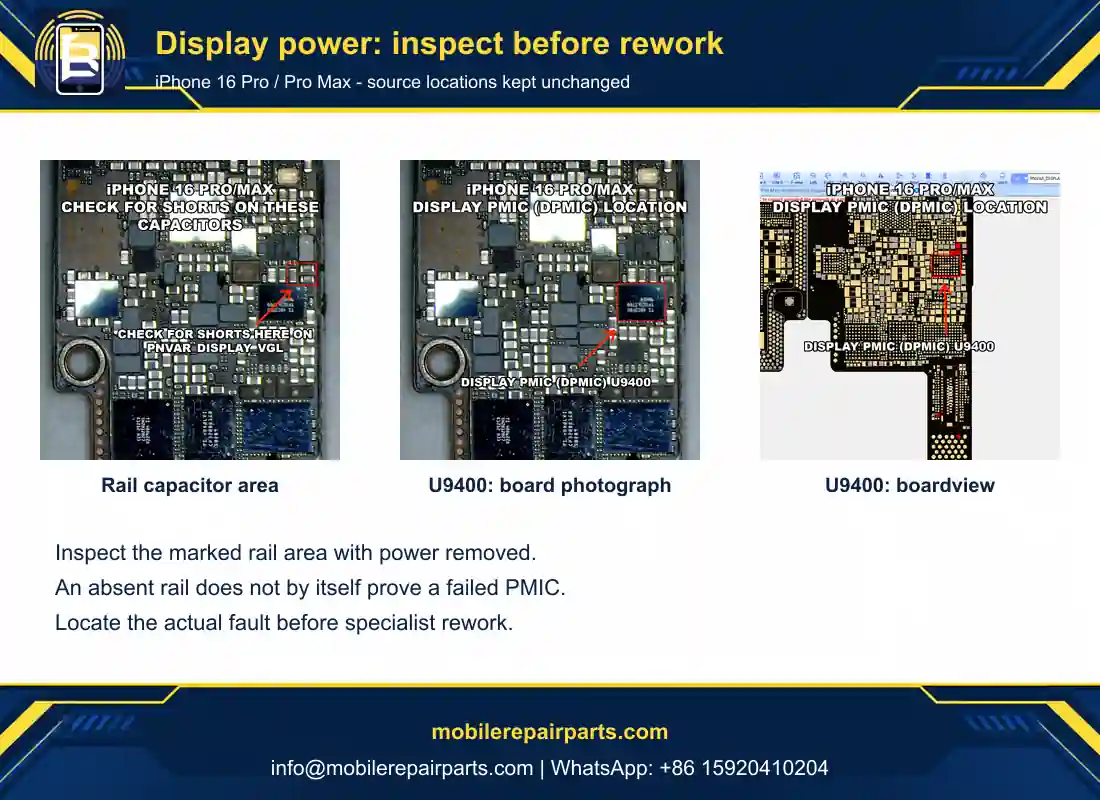
- Inspect before measuring. Under magnification, inspect the display connector, contacts and nearby components for displaced parts, damage or contamination. Photograph findings. Correct an identified connector problem before treating the PMIC as the cause.
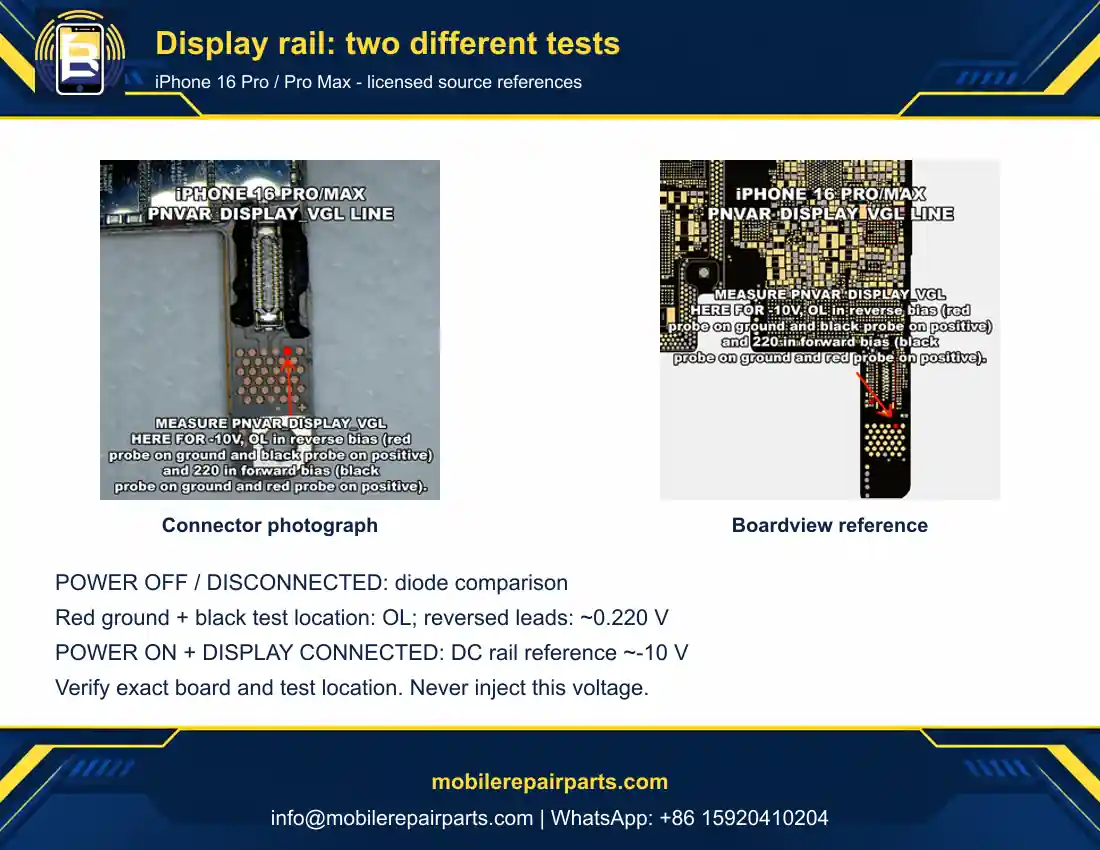
- Identify the rail safely. Use the supplied connector photograph and boardview as location references for PNVAR_DISPLAY_VGL, then verify the exact board revision and contact against a trusted board reference. The annotated source marker identifies a location, not permission to probe an unverified pad.
- Make the unpowered diode comparison. Disconnect battery and external power. The supplied source annotation specifies red on board ground and black on the marked positive test location for OL; reversing the leads—black on ground, red on that location—gives the stated approximately 0.220 V. Use diode mode, record both orientations, and compare with a known-good matching board. “Forward” and “reverse” labels are less useful than the actual lead positions.
- Measure the operating supply separately. DC voltage is a different test from diode mode. For a qualified live-board measurement, secure the probes, place black on verified ground and red on the verified rail, connect the display and power on the phone. The published operating reference is about −10 V; the reported faulty condition is 0 V or unstable negative voltage. Do not treat −10 V as a diode reading or an injection setting.
- Localize before rework. If the rail is absent, establish whether the problem is a short, interrupted path or supply-generation/control fault using the matching circuit reference. Do not inject −10 V or bridge the rail. No short detected is not proof, by itself, that U9400 is defective.
- Repair only an isolated fault. The reported repair involved U9400. Board removal, pad inspection and PMIC rework belong with an equipped microsoldering specialist. The report supplies no validated universal hot-air temperature, dwell time or injection limit; do not substitute guessed settings.
- Verify beyond one boot. Repeat the rail measurement with the same setup and retest the original panel for image, brightness and full-area touch. Record what changed and any remaining fault before resealing or deciding that the screen belongs in a wholesale return.
Reported outcome: the source describes restored image on the original panel after PMIC work and a restored negative supply. For your job, keep the before/after readings, meter setup, panel identities and connector photos together. An image on one aftermarket panel is a comparison result—not a clearance certificate for every display circuit or a reason to reject an entire screen batch.
| Check | Published finding or required evidence | Repair decision |
|---|---|---|
| Original versus substitute | Original black; aftermarket image in the reported case | Investigate the board as well as the panel |
| Operating display rail | PNVAR_DISPLAY_VGL: about −10 V; display connected, phone on | Missing or unstable supply needs localization |
| Unpowered diode comparison | Red ground / black test location: OL; black ground / red test location: about 0.220 V | Compare the same setup on a matching board; voltage test is separate |
| PMIC and release test | U9400 repair reported; verify rail and original-panel function | Do not replace a PMIC solely from the symptom |
Charging Problems: Is It the Cable, USB-C Path or Something Else?
Test with known-good external accessories before replacing the battery or charging assembly. Then compare wired and wireless charging separately. If wireless charging works while wired charging fails, investigate the wired path—but do not treat that observation as conclusive proof that one specific component is bad.
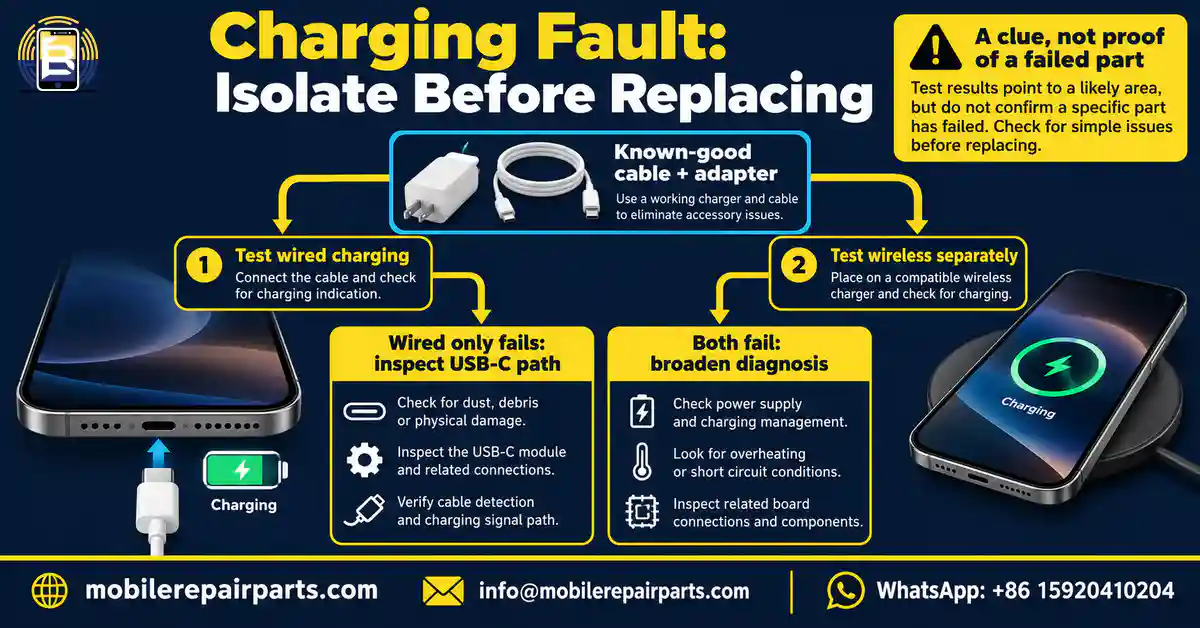
Use Charging Comparisons as Clues, Not Verdicts
Record the cable, adapter, connection behavior and any charging alert. Inspect the port for visible obstruction or damage without inserting metal tools. During a separate wireless test, disconnect the wired cable. Follow Apple’s battery, charging and power diagnostic guidance rather than inferring a failed wireless coil from one unsuccessful charging attempt.
Port Replacement Needs More Than a Port in the Carton
The independent iFixit Pro Max charge-port procedure advises trying port cleaning before replacement and identifies both rear-panel adhesive and a microphone gasket as repair consumables. Its microphone-removal step lists one 3.4 mm standoff, one 3 mm standoff and one 1.4 mm Y000 screw; keep each in its mapped position. These details belong to that full procedure, not a three-screw shortcut to the port.
For an unplugged, powered-off phone, inspect the port under suitable magnification before deciding that cleaning is appropriate. Do not probe live contacts with metal or turn an uncertain obstruction into connector damage. If replacement is warranted, prepare the complete exact-model procedure, mapped fasteners, required seals and safe battery handling before opening.
For the distributor, the actionable repair kit is the diagnosed assembly plus the required consumables—not an assumed bundle. Ask what is included, what must be ordered separately and which charging, data and audio checks the receiving technician will repeat.
Avoid the New-Port, Same-Fault Installation Trap
A replacement connector can be the right model yet be poorly seated or aligned. Apple’s iPhone 16 Pro Max USB-C procedure specifically calls for checking grounding clips and using a USB-C cable for alignment with the cable disconnected from power. Consult the full procedure for prerequisites, fasteners and reassembly; this is not a port-only shortcut.
Before ordering the iPhone 16 Pro Max charging-port part, confirm exactly what is included. Catalog terms such as port, flex and charging board may describe different items. Request clear photos and a written assembly description rather than assuming that everything around the charging area comes in one replacement.
Camera Problems: Separate Cover Glass, Module and Calibration
Start outside the phone. Inspect the camera cover area, remove an accessory that may obstruct the lenses and compare photographs and video in the modes that reproduce the complaint. Surface damage, contamination, an internal camera fault and incomplete repair setup are different purchasing decisions.

Do Not Turn a Glass Problem into an Unnecessary Module Order
Document whether the symptom follows one camera mode, persists after safe exterior cleaning or appeared after an impact or previous repair. A cracked external cover is not proof that the camera module has failed. Conversely, replacing cover glass will not repair a confirmed internal module fault. Avoid promising the cheaper repair until inspection supports it.
Keep the LiDAR and Camera Assembly Boundary Clear
For iPhone 16 Pro Max, Apple’s camera procedure states that the LiDAR Scanner forms part of the camera module and that the two should not be separated. It also recommends Repair Assistant after replacement. Do not transplant a disassembly method from another model or treat an aftermarket catalog label as an instruction to split this assembly.
Microphone Problems: Diagnose the Audio Path Before Buying a Charging Part
Poor audio is not an automatic reason to buy a USB-C assembly. Compare Voice Memos, front-camera video, rear-camera video and a call, noting the conditions of each test. These comparisons help isolate the complaint; they are not a guaranteed one-test-to-one-microphone map.
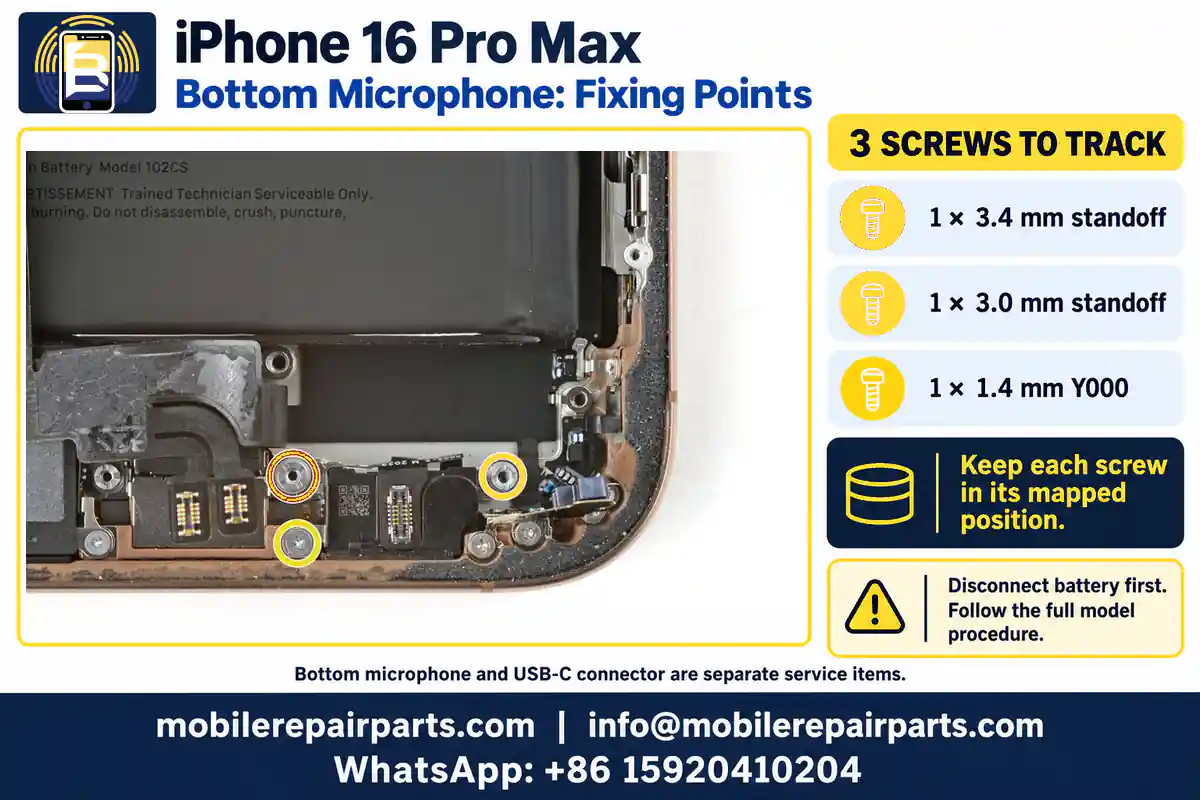
Why the Main Microphone Needs Its Own Assembly Check
Apple provides a separate main-microphone service procedure for iPhone 16 Pro Max. Do not generalize the microphone-and-charging-flex arrangement from another iPhone to this device. Our guide to iPhone microphone locations and audio tests by model explains why an external opening, a microphone and a replaceable assembly are different things.
First check obstruction, accessory interference and app permissions where relevant. Record which tests fail and whether the result changes between apps or recording modes. If physical service is indicated, identify the assembly from the exact model manual—not by counting grille holes.
When discussing the iPhone 16 Pro Max microphone product, confirm whether the quoted item is the required complete service assembly or a component requiring a different repair process. A matching catalog name alone does not establish that it is the drop-in assembly needed for the diagnosed repair.
Bootlooping After a Battery Swap: Investigate the Battery-Sense Path
Case study 2 — bootloop persists after a battery change. A Pro/Pro Max board-repair report describes repeated logo booting, charging failure and occasional unstable startup. A known-good battery and firmware attempts had not solved it. The author reported OL on Analog_BATT_VCELL_POS_CONN at the battery connector, traced the investigation to U4200 and reports restored startup after IC replacement. The supplied connector photograph adds an expected reading of .507 at the marked location, with power disconnected; the faulty reading was OL. It does not state the meter mode, unit or probe orientation. OL alone must not be rewritten as proof of a broken copper trace.
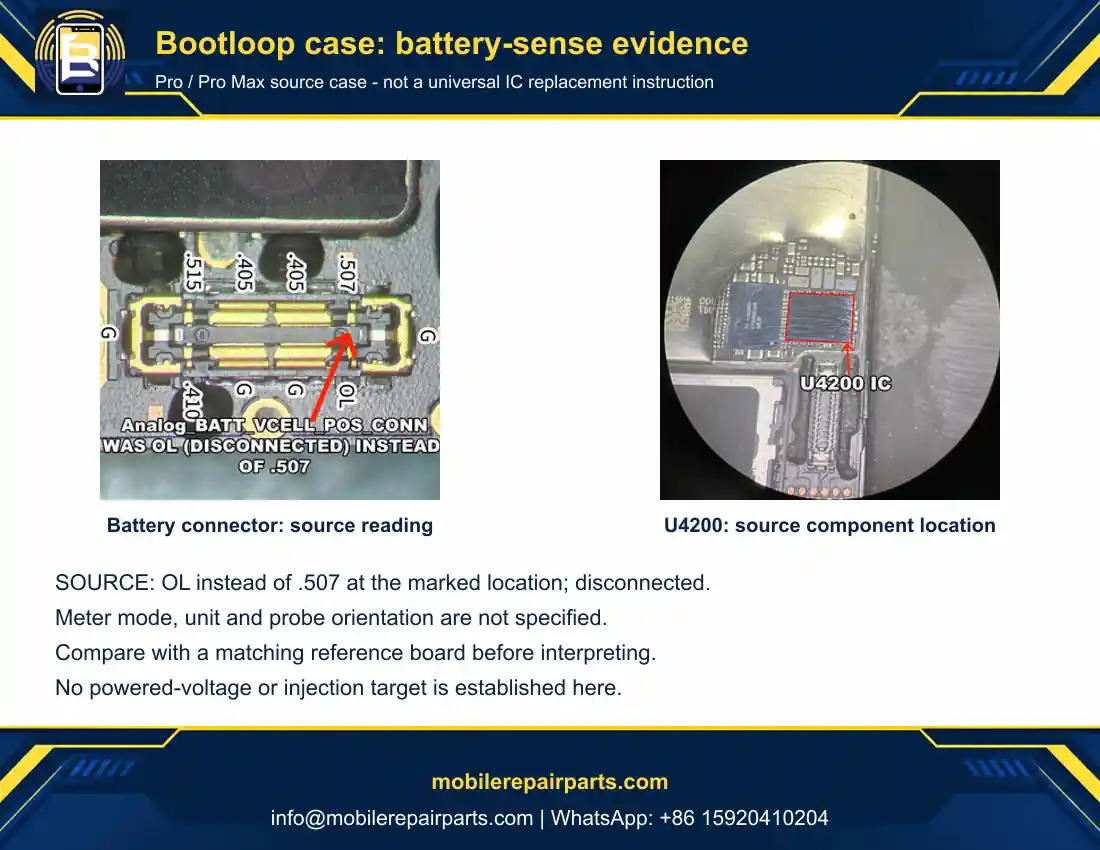
Separate the Reported Repair from the Test You Still Need
- Separate the symptom. Record whether the phone continuously loops at the logo or reaches the system and later restarts. Keep available logs and repair history. A timed sensor restart is not automatically this battery-sense case.
- Preserve data. Obtain explicit permission before recovery actions that can erase the phone. The source’s firmware attempt is history, not a mandatory diagnostic step. Do not repeat restores simply because a battery swap failed.
- Validate the test battery. Confirm exact-model compatibility and independent evidence that it works. Inspect the battery connector and its board socket using the model procedure, with power removed. Record whether the symptom changes with the verified reference.
- Identify the actual line. Use a trusted schematic/board reference for the exact revision to locate Analog_BATT_VCELL_POS_CONN and its connector contact. A text net name is not enough to select a physical probe point.
- Reproduce the unpowered comparison. Disconnect battery and external power. The supplied source photo marks OL instead of .507 at the indicated battery-sense location and explicitly says disconnected. It does not identify the meter mode, unit or lead orientation. Establish those details against a known-good matching board; record your setup and readings. Do not relabel .507 as 0.507 V without verification or use it as a powered-voltage target.
- Separate trace, socket and component faults. Establish relevant continuity and circuit conditions independently. An OL diode reading can have more than one explanation. Do not copy the source’s inference that an open reading by itself rules out internal board damage.
- Escalate only after localization. The author replaced U4200. If your evidence isolates that area, an equipped specialist must verify identification, protect nearby components, inspect pads and carry out appropriate rework. The source gives no validated temperature, time, injection voltage or current limit.
- Retest with matching conditions. Repeat the connector-line comparison after repair, then check repeated startup, wired charging and stability. Log the actual readings and observation duration. Do not label continuity “normal” without a defined reference or declare a repair from one successful boot.
| Stage | Source record / missing detail | Practical decision |
|---|---|---|
| Battery and firmware | Did not fix the reported device | Do not keep buying batteries without isolation |
| Battery-sense path | Analog_BATT_VCELL_POS_CONN; OL reported at connector | Reproduce with stated mode and reference board |
| Source photograph reference | .507 expected instead of OL; disconnected; mode, unit and lead orientation unspecified | Verify setup and same-board reference; not a live-voltage or injection target |
| Board repair | U4200 replacement reported to restore booting | Only after independent circuit localization |
| Release and wholesale evidence | Author reports startup recovery; perform your own charging/stability tests | Retain before/after evidence before accepting or disputing a part |
Battery Replacement: Avoid Damage While Trying to Solve a Power Problem
Battery work should follow the procedure for this exact model. Do not borrow an adhesive-release method from another iPhone just because both belong to the 16 family. A battery damaged during removal is not an acceptable shortcut to finishing a charging repair.
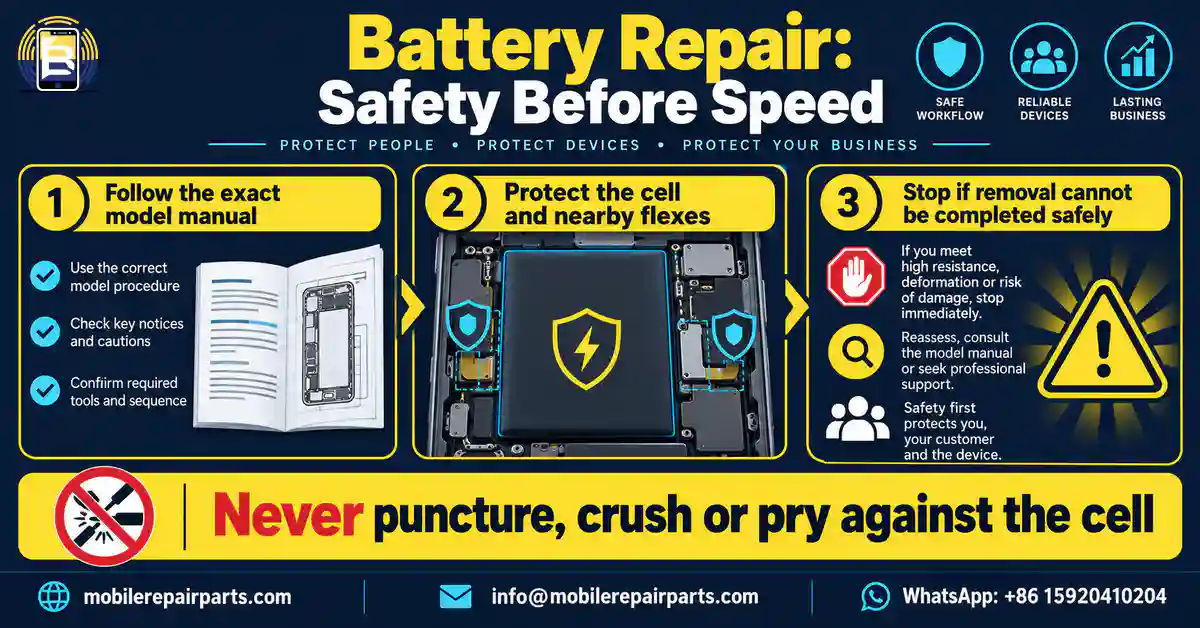
Know When to Stop Instead of Applying More Force
Use Apple’s iPhone 16 Pro Max battery procedure and its linked safety instructions. Do not puncture, crush or pry against the cell. If removal cannot be completed using the prescribed method, stop and escalate to an appropriately equipped service professional. This article does not prescribe universal heat, solvent or voltage settings.
For the iPhone 16 Pro Max replacement battery, verify exact-model fit, condition, stated capacity, supplied adhesive and supported battery-data behavior with the supplier. Do not infer original-part status from a printed capacity or an image. Agree packaging and carrier requirements for the actual shipment; avoid treating ordinary parts-carton arrangements as automatically suitable for batteries.
Check charging, temperature behavior and the relevant device-reported repair status after installation. Abnormal heating, swelling or other signs of battery damage require stopping use and following the safety guidance, not repeated charging attempts to “prove” the battery works.
Repair Assistant: Physical Fit Is Not the Same as Repair Completion
A part can fit and produce an image or charge the phone while a supported repair-completion step remains unfinished. Separate four questions: Is the item the correct model? Is it installed correctly? Does its function pass? Can the applicable repair be completed under the manufacturer’s supported process?
Check Requirements Before Promising a Finished Repair
Apple’s Repair Assistant guidance requires a supported repair, current software, Wi-Fi and more than 20 percent battery. For eligible used parts, the donor device must be the same model; a locked part may prevent completion. Consult the current instructions and the device’s Parts & Service History rather than promising that any salvaged or aftermarket part can be calibrated.
A programmer does not make an aftermarket part genuine, remove every compatibility restriction or guarantee Face ID. Before buying used inventory, clarify provenance and repair-completion eligibility. If an account-linked restriction appears, use the legitimate support or ownership-resolution route; do not advertise a bypass as part of the repair.
Wholesale Ordering and Final Testing for Honduras and Global Buyers
Distance makes an unclear specification more expensive to resolve. A wholesaler supplying repair shops in Honduras can use the same practical control as a distributor serving other Latin American or global markets: approve the exact item and acceptance evidence before dispatch. Country of sale alone does not identify the device variant or prove part interchangeability.

Write a Purchase Line That a Warehouse Can Fulfil
Keep this repair workflow distinct from broad sourcing strategy. Our existing iPhone 16 Pro Max spare-parts sourcing guide provides the wider category overview. For the actual order, use a short, testable specification rather than copying marketing descriptions.
| Order field | What to record | Why it helps |
|---|---|---|
| Product identifier | Actual BETA SKU from the verified product | Connects the quotation to the warehouse item |
| Compatibility | Exact device and relevant variant | Prevents similar-model substitutions |
| Assembly contents | Component versus complete assembly; included items | Avoids incomplete repair orders |
| Condition and construction | Documented condition, panel type or stated part specification | Sets realistic acceptance criteria |
| Repair completion | Applicable supported setup and any disclosed limitation | Prevents unqualified calibration promises |
| Quality evidence | Agreed tests, results and batch reference | Supports inspection and after-sales review |
| Packing and returns | Protection, claim evidence and agreed terms | Makes cross-border follow-up actionable |
BETA SKUs use the company prefix and a product-specific number. Keep model, region, quality and batch information in separate fields; do not redesign the SKU to encode them. Request current quotation terms directly—this guide does not promise a particular price, margin, stock position or delivery time.
Retest Nearby Functions, Not Just the Replaced Part
| Repair area | Core retest | Related checks to document |
|---|---|---|
| Display | Image and full-area touch | Relevant sensors, front camera, call behavior and repair status |
| USB-C path | Wired charging and data connection | Separate wireless test and audio checks after reassembly |
| Rear camera | Focus and image/video in affected modes | Relevant flash, camera setup and repair status |
| Main microphone | Repeat the original failed audio test | Other recording modes, call audio and nearby functions |
| Battery | Charging and stable power behavior | Temperature behavior and applicable repair status |
Record the device model, symptom, test conditions, result and any remaining limitation. With customer permission, use short recordings that show the fault without exposing personal content. Keep failed units identifiable and separate from saleable stock while the claim is assessed.
For bench preparation, see our repair-shop tools guide. Choose equipment for the procedure and the technician’s training. Buying a soldering station does not turn a component-level repair into an appropriate first response to every audio or charging complaint.
Repair Evidence to Keep Before a Wholesale Return
| Complaint | Useful evidence | Decision it supports |
|---|---|---|
| Recurring restart | Complete recent panic log; repair history; controlled substitution result | Sensor-path, assembly or board escalation |
| No image with one panel | Verified reference-panel identity; rail and connector test conditions | Panel claim versus board diagnosis |
| Intermittent touch | Same task before and after protector/case removal | Accessory issue versus continued display diagnosis |
| Persistent bootloop | Known-good battery evidence; connector condition; documented line test | Battery replacement versus board investigation |
| Charging failure | Cable/adapter reference; port inspection; wired/data and separate wireless results | Cleaning, exact assembly replacement or deeper diagnosis |
A wholesaler in Honduras, Colombia, Chile, Ecuador or another market can use the same evidence sheet: actual BETA SKU, exact model, assembly contents, batch, original complaint, test conditions and outcome. These are workflow recommendations, not country-specific failure-rate or demand statistics. Keep compatible-model and quality information separate from the company-prefix/product-number SKU.
Case selection is based on diagnostic usefulness, not measured prevalence. Community write-ups and individual reports establish what their authors observed; manufacturer documentation defines model-specific service and supported completion requirements. None of these sources establishes a BETA defect rate or proves that the listed faults are the most frequent failures in Honduras.
Frequently Asked Questions
Why does my iPhone 16 Pro Max restart after a repair?
Preserve the latest panic log and check required sensor and flex connections. Community reports associate some SMC sensor-array faults with the lower charging/sensor path, but a code is a lead rather than a confirmed failed part. Use one-at-a-time, known-good substitutions and document the result.
Can a working aftermarket screen rule out a display power fault?
No. A published Pro Max case reports a missing display rail despite image on an aftermarket panel. Verify the original panel and board circuit before ordering another screen.
What should I check before ordering iPhone 16 Pro Max repair parts?
Confirm the exact device model, reproduce the symptom, rule out relevant accessory and software causes, and identify the required component or assembly. Agree its condition, acceptance tests and any supported repair-completion requirements before placing a wholesale order.
Does failed wired charging prove that the USB-C connector is faulty?
No. Test known-good cables and adapters and inspect the port. Compare wireless charging separately with the wired cable disconnected. The results guide diagnosis but do not prove that one particular part has failed.
Does a microphone fault always require a new charging assembly?
No. Apple provides a separate main-microphone service procedure for iPhone 16 Pro Max. Compare audio tests and identify the failed path before selecting the exact replacement assembly.
Can I separate the LiDAR Scanner from the rear camera module?
Apple’s iPhone 16 Pro Max camera procedure says the LiDAR Scanner is part of the camera module and that the two should not be separated. Follow the procedure for this exact device rather than another model’s teardown.
Will every used or aftermarket replacement work with Repair Assistant?
Do not assume so. Confirm the supported repair and part eligibility, exact-model requirements and current setup conditions. A used part protected by an account-linked restriction may prevent completion. Physical fit alone does not guarantee calibration.
How can wholesale buyers make return claims easier to assess?
Agree acceptance tests before shipment and retain the actual product SKU, batch reference, photos and test results. Describe the symptom and conditions precisely, protect customer privacy and keep disputed units separate while the supplier reviews the evidence.
Final Takeaway: Order from a Diagnosis, Not a Guess
The right iPhone 16 Pro Max part is the one that matches a verified repair need—not the first component named in a complaint. Check the symptom, match the exact assembly, follow the model procedure, complete supported setup and record the final tests. That gives a technician a defensible repair decision and a wholesaler a clear specification to fulfil.
Preparing a mixed parts order for Honduras or another market? Send the exact model, diagnosed symptom, requested assembly, quantity and required test evidence to BETA. Start with a current item-specific quotation and resolve compatibility questions before dispatch.