

BETA Electronic Co LTD

BETA Electronic Co LTD

BETA Electronic Co LTD

WhatsApp by Meta: Game-Changing Innovations You Need to Know


WhatsApp remains a global communications powerhouse, connecting over 2 billion users with seamless messaging and calling features in today's fast-paced digital world. WhatsApp continues to improve the user experience, introducing new tools and features tailored to personal and professional needs. In this article we will discuss the new Whats updates, WhatAPP Business and GB WhatsAPP features.

1-Inside WhatsApp: A Comprehensive Company Overview

WhatsApp is one of the world's most popular messaging apps and was founded in 2009 by Jan Koum and Brian Acton. WhatsApp was acquired by Facebook (now Meta) in 2014. Users of Android phones, iPhones, Macs and Windows PCs can send and receive messages, photos, videos, documents and user locations via WhatsApp.

To use the application, the user must download it from the Google Play for Android phones and the App Store for iPhone, and then activate it with a number, and needs a Wi-Fi connection or a cellular network. The user enters his number on WhatsApp and then receives an activation code and after confirming the number, he can use the application effectively.

2- The latest updates to WhatsApp

Augmented reality "AR" effects for enhanced creativity

The addition of Augmented Reality (AR) effects is one of the highlights of the WhatsApp updates. When a person uses the WhatsApp camera lens to take a photo or video, they will notice a new icon that looks like a 'magic wand'. By tapping on it, they can create different attractive effects. By using AR effects, users can add a creative touch to their photos and videos.

Customizable video backgrounds

This feature allows users to apply new backgrounds while recording videos, this feature provides the user with enhanced privacy as it covers the user's surroundings, the Customizable Video Backgrounds feature also provides a customizable aesthetic for videos. This feature allows users to adjust the hue of the footage to ensure it matches the aesthetic style of the person.

How do I add a filter and background to my WhatsApp video calls?
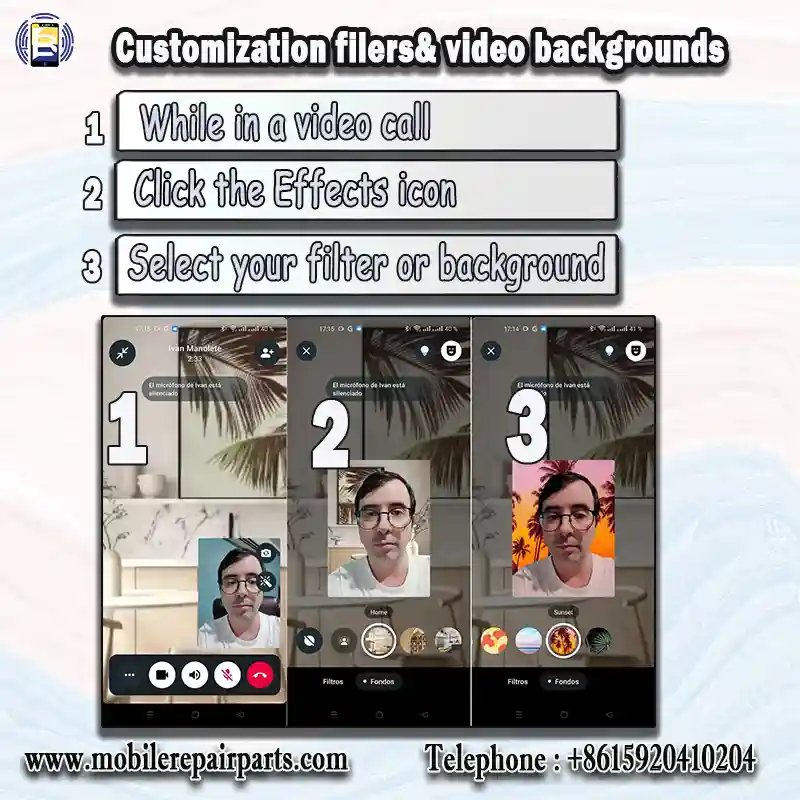
You can now add filters and backgrounds to your WhatsApp video calls by following these steps :

1-While in a video call:

2-Click the Effects icon: This is usually located in the top right corner of the screen.  

3-Select your filter or background: You'll see a selection of options to choose from.

That's it! You can now enjoy your filtered video calls with friends and family.

Watch out: This feature is being rolled out gradually to all users, so you may not have it immediately.  

The location of the effects icons may vary slightly depending on your phone's operating system (iOS ).

Integrated document scanning

Document scanning within the file sharing menu, via the Scan Documents feature, is one of the new WhatsApp updates for iOS operating system only. Users can quickly digitize documents. WhatsApp automatically crops the edges for a nice look, offers customization filters and a gradient between grey, white and black. Auto Shutter mode ensures perfect document capture when the document is aligned, with manual adjustments available. 

Here's how to use it:
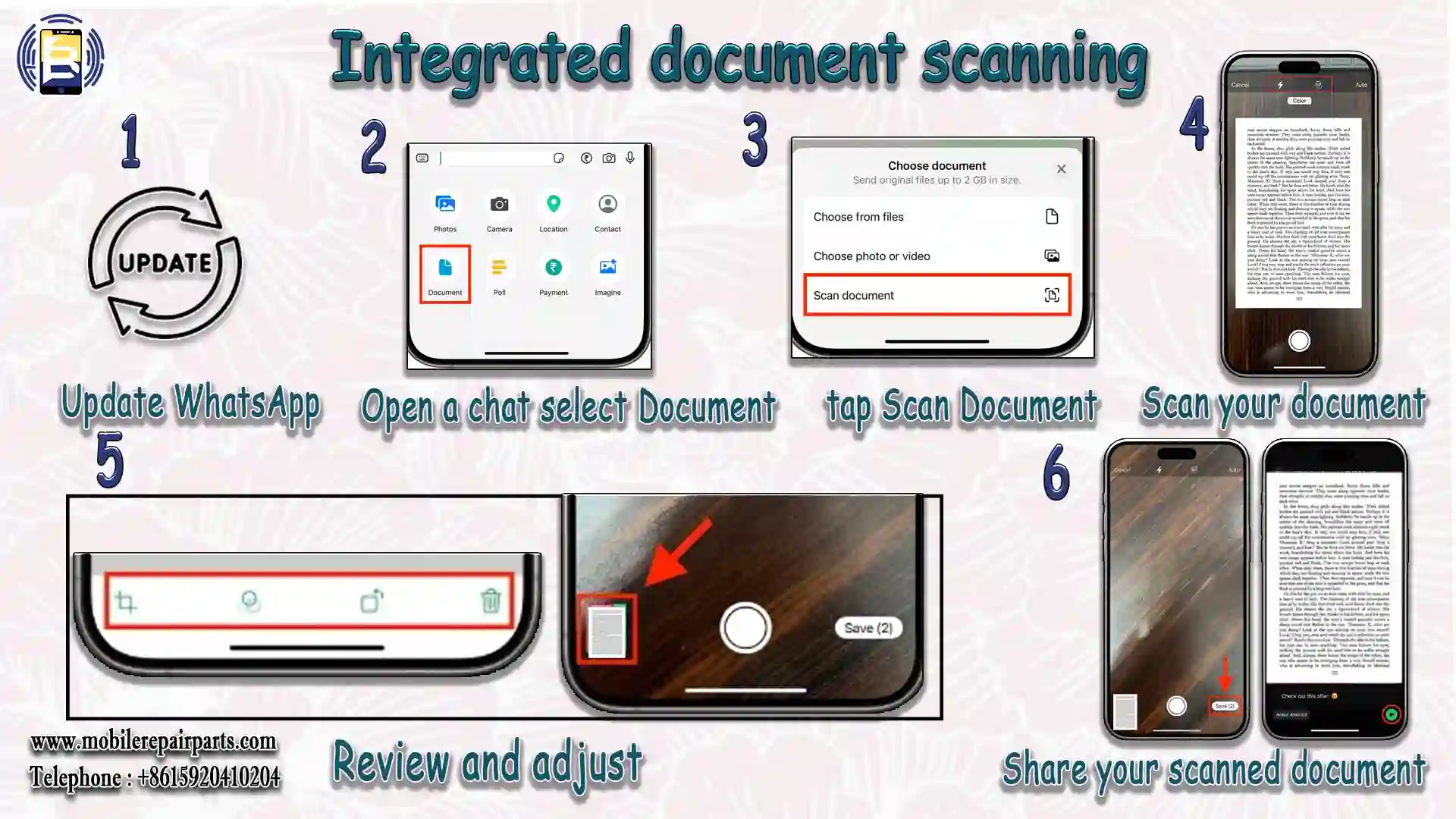
1-Update WhatsApp: Make sure you're running the latest version of WhatsApp.

2-Open a chat: Go to the chat you want to send the scanned document to.  

3-Go to the document scanner: Tap the "+" icon at the bottom left of the chat screen, select "Document". and tap "Scan Document". This will open your camera, ready to scan.  

4-Scan your document: Align your document with the visible frame and take a photo.

5-Review and adjust: Check the preview and make any important adjustments to the edges, which the app automatically detects.  

6-Share your scanned document: Once satisfied, share the scanned document directly in chat or group. 

Festive additions
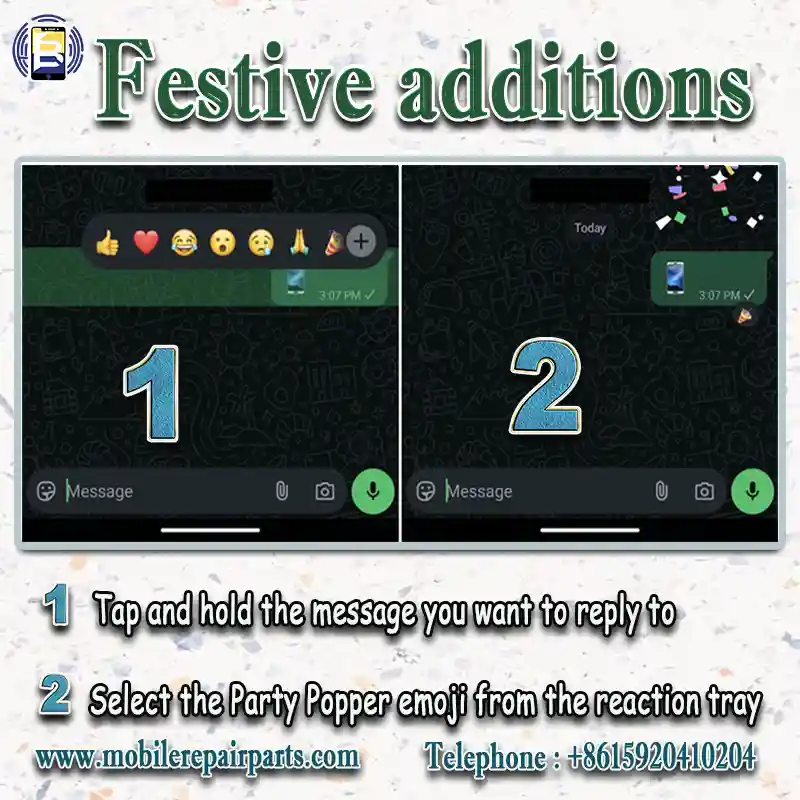
This update includes new animations, profiles and effects to celebrate New Year's Eve and Christmas. WhatsApp users can explore 'part popper' emoji in the interaction bar on messages, this feature gives users an easy way to celebrate and express their feelings without having to search for emoji in the emoji list.

How to use Party Popper Reaction?

1-Tap and hold the message you want to reply to.

2-Select the Party Popper emoji from the reaction tray

3- WhatsApp filters & background videos for creative chats

WhatsApp developers have stated that WhatsApp chats should be fun and enjoyable for users, so the developers have made sure that the new update includes filters and backgrounds to make video calls more appealing.

To add a personal touch to video calls, users can change the background of their environment or use filters.

By using backgrounds during a video call, you can keep your location private and give it an attractive look.

This update includes 10 options for filters and backgrounds to create a beautiful, personalized look.

What filtering options are included in the new update?

The filter options are as follows:

Warm, Cool, Black & White, Light leak, Dreamy, Prism light, Fisheye, Vintage TV, Frosted glass and Duo tone

What background options are included in the new update?

The background options include:

Blur, Living room, Office, Cafe, Pebbles, Foodie, Smoosh, Beach, Sunset, Celebration and Forest.

How to use WhatsApp filters and backgrounds?

To access filters& backgrouns during one-to-one "1:1" or group video calls, select the effects icons in the top-right corner of the screen to see a selection of filters and wallpapers.

What are the touch and low light options in the new WhatsApp update for?

The Touch and Low Light options can help users feel more confident and relaxed by naturally improving the look and brightness of your environment, making your video calls more colourful and charming.

It is worth noting that this information is on the official WhatsApp website, you can have a look at it via this link.

4-WhatsApp for iOS18: Features Tailored for Apple Users

WhatsApp for iOS 18 offers a unique set of updates that are designed to improve the user experience and take full advantage of the latest operating system from Apple.

The Live Activity for Media Uploads feature provides live updates during file transfers. This makes file sharing more dynamic and seamless.

As mentioned above, the WhatsApp for iOS update includes a built-in document scanner. You can easily scan documents directly from the app and WhatsApp will automatically crop and optimise the image. You can also adjust settings such as brightness and contrast, and use the Auto Shutter feature for quick and easy scanning. This release focuses on the core features for the user: Convenience, ease of use and optimised image quality.

With iOS 18.2, you can now set WhatsApp as your default messaging and calling app, making everyday communication easier than ever. With interactive widgets, you can access recent messages and other features directly from your Home screen, giving your app icons a convenient and modern twist

For more information on the latest iOS18 updates, have a look at our article on "How the iOS18 System will Transform your Digital Experience".

Are the new WhatsApp updates for iOS18 buggy?

Some users have reported issues following the iOS 18 update:

-Notification issues: Some users have reported issues with WhatsApp notifications not working properly after updating to iOS 18.

-Performance delays: There have been reports of significant performance issues, including apparent delays when sending messages, after updating to iOS 18.1.

-Voice recognition issues: Users have reported issues with WhatsApp's ability to detect and switch between multiple languages after updating to iOS 18.

To ensure best performance, it's recommended that you keep both your iOS operating system and WhatsApp application up to date

5-Unlock the potential of your WhatsApp business account

WhatsApp Business launched on 18 January 2018, WhatsApp Business is designed to help businesses, tourism and entrepreneurs communicate effectively with their customers. WhatsApp Business offers a range of features to meet the needs of small businesses and enterprises alike.

The app started as a free tool specifically designed to support small businesses, giving them a platform to easily communicate with customers, showcase products and manage their orders. Later, WhatsApp Business expanded to include advanced features for larger businesses through the WhatsApp Business API, launched later that year, which allows large businesses to integrate with their systems and manage customer conversations at scale.

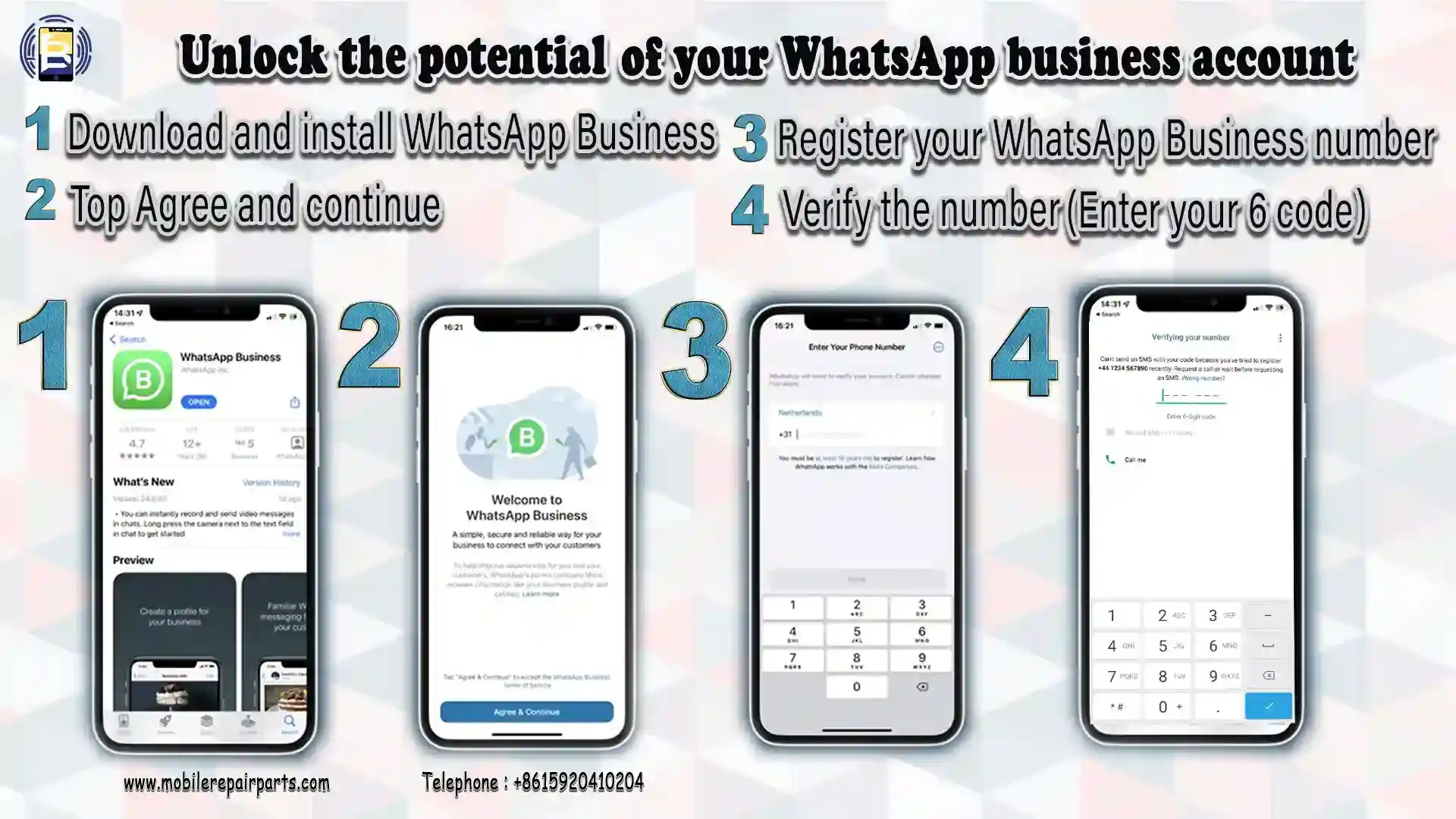
How do I download and activate WhatsApp Business?

  1. Download from the Google Play Store for Android phones and the Apple App Store for iPhone smartphones.
  2. Read the B2B WhatsApp Terms of Service, then tap Agree and Continue to accept the terms.
  3. Register: Select your country from the drop-down list to add your country code, then enter your phone number in international phone number format. Tap Done or Next, then tap OK to receive your 6-digit registration code by SMS or phone call. Enter your 6-digit code to complete registration.
  4. Enable access to contacts and photos: Contacts can be added to the WhatsApp Business app from your phone's address book. You can also allow access to photos, videos and files on your phone.
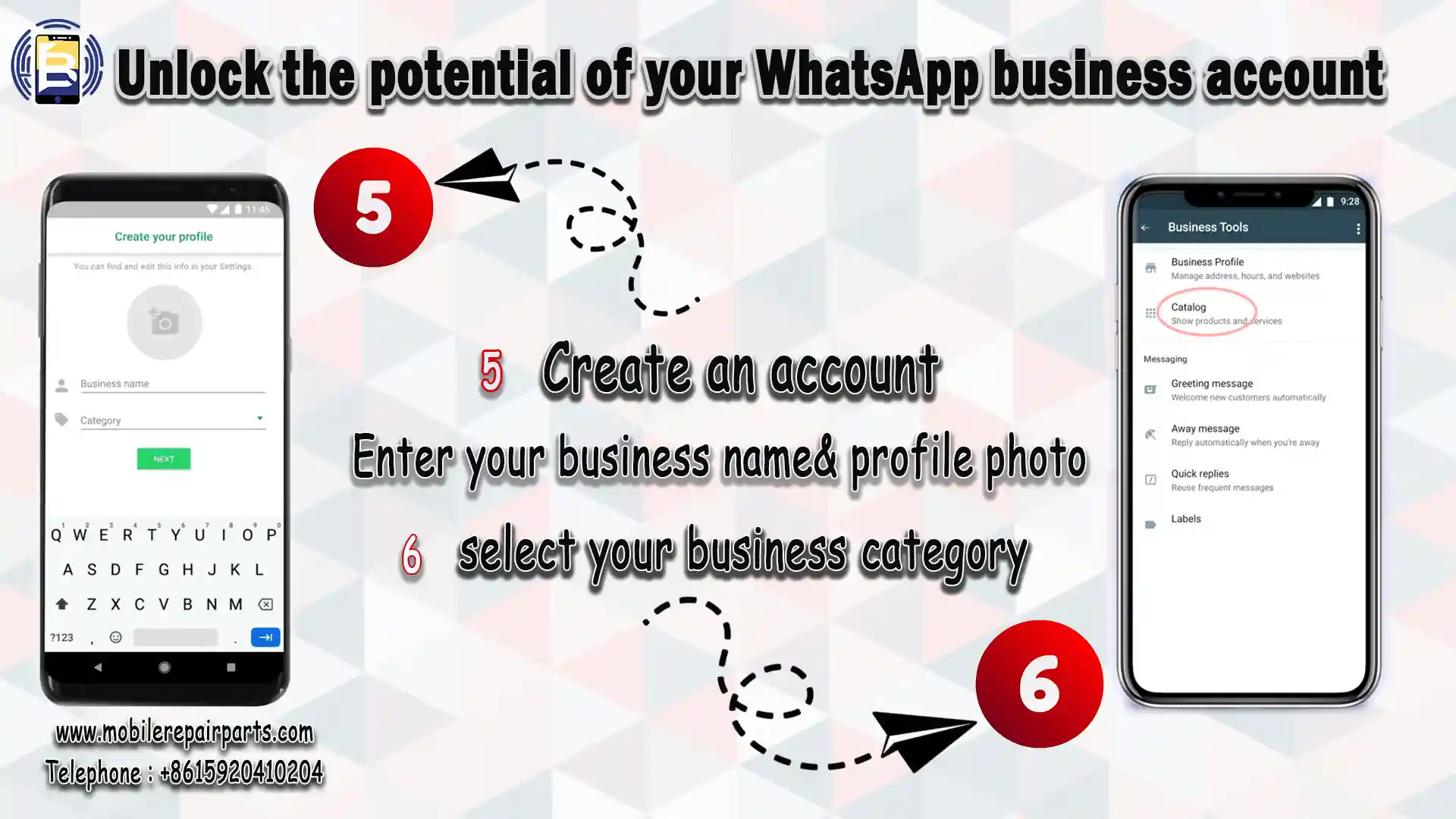
  1. Create an account: Enter your business name, select a business category and choose a profile picture.
  2. Create your business profile: Tap Explore, Business Profile. Here you can add important business information such as your business address, description, email, opening hours, social media links and website.
What are the business categories that are included in WhatsApp Business?

The key business categories available in WhatsApp Business:

  1. Retail and E-commerce
  2. Food and Beverage
  3. Health and Wellness
  4. Travel and Hospitality
  5. Education and Training
  6. Professional Services
  7. Entertainment and Media
  8. Logistics and Transportation
  9. Technology and Software
  10. Nonprofits and Community Services

What are WhatsApp's business messaging tools?

1-Messaging tools: Automate responses with quick replies, greetings and out of office messages.

2-Catalogues: Showcase your products or services right in the app, making it easy for customers to browse and order.

3-Labels: Organize chats with labels such as "New Customer" or "Pending Payment" for efficient management.

4-Analytics: Track message metrics such as sent, delivered and read counts to monitor engagement.

5-Advanced features for businesses (WhatsApp Business API):For larger businesses, the WhatsApp Business API offers advanced features such: automation, analytics, and CRM integration.

6-Automated customer support: Handle queries with chat-bots and streamline customer service.

7-Multi-agent access: Allow multiple team members to manage chats simultaneously.

8-Integration: Connect WhatsApp to CRM systems and other business tools for increased productivity.

Here's a table to help clearly show how WhatsApp and WhatsApp Business differ:

Features WhatsApp WhatsApp Business
Primary use Personal communication Business communication with
customers
Target audience Individuals Small to medium-sized
businesses
Focus Social& personal messaging Customer service, sales, marketing
Key features Basic messaging, voice& video calls,
groups chats, statues updates
Business Profile, Labels,
Quick Replies, Away Messages,
Catalogs, Automated Responses
Catalogs/Product Listings Not available Create and share product or
service catalogs.
Automated Messages Not available Includes Greeting Messages,
Away Messages, and
Quick Replies.
Business Profile Not available Includes business name,
category, description, address,
email, and website.
Advanced features Limited Available through the WhatsApp
Business API (paid)
Pricing Free Free app, paid API for
advanced features

1-Enable iCloud: Go to Settings > Apple ID > iCloud and turn on iCloud Drive.

2-Allow WhatsApp Access: In Settings > WhatsApp, enable the iCloud toggle.

3-Connect to Wi-Fi: Ensure a stable Wi-Fi connection.

4-Open WhatsApp: Go to Settings > Chats > Chat Backup.

5-Start Backup: Tap Back Up Now to manually back up chats.

6-Auto Backup: Toggle Auto Backup and set a frequency (Daily, Weekly, or Monthly).

7-Include Videos (Optional): Toggle Include Videos if needed.

When you've finished reading, I hope you'll tell me what you think of WhatsApp  favorite or not, and why?

How do I verify my WhatsApp business account?

To verify your WhatsApp Business account, you will typically need to

1.Go to Settings: Find the "Verify Business" option in your account settings.

2.Provide information: Enter your business details accurately (name, address, etc.).

3.Submit Documents: Upload supporting documents (e.g. business registration).

4.Wait for review: WhatsApp will review your information and notify you of the outcome.

Note: Verification may take time and is not guaranteed.

You can read this article "How to get the green tick verification on WhatsApp" on infobip.com to learn more about the steps to verify your WhatsApp business account.

6-GB WhatsApp: Everything You Need to Know Before You Download

WhatsApp GP is a modified version without the approval of the official WhatsApp company, enhanced by third-party developers. Some WhatsApp accounts activated on the WhatsApp GP app have also been blocked by WhatsApp. It offers additional features and customizations not available in the official version, making it popular with users looking for a more personalized experience.

The Key features of GB WhatsApp are:

- Customization: Change themes, fonts and colors, customize chat backgrounds for individual contacts.

- Advanced privacy options: Hide online status, typing indicator and double ticks.

- Enable Anti-Revoke to read deleted messages and status updates.

- Enhanced media sharing: Share larger files (up to 700MB).

Send up to 90 pictures at once, compared to the 30 picture limit in the official app.

- Dual WhatsApp accounts: Use GB WhatsApp alongside the official WhatsApp on the same device.

- Download statuses instantly.

- Schedule messages for specific times.

- Enable Do Not Disturb (DND) mode.

What are the risks of using GB WhatsAPP?

There are significant risks associated with GB WhatsApp, despite its attractive features:

- Security issues:It's not an official app. This means your data may be vulnerable to theft or misuse. It lacks end-to-end encryption, unlike the official WhatsApp.

- Account blocking: WhatsApp may temporarily or permanently ban accounts using a modified version.

- Malware risks: Downloading the app from unofficial sources increases the risk of malware or viruses.

- Lack of official support: GB WhatsApp is not supported by WhatsApp, so any issues or bugs cannot be officially resolved.

Is a GB WhatsApp safe to share bank details and a personal photo?

Due to significant security and privacy risks, GB WhatsApp is not safe for sharing banking information or personal photos. Unlike the official WhatsApp, GB WhatsApp lacks end-to-end encryption, leaving your messages, photos ,and sensitive data vulnerable to interception or misuse. It is also a third-party app that is not supported or affiliated with WhatsApp. This means that your data is not protected by official policies.

Please be aware that WhatsApp GP is not available for download from the Play Store or App Store.

7-FAQs about the WhatsApp

1- Can I recover deleted messages?

You can recover deleted messages if you've enabled chat backups. Simply reinstall WhatsApp and you will be prompted to restore your messages from your last backup.

2- What is a WhatsApp Business Service Provider?

A WhatsApp Business Service Provider (BSP) is a certified third-party company that helps businesses access advanced WhatsApp Business API features such as automation and CRM integration.

3- How do I enable two-step verification?

To increase account security: Go to Settings > Account > Two Step Verification. Turn it on and set a 6-digit PIN.

4- How do I back up my WhatsApp chats?

On Android: Use Google Drive:
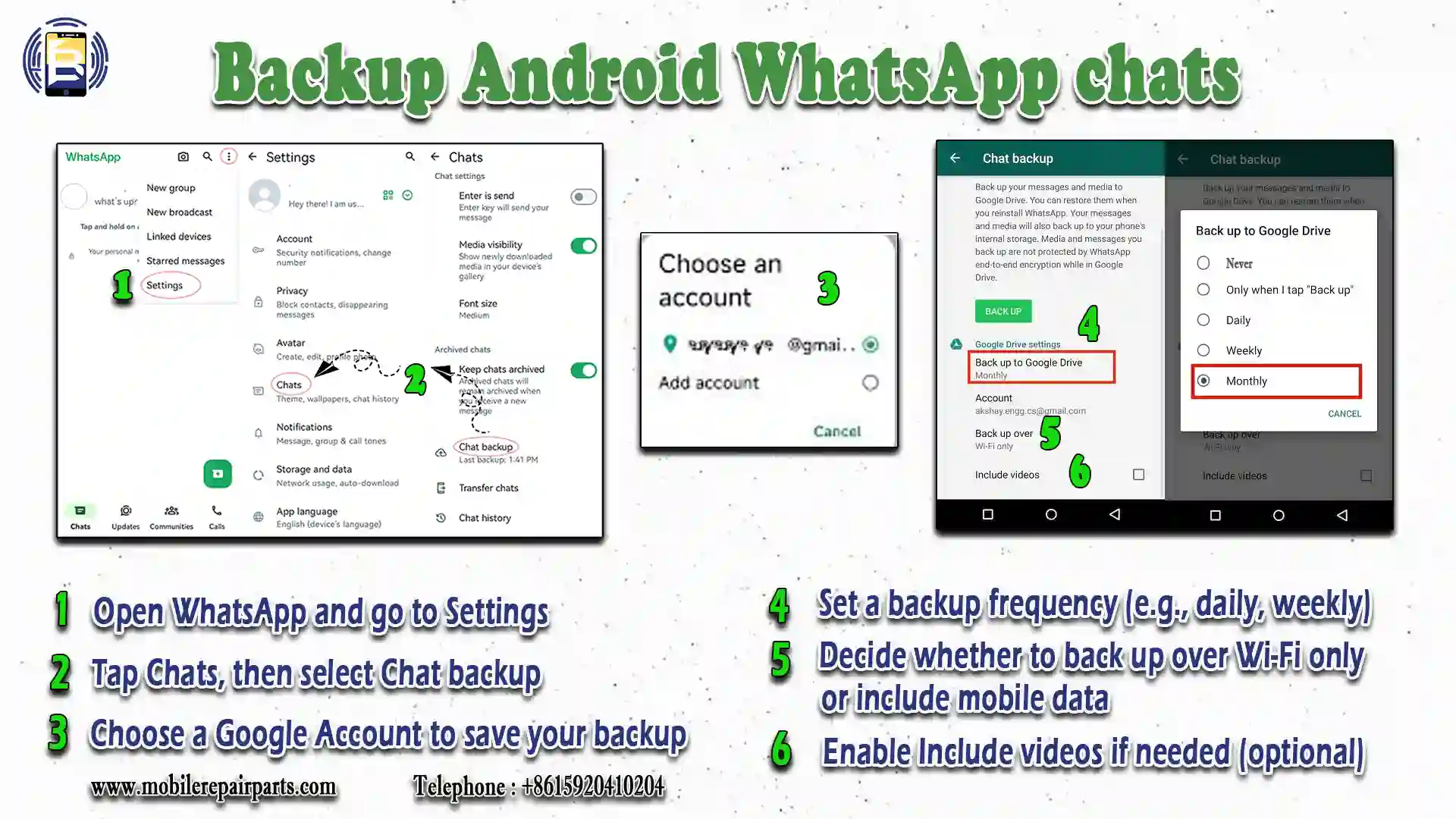
  1. Open WhatsApp and go to Settings.
  2. Tap Chats, then select Chat backup.
  3. Choose a Google Account to save your backup.
  4. Set a backup frequency (e.g., daily, weekly).
  5. Decide whether to back up over Wi-Fi only or include mobile data.
  6. Enable Include videos if needed (optional).
  7. Tap Back Up Now to start the process.

- iPhone: Use iCloud:
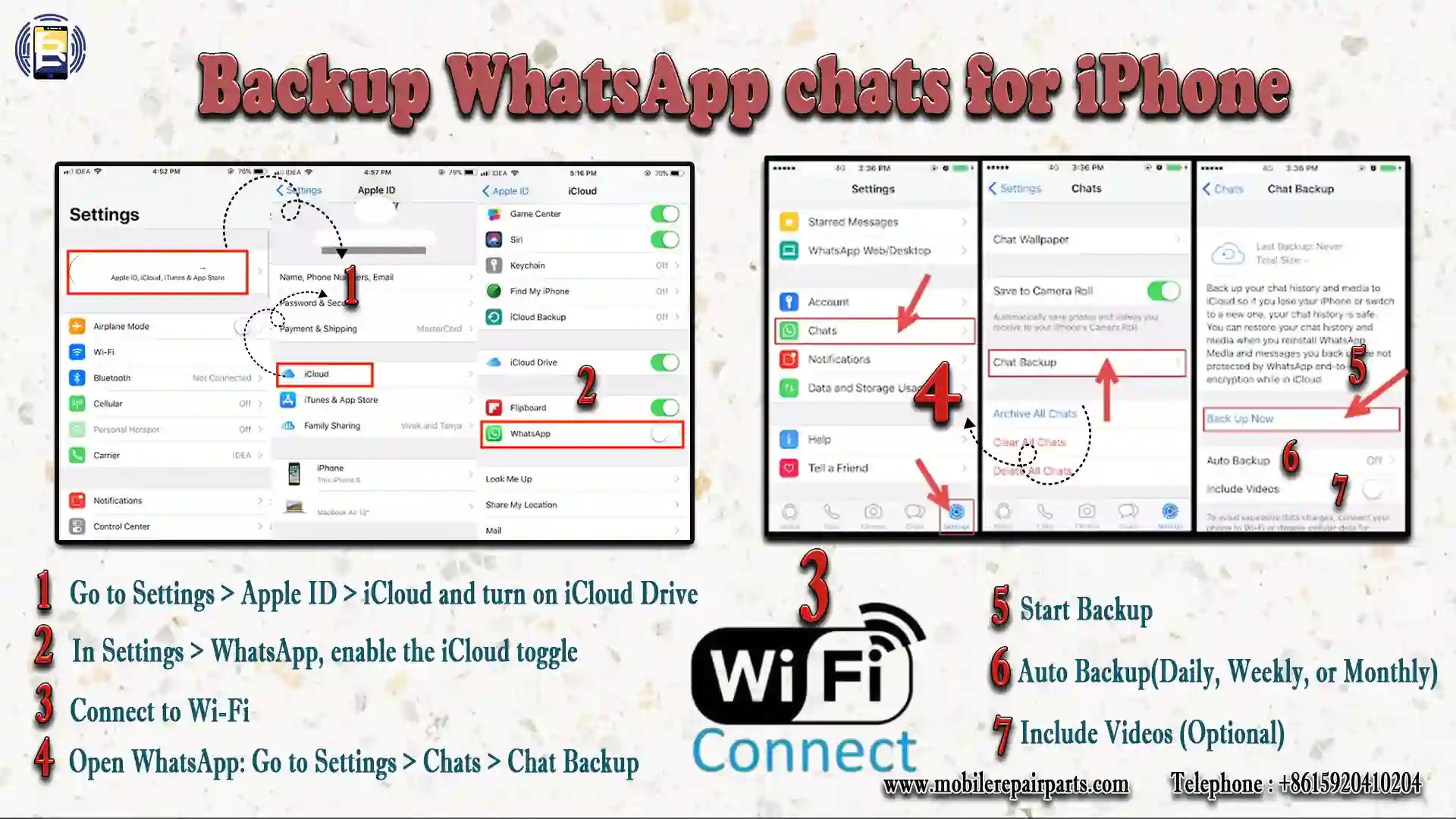
1-Enable iCloud: Go to Settings > Apple ID > iCloud and turn on iCloud Drive.

2-Allow WhatsApp Access: In Settings > WhatsApp, enable the iCloud toggle.

3-Connect to Wi-Fi: Ensure a stable Wi-Fi connection.

4-Open WhatsApp: Go to Settings > Chats > Chat Backup.

5-Start Backup: Tap Back Up Now to manually back up chats.

6-Auto Backup: Toggle Auto Backup and set a frequency (Daily, Weekly, or Monthly).

7-Include Videos (Optional): Toggle Include Videos if needed.

When you've finished reading, I hope you'll tell me what you think of WhatsApp  favorite or not, and why?

Voice to Text: WhatsApp's New Feature

WhatsApp developers are constantly introducing new useful updates to the application, one of the most prominent of which is 'voice message transcripts'.

What are voice message transcripts?

Voice message transcripts are a written version of the voice message and this new feature helps the user to know the content of the voice recording when they are in a noisy place or sitting with people. This feature allows the user to understand the content of the voice without having to turn it on.

To use the voice message transcription feature, the user must enable this feature, and once enabled, the user will be able to transcribe the voice message into written text, but the sender of the voice message will not be able to see the transcript of the message.

How do I activate the transcription of voice messages for Android mobile phones?
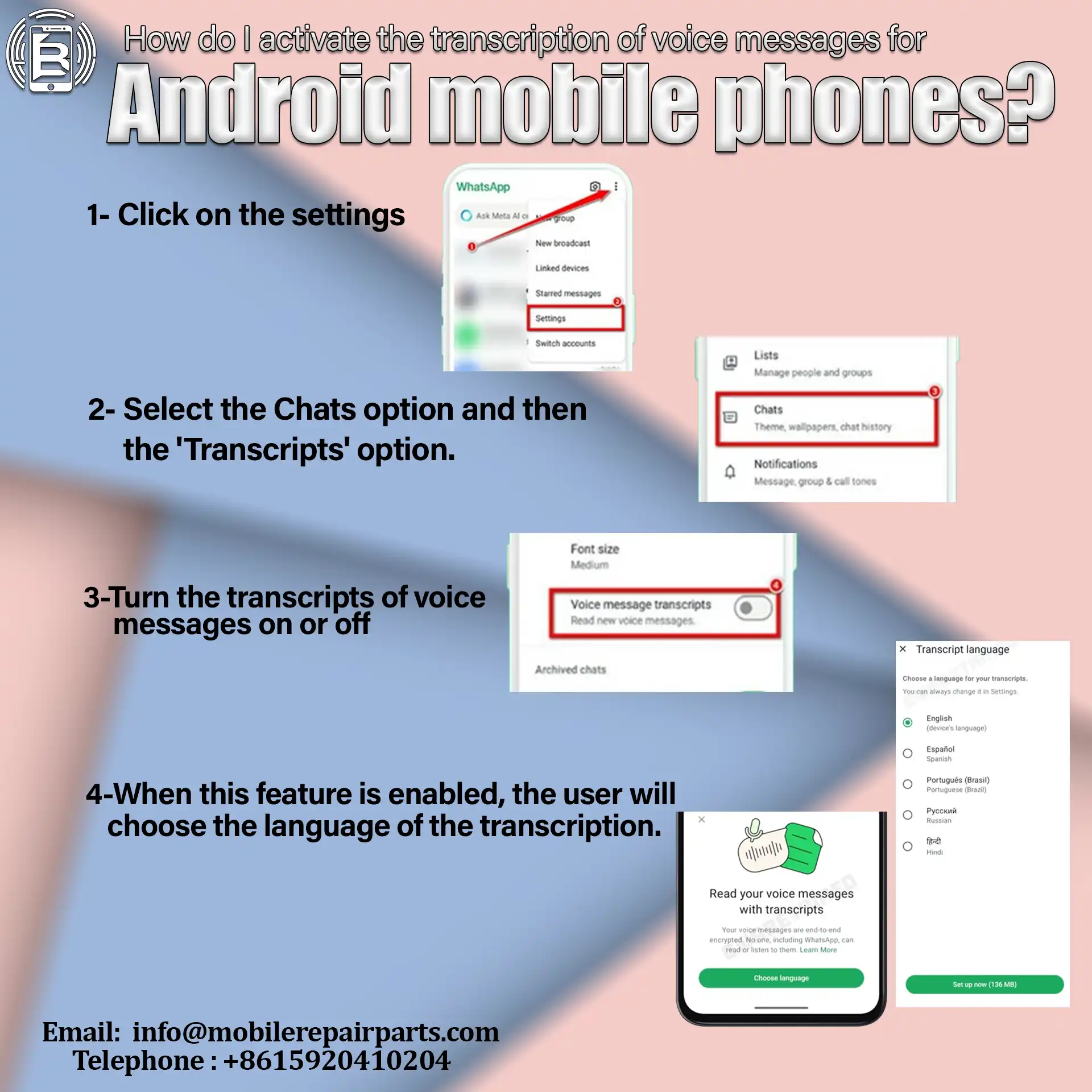
To activate this feature, the user must follow these four steps:

1- Click on the 'Settings' option in the WhatsApp application.

2- Select the 'Chats' option and then the 'Transcripts' option.

3-Turn the transcripts of voice messages on or off

4-When this feature is enabled, the user will choose the language of the transcription.

Note: The languages supported by the voice message transcripts feature for Android are

English, Portuguese, Spanish and Russian.

How do I view transcripts of my voice messages?
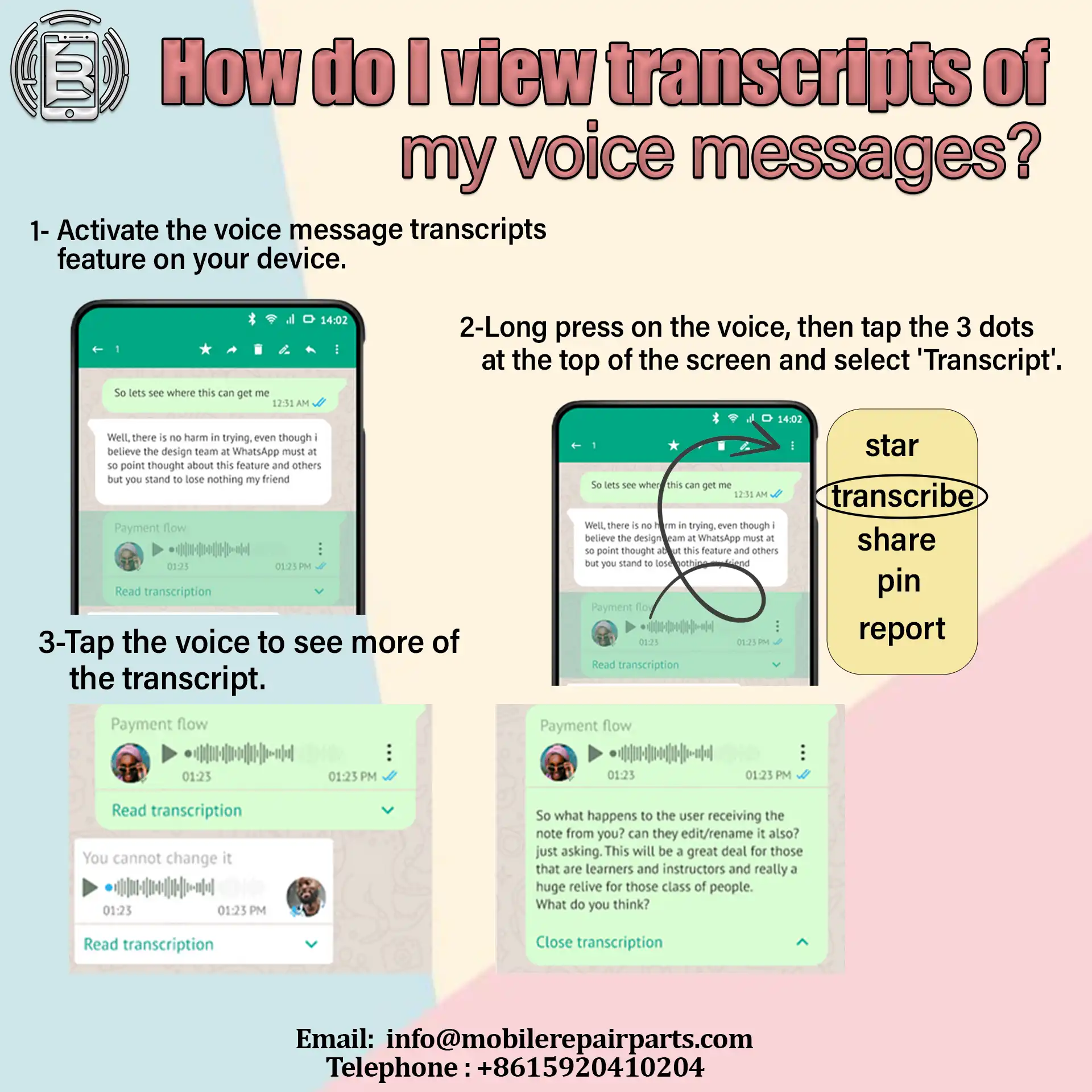
1- Activate the voice message transcripts feature on your device.

2-Long press on the voice, then tap the 3 dots at the top of the screen and select 'Transcript'.

3-Tap the voice to see more of the transcript.

Want to transcribe voice messages in WhatsApp on your iPhone? Here's how:
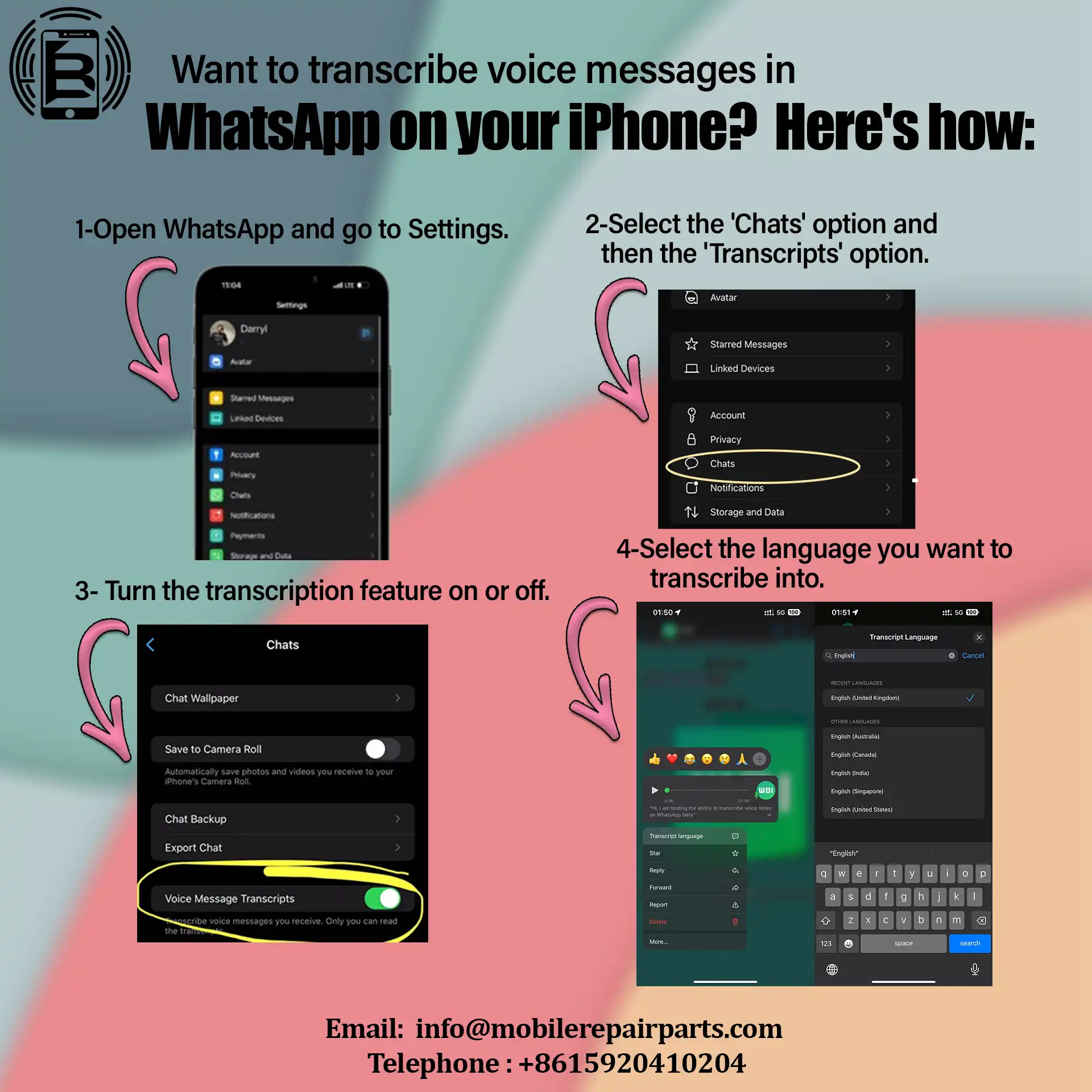
1-Open WhatsApp and go to Settings.

2-Select the 'Chats' option and then the 'Transcripts' option.

3- Turn the transcription feature on or off.

4-Select the language you want to transcribe into.

To view voice message transcripts, follow these steps:

Turn on voice message transcripts on your device.

Tap and hold a voice message, then tap Transcribe.

Tap the open/close menu in the voice to expand the transcript.

Make sure your operating system is iOS 16 or later and Hey Siri is enabled.

Here are the steps to enable Siri:
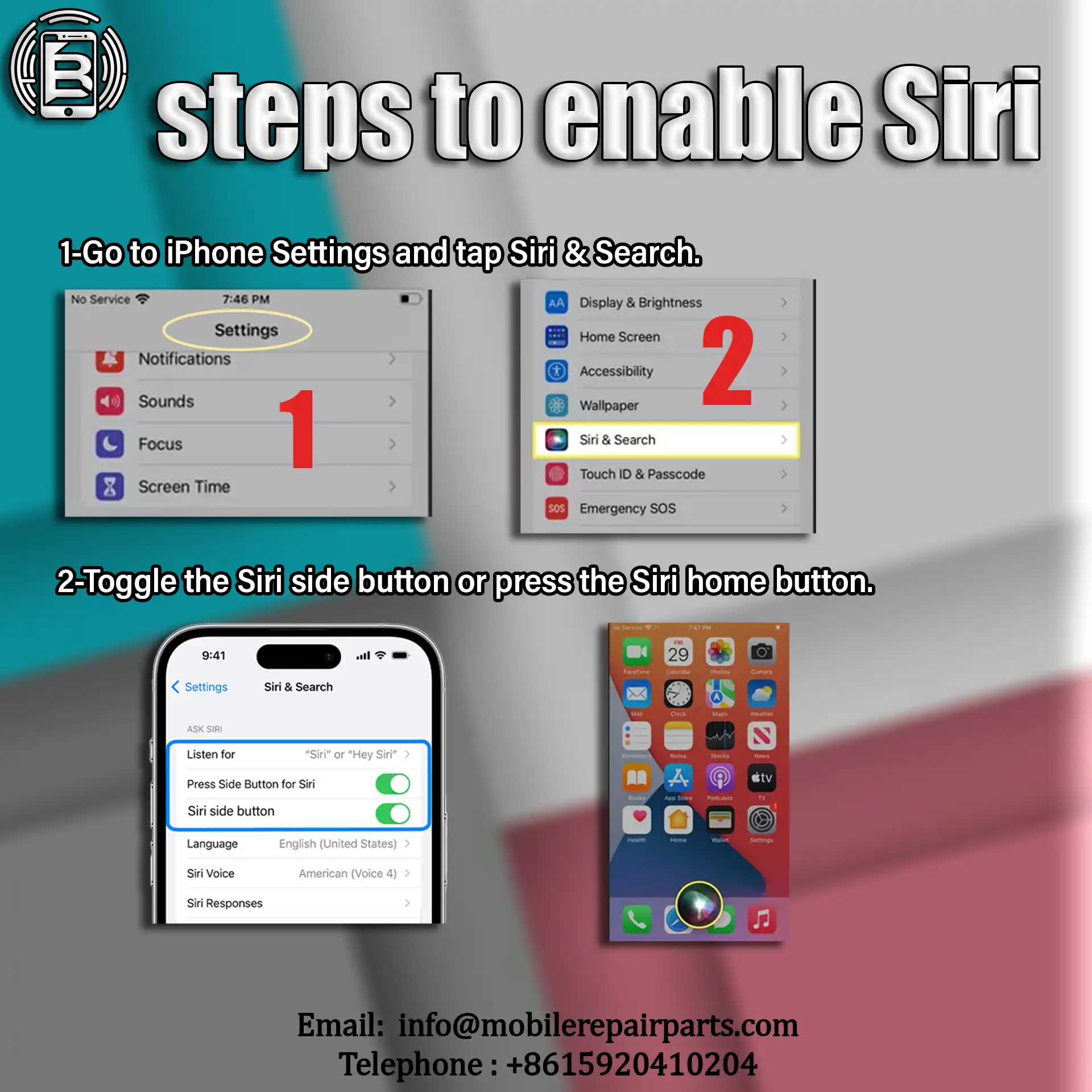
1-Go to iPhone Settings and tap Siri & Search.

2-Toggle the Siri side button or press the Siri home button.

On iPhone X, XS, XS Max and XR, you can press and hold the side button and tap Turn on Siri.

If you want to see voice message transcripts continuously, Siri must remain active; if Siri is off, you can see transcripts of previously existing voice messages.

For specific information about using Siri and how Apple handles information sent through Siri, visit the Apple Support website " View a Voice Memos transcription on iPhone - Apple Support".

The languages supported by the backup feature depend on the version of iOS.

The languages supported for iOS 16 are:

English, Spanish, French, German, Italian, Japanese, Korean, Portuguese, Russian, Turkish, Chinese and Arabic.

These languages are also supported for iOS17 in addition to the following languages:

Danish, Finnish, Hebrew, Malay, Norwegian, Dutch, Swedish, and Thai.

In short, voice messages can be transcribed to text so you can keep up with conversations no matter what you're doing.

Now, tell us what you think of this feature and whether or not you will activate it.

In conclusion, WhatsApp has many solutions to meet your needs, whether you're connecting personally or professionally. While the official WhatsApp keeps personal communication seamless, WhatsApp Business enables businesses to build meaningful customer relationships with ease and efficiency. Choose the platform that fits your goals and unlock the power of instant, impactful messaging.
Leave a Reply

Your email address will not be published. Required fields are marked *


Table of contents

  1. 1-Inside WhatsApp: A Comprehensive Company Overview
  2. 2- The latest updates to WhatsApp
    1. Augmented reality "AR" effects for enhanced creativity
    2. Customizable video backgrounds
      1. How do I add a filter and background to my WhatsApp video calls?
    3. Integrated document scanning
    4. Festive additions
      1. How to use Party Popper Reaction?
  3. 3- WhatsApp filters & background videos for creative chats
    1. What filtering options are included in the new update?
    2. What background options are included in the new update?
    3. How to use WhatsApp filters and backgrounds?
    4. What are the touch and low light options in the new WhatsApp update for?
  4. 4-WhatsApp for iOS18: Features Tailored for Apple Users
    1. Are the new WhatsApp updates for iOS18 buggy?
  5. 5-Unlock the potential of your WhatsApp business account
    1. How do I download and activate WhatsApp Business?
    2. What are the business categories that are included in WhatsApp Business?
    3. What are WhatsApp's business messaging tools?
    4. How do I verify my WhatsApp business account?
  6. 6-GB WhatsApp: Everything You Need to Know Before You Download
    1. The Key features of GB WhatsApp are:
    2. What are the risks of using GB WhatsAPP?
    3. Is a GB WhatsApp safe to share bank details and a personal photo?
  7. 7-FAQs about the WhatsApp
    1. 1- Can I recover deleted messages?
    2. 2- What is a WhatsApp Business Service Provider?
    3. 3- How do I enable two-step verification?
    4. 4- How do I back up my WhatsApp chats?
  8. Voice to Text: WhatsApp's New Feature
    1. What are voice message transcripts?
    2. How do I activate the transcription of voice messages for Android mobile phones?
    3. How do I view transcripts of my voice messages?
      1. Want to transcribe voice messages in WhatsApp on your iPhone? Here's how:
      2. Here are the steps to enable Siri:

WhatsApp remains a global communications powerhouse, connecting over 2 billion users with seamless messaging and calling features in today's fast-paced digital world. WhatsApp continues to improve the user experience, introducing new tools and features tailored to personal and professional needs. In this article we will discuss the new Whats updates, WhatAPP Business and GB WhatsAPP features.

1-Inside WhatsApp: A Comprehensive Company Overview

WhatsApp is one of the world's most popular messaging apps and was founded in 2009 by Jan Koum and Brian Acton. WhatsApp was acquired by Facebook (now Meta) in 2014. Users of Android phones, iPhones, Macs and Windows PCs can send and receive messages, photos, videos, documents and user locations via WhatsApp.

To use the application, the user must download it from the Google Play for Android phones and the App Store for iPhone, and then activate it with a number, and needs a Wi-Fi connection or a cellular network. The user enters his number on WhatsApp and then receives an activation code and after confirming the number, he can use the application effectively.

2- The latest updates to WhatsApp

Augmented reality "AR" effects for enhanced creativity

The addition of Augmented Reality (AR) effects is one of the highlights of the WhatsApp updates. When a person uses the WhatsApp camera lens to take a photo or video, they will notice a new icon that looks like a 'magic wand'. By tapping on it, they can create different attractive effects. By using AR effects, users can add a creative touch to their photos and videos.

Customizable video backgrounds

This feature allows users to apply new backgrounds while recording videos, this feature provides the user with enhanced privacy as it covers the user's surroundings, the Customizable Video Backgrounds feature also provides a customizable aesthetic for videos. This feature allows users to adjust the hue of the footage to ensure it matches the aesthetic style of the person.

How do I add a filter and background to my WhatsApp video calls?

You can now add filters and backgrounds to your WhatsApp video calls by following these steps :

1-While in a video call:

2-Click the Effects icon: This is usually located in the top right corner of the screen.  

3-Select your filter or background: You'll see a selection of options to choose from.

That's it! You can now enjoy your filtered video calls with friends and family.

Watch out: This feature is being rolled out gradually to all users, so you may not have it immediately.  

The location of the effects icons may vary slightly depending on your phone's operating system (iOS ).

Integrated document scanning

Document scanning within the file sharing menu, via the Scan Documents feature, is one of the new WhatsApp updates for iOS operating system only. Users can quickly digitize documents. WhatsApp automatically crops the edges for a nice look, offers customization filters and a gradient between grey, white and black. Auto Shutter mode ensures perfect document capture when the document is aligned, with manual adjustments available. 

Here's how to use it:

1-Update WhatsApp: Make sure you're running the latest version of WhatsApp.

2-Open a chat: Go to the chat you want to send the scanned document to.  

3-Go to the document scanner: Tap the "+" icon at the bottom left of the chat screen, select "Document". and tap "Scan Document". This will open your camera, ready to scan.  

4-Scan your document: Align your document with the visible frame and take a photo.

5-Review and adjust: Check the preview and make any important adjustments to the edges, which the app automatically detects.  

6-Share your scanned document: Once satisfied, share the scanned document directly in chat or group. 

Festive additions

This update includes new animations, profiles and effects to celebrate New Year's Eve and Christmas. WhatsApp users can explore 'part popper' emoji in the interaction bar on messages, this feature gives users an easy way to celebrate and express their feelings without having to search for emoji in the emoji list.

How to use Party Popper Reaction?

1-Tap and hold the message you want to reply to.

2-Select the Party Popper emoji from the reaction tray

3- WhatsApp filters & background videos for creative chats

WhatsApp developers have stated that WhatsApp chats should be fun and enjoyable for users, so the developers have made sure that the new update includes filters and backgrounds to make video calls more appealing.

To add a personal touch to video calls, users can change the background of their environment or use filters.

By using backgrounds during a video call, you can keep your location private and give it an attractive look.

This update includes 10 options for filters and backgrounds to create a beautiful, personalized look.

What filtering options are included in the new update?

The filter options are as follows:

Warm, Cool, Black & White, Light leak, Dreamy, Prism light, Fisheye, Vintage TV, Frosted glass and Duo tone

What background options are included in the new update?

The background options include:

Blur, Living room, Office, Cafe, Pebbles, Foodie, Smoosh, Beach, Sunset, Celebration and Forest.

How to use WhatsApp filters and backgrounds?

To access filters& backgrouns during one-to-one "1:1" or group video calls, select the effects icons in the top-right corner of the screen to see a selection of filters and wallpapers.

What are the touch and low light options in the new WhatsApp update for?

The Touch and Low Light options can help users feel more confident and relaxed by naturally improving the look and brightness of your environment, making your video calls more colourful and charming.

It is worth noting that this information is on the official WhatsApp website, you can have a look at it via this link.

4-WhatsApp for iOS18: Features Tailored for Apple Users

WhatsApp for iOS 18 offers a unique set of updates that are designed to improve the user experience and take full advantage of the latest operating system from Apple.

The Live Activity for Media Uploads feature provides live updates during file transfers. This makes file sharing more dynamic and seamless.

As mentioned above, the WhatsApp for iOS update includes a built-in document scanner. You can easily scan documents directly from the app and WhatsApp will automatically crop and optimise the image. You can also adjust settings such as brightness and contrast, and use the Auto Shutter feature for quick and easy scanning. This release focuses on the core features for the user: Convenience, ease of use and optimised image quality.

With iOS 18.2, you can now set WhatsApp as your default messaging and calling app, making everyday communication easier than ever. With interactive widgets, you can access recent messages and other features directly from your Home screen, giving your app icons a convenient and modern twist

For more information on the latest iOS18 updates, have a look at our article on "How the iOS18 System will Transform your Digital Experience".

Are the new WhatsApp updates for iOS18 buggy?

Some users have reported issues following the iOS 18 update:

-Notification issues: Some users have reported issues with WhatsApp notifications not working properly after updating to iOS 18.

-Performance delays: There have been reports of significant performance issues, including apparent delays when sending messages, after updating to iOS 18.1.

-Voice recognition issues: Users have reported issues with WhatsApp's ability to detect and switch between multiple languages after updating to iOS 18.

To ensure best performance, it's recommended that you keep both your iOS operating system and WhatsApp application up to date

5-Unlock the potential of your WhatsApp business account

WhatsApp Business launched on 18 January 2018, WhatsApp Business is designed to help businesses, tourism and entrepreneurs communicate effectively with their customers. WhatsApp Business offers a range of features to meet the needs of small businesses and enterprises alike.

The app started as a free tool specifically designed to support small businesses, giving them a platform to easily communicate with customers, showcase products and manage their orders. Later, WhatsApp Business expanded to include advanced features for larger businesses through the WhatsApp Business API, launched later that year, which allows large businesses to integrate with their systems and manage customer conversations at scale.

How do I download and activate WhatsApp Business?

  1. Download from the Google Play Store for Android phones and the Apple App Store for iPhone smartphones.
  2. Read the B2B WhatsApp Terms of Service, then tap Agree and Continue to accept the terms.
  3. Register: Select your country from the drop-down list to add your country code, then enter your phone number in international phone number format. Tap Done or Next, then tap OK to receive your 6-digit registration code by SMS or phone call. Enter your 6-digit code to complete registration.
  4. Enable access to contacts and photos: Contacts can be added to the WhatsApp Business app from your phone's address book. You can also allow access to photos, videos and files on your phone.
  1. Create an account: Enter your business name, select a business category and choose a profile picture.
  2. Create your business profile: Tap Explore, Business Profile. Here you can add important business information such as your business address, description, email, opening hours, social media links and website.

What are the business categories that are included in WhatsApp Business?

The key business categories available in WhatsApp Business:

  1. Retail and E-commerce
  2. Food and Beverage
  3. Health and Wellness
  4. Travel and Hospitality
  5. Education and Training
  6. Professional Services
  7. Entertainment and Media
  8. Logistics and Transportation
  9. Technology and Software
  10. Nonprofits and Community Services

What are WhatsApp's business messaging tools?

1-Messaging tools: Automate responses with quick replies, greetings and out of office messages.

2-Catalogues: Showcase your products or services right in the app, making it easy for customers to browse and order.

3-Labels: Organize chats with labels such as "New Customer" or "Pending Payment" for efficient management.

4-Analytics: Track message metrics such as sent, delivered and read counts to monitor engagement.

5-Advanced features for businesses (WhatsApp Business API):For larger businesses, the WhatsApp Business API offers advanced features such: automation, analytics, and CRM integration.

6-Automated customer support: Handle queries with chat-bots and streamline customer service.

7-Multi-agent access: Allow multiple team members to manage chats simultaneously.

8-Integration: Connect WhatsApp to CRM systems and other business tools for increased productivity.

Here's a table to help clearly show how WhatsApp and WhatsApp Business differ:

Features WhatsApp WhatsApp Business
Primary use Personal communication Business communication with
customers
Target audience Individuals Small to medium-sized
businesses
Focus Social& personal messaging Customer service, sales, marketing
Key features Basic messaging, voice& video calls,
groups chats, statues updates
Business Profile, Labels,
Quick Replies, Away Messages,
Catalogs, Automated Responses
Catalogs/Product Listings Not available Create and share product or
service catalogs.
Automated Messages Not available Includes Greeting Messages,
Away Messages, and
Quick Replies.
Business Profile Not available Includes business name,
category, description, address,
email, and website.
Advanced features Limited Available through the WhatsApp
Business API (paid)
Pricing Free Free app, paid API for
advanced features

1-Enable iCloud: Go to Settings > Apple ID > iCloud and turn on iCloud Drive.

2-Allow WhatsApp Access: In Settings > WhatsApp, enable the iCloud toggle.

3-Connect to Wi-Fi: Ensure a stable Wi-Fi connection.

4-Open WhatsApp: Go to Settings > Chats > Chat Backup.

5-Start Backup: Tap Back Up Now to manually back up chats.

6-Auto Backup: Toggle Auto Backup and set a frequency (Daily, Weekly, or Monthly).

7-Include Videos (Optional): Toggle Include Videos if needed.

When you've finished reading, I hope you'll tell me what you think of WhatsApp  favorite or not, and why?

How do I verify my WhatsApp business account?

To verify your WhatsApp Business account, you will typically need to

1.Go to Settings: Find the "Verify Business" option in your account settings.

2.Provide information: Enter your business details accurately (name, address, etc.).

3.Submit Documents: Upload supporting documents (e.g. business registration).

4.Wait for review: WhatsApp will review your information and notify you of the outcome.

Note: Verification may take time and is not guaranteed.

You can read this article "How to get the green tick verification on WhatsApp" on infobip.com to learn more about the steps to verify your WhatsApp business account.

6-GB WhatsApp: Everything You Need to Know Before You Download

WhatsApp GP is a modified version without the approval of the official WhatsApp company, enhanced by third-party developers. Some WhatsApp accounts activated on the WhatsApp GP app have also been blocked by WhatsApp. It offers additional features and customizations not available in the official version, making it popular with users looking for a more personalized experience.

The Key features of GB WhatsApp are:

- Customization: Change themes, fonts and colors, customize chat backgrounds for individual contacts.

- Advanced privacy options: Hide online status, typing indicator and double ticks.

- Enable Anti-Revoke to read deleted messages and status updates.

- Enhanced media sharing: Share larger files (up to 700MB).

Send up to 90 pictures at once, compared to the 30 picture limit in the official app.

- Dual WhatsApp accounts: Use GB WhatsApp alongside the official WhatsApp on the same device.

- Download statuses instantly.

- Schedule messages for specific times.

- Enable Do Not Disturb (DND) mode.

What are the risks of using GB WhatsAPP?

There are significant risks associated with GB WhatsApp, despite its attractive features:

- Security issues:It's not an official app. This means your data may be vulnerable to theft or misuse. It lacks end-to-end encryption, unlike the official WhatsApp.

- Account blocking: WhatsApp may temporarily or permanently ban accounts using a modified version.

- Malware risks: Downloading the app from unofficial sources increases the risk of malware or viruses.

- Lack of official support: GB WhatsApp is not supported by WhatsApp, so any issues or bugs cannot be officially resolved.

Is a GB WhatsApp safe to share bank details and a personal photo?

Due to significant security and privacy risks, GB WhatsApp is not safe for sharing banking information or personal photos. Unlike the official WhatsApp, GB WhatsApp lacks end-to-end encryption, leaving your messages, photos ,and sensitive data vulnerable to interception or misuse. It is also a third-party app that is not supported or affiliated with WhatsApp. This means that your data is not protected by official policies.

Please be aware that WhatsApp GP is not available for download from the Play Store or App Store.

7-FAQs about the WhatsApp

1- Can I recover deleted messages?

You can recover deleted messages if you've enabled chat backups. Simply reinstall WhatsApp and you will be prompted to restore your messages from your last backup.

2- What is a WhatsApp Business Service Provider?

A WhatsApp Business Service Provider (BSP) is a certified third-party company that helps businesses access advanced WhatsApp Business API features such as automation and CRM integration.

3- How do I enable two-step verification?

To increase account security: Go to Settings > Account > Two Step Verification. Turn it on and set a 6-digit PIN.

4- How do I back up my WhatsApp chats?

On Android: Use Google Drive:

  1. Open WhatsApp and go to Settings.
  2. Tap Chats, then select Chat backup.
  3. Choose a Google Account to save your backup.
  4. Set a backup frequency (e.g., daily, weekly).
  5. Decide whether to back up over Wi-Fi only or include mobile data.
  6. Enable Include videos if needed (optional).
  7. Tap Back Up Now to start the process.

- iPhone: Use iCloud:

1-Enable iCloud: Go to Settings > Apple ID > iCloud and turn on iCloud Drive.

2-Allow WhatsApp Access: In Settings > WhatsApp, enable the iCloud toggle.

3-Connect to Wi-Fi: Ensure a stable Wi-Fi connection.

4-Open WhatsApp: Go to Settings > Chats > Chat Backup.

5-Start Backup: Tap Back Up Now to manually back up chats.

6-Auto Backup: Toggle Auto Backup and set a frequency (Daily, Weekly, or Monthly).

7-Include Videos (Optional): Toggle Include Videos if needed.

When you've finished reading, I hope you'll tell me what you think of WhatsApp  favorite or not, and why?

Voice to Text: WhatsApp's New Feature

WhatsApp developers are constantly introducing new useful updates to the application, one of the most prominent of which is 'voice message transcripts'.

What are voice message transcripts?

Voice message transcripts are a written version of the voice message and this new feature helps the user to know the content of the voice recording when they are in a noisy place or sitting with people. This feature allows the user to understand the content of the voice without having to turn it on.

To use the voice message transcription feature, the user must enable this feature, and once enabled, the user will be able to transcribe the voice message into written text, but the sender of the voice message will not be able to see the transcript of the message.

How do I activate the transcription of voice messages for Android mobile phones?

To activate this feature, the user must follow these four steps:

1- Click on the 'Settings' option in the WhatsApp application.

2- Select the 'Chats' option and then the 'Transcripts' option.

3-Turn the transcripts of voice messages on or off

4-When this feature is enabled, the user will choose the language of the transcription.

Note: The languages supported by the voice message transcripts feature for Android are

English, Portuguese, Spanish and Russian.

How do I view transcripts of my voice messages?

1- Activate the voice message transcripts feature on your device.

2-Long press on the voice, then tap the 3 dots at the top of the screen and select 'Transcript'.

3-Tap the voice to see more of the transcript.

Want to transcribe voice messages in WhatsApp on your iPhone? Here's how:

1-Open WhatsApp and go to Settings.

2-Select the 'Chats' option and then the 'Transcripts' option.

3- Turn the transcription feature on or off.

4-Select the language you want to transcribe into.

To view voice message transcripts, follow these steps:

Turn on voice message transcripts on your device.

Tap and hold a voice message, then tap Transcribe.

Tap the open/close menu in the voice to expand the transcript.

Make sure your operating system is iOS 16 or later and Hey Siri is enabled.

Here are the steps to enable Siri:

1-Go to iPhone Settings and tap Siri & Search.

2-Toggle the Siri side button or press the Siri home button.

On iPhone X, XS, XS Max and XR, you can press and hold the side button and tap Turn on Siri.

If you want to see voice message transcripts continuously, Siri must remain active; if Siri is off, you can see transcripts of previously existing voice messages.

For specific information about using Siri and how Apple handles information sent through Siri, visit the Apple Support website " View a Voice Memos transcription on iPhone - Apple Support".

The languages supported by the backup feature depend on the version of iOS.

The languages supported for iOS 16 are:

English, Spanish, French, German, Italian, Japanese, Korean, Portuguese, Russian, Turkish, Chinese and Arabic.

These languages are also supported for iOS17 in addition to the following languages:

Danish, Finnish, Hebrew, Malay, Norwegian, Dutch, Swedish, and Thai.

In short, voice messages can be transcribed to text so you can keep up with conversations no matter what you're doing.

Now, tell us what you think of this feature and whether or not you will activate it.

In conclusion, WhatsApp has many solutions to meet your needs, whether you're connecting personally or professionally. While the official WhatsApp keeps personal communication seamless, WhatsApp Business enables businesses to build meaningful customer relationships with ease and efficiency. Choose the platform that fits your goals and unlock the power of instant, impactful messaging.
Leave a Reply

Your email address will not be published. Required fields are marked *


Products

WhatsApp by Meta: Game-Changing Innovations You Need to Know
This website uses cookies to improve your experience. By using this website you agree to our Data Protection Policy.
Read more