
BETA Electronic Co LTD

BETA Electronic Co LTD

BETA Electronic Co LTD

Samsung One UI 7: Smarter Features, Smoother Experience


Samsung has introduced a new and unique user experience with the launch of One UI.7 based on Android 15, Let's take a look at what's new in the Android 15 update in this article." Android 15: Redefining Innovation, Privacy, and Performance". Samsung One UI.7 was officially launched on 7 April 2025. This new update includes many advanced improvements such as 'AI-powered tools', 'Now bar' notifications, automatic screen dimming, etc. One UI 7 is set to deliver a smarter, smoother and more intuitive experience across all Samsung Galaxy devices. In this article, we will discuss all the updates included in Samsung One UI.7.

Overview of Samsung One UI.7

The Samsung UI.7 update provides a great experience for users of Samsung phones, whether they are newly released phones or older versions such as the S23 series. This update focuses on AI tool improvements, visual redesign, improved navigation interface, quick settings, and connected devices. This update focuses on delivering a seamless user experience that is more sophisticated and better understands user needs.

One UI.7 new updates list

We're going to explain all the updates to One UI.7 in detail, so let's start with the first update.

The First update is: Home screen, Notifications, and Quick settings

This update includes changes to the Home screen, the Notification, and the Quick settings. Here are the changes to the notification panel and quick settings.

Notifications, and Quick settings:

The notification and quick settings panels in the Samsung One UI.7 update have a new look with new navigation icons for the notification and quick settings panels.

How do I open the Notification Panel?

To open the Notifications panel, a Samsung phone user must swipe from the top left of the screen to the bottom or center of the screen.

How do I open the quick settings panel?

Swipe down from the top right of the screen.

How do I navigate between the Notifications panel and the quick settings panel?

You can move between them by swiping left and right.

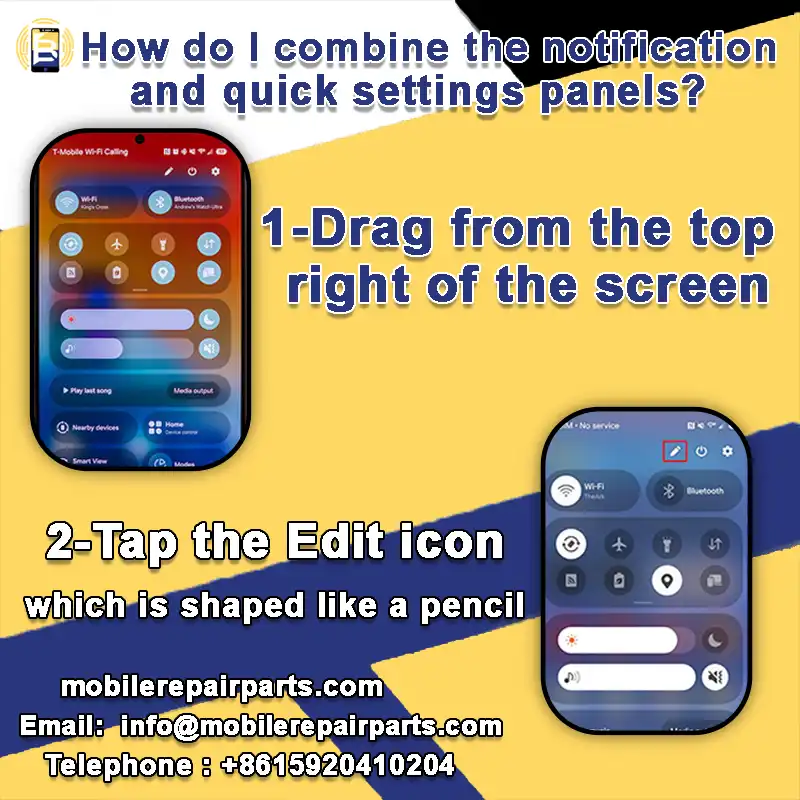
With the Samsung One UI.7 update, you can combine the notification and quick settings panels by following these simple steps:

1-Drag from the top right of the screen.

2-Tap the Edit icon, which is shaped like a pencil
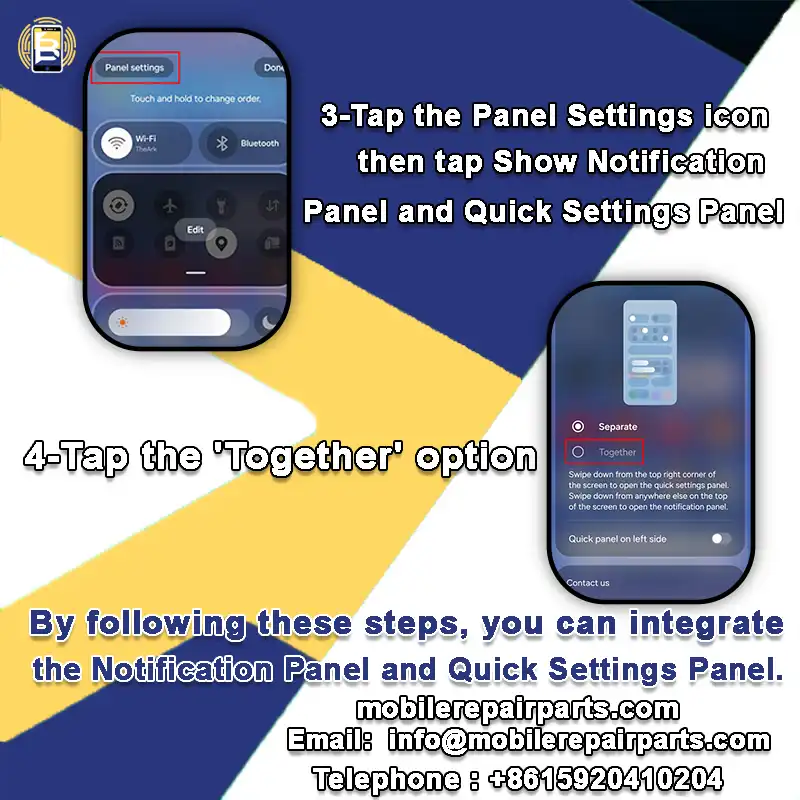
3-Tap the Panel Settings icon, then tap Show Notification Panel and Quick Settings Panel

4-Tap the 'Together' option

By following these steps, you can integrate the Notification Panel and Quick Settings Panel.
Let's explore the new changes to the Home screen and widgets.

Home screen and widgets

As you know, the Home screen is the screen that appears when you unlock your phone and contains all your apps, widgets, etc. With the One UI.7 update, your phone's Home screen has a new look, with new icons and simple, attractive element templates. You can add or remove an app or widget from the Home screen and rearrange the order of apps or widgets.

To add an app to the Home screen, follow these steps:
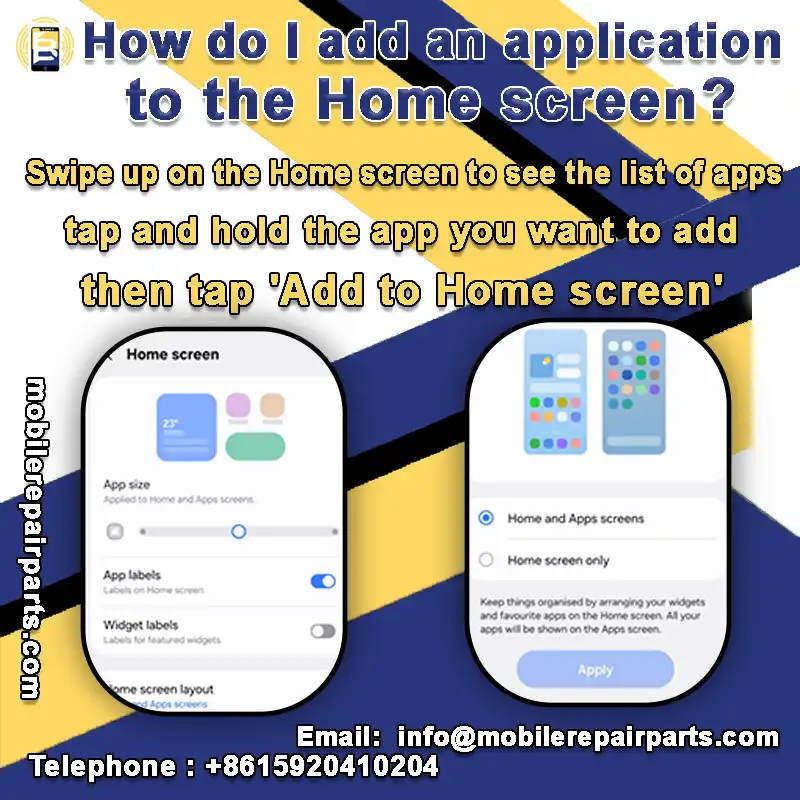
Swipe up on the Home screen to see the list of apps, tap and hold the app you want to add, then tap 'Add to Home screen'.

*To remove an application from the Home screen, tap the application for a long time and select 'Remove'.

To add a widget to the home screen, long tap on an empty space on the screen and then tap on ‘Widgets’, locate the widget, tap on it and then select ‘Add’.

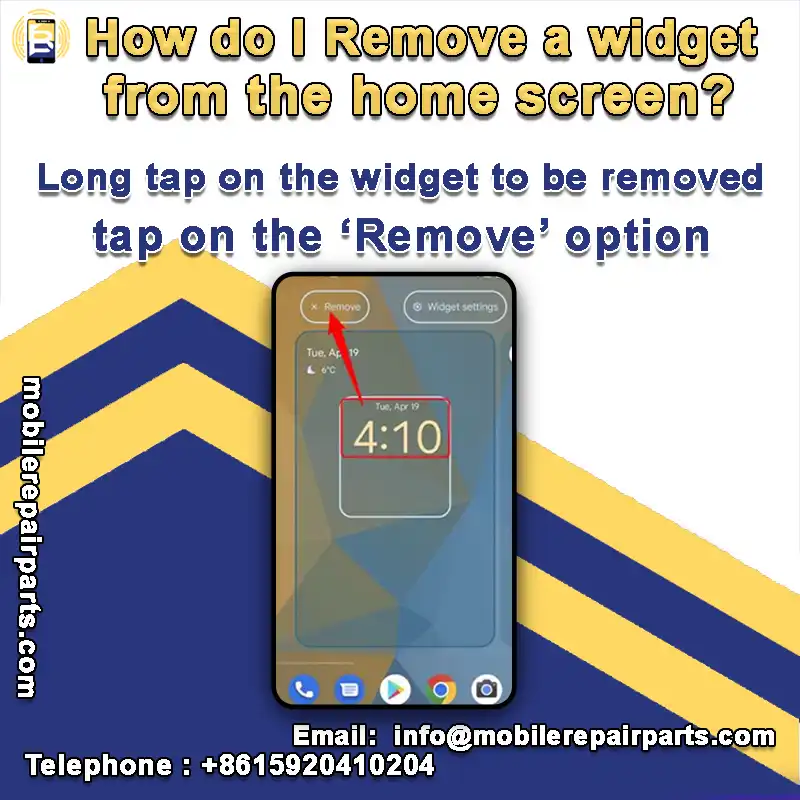
Remove a widget from the home screen Perform this step: Long tap on the widget to be removed and then tap on the ‘Remove’ option.
Want to rearrange apps or widgets? Follow these steps:
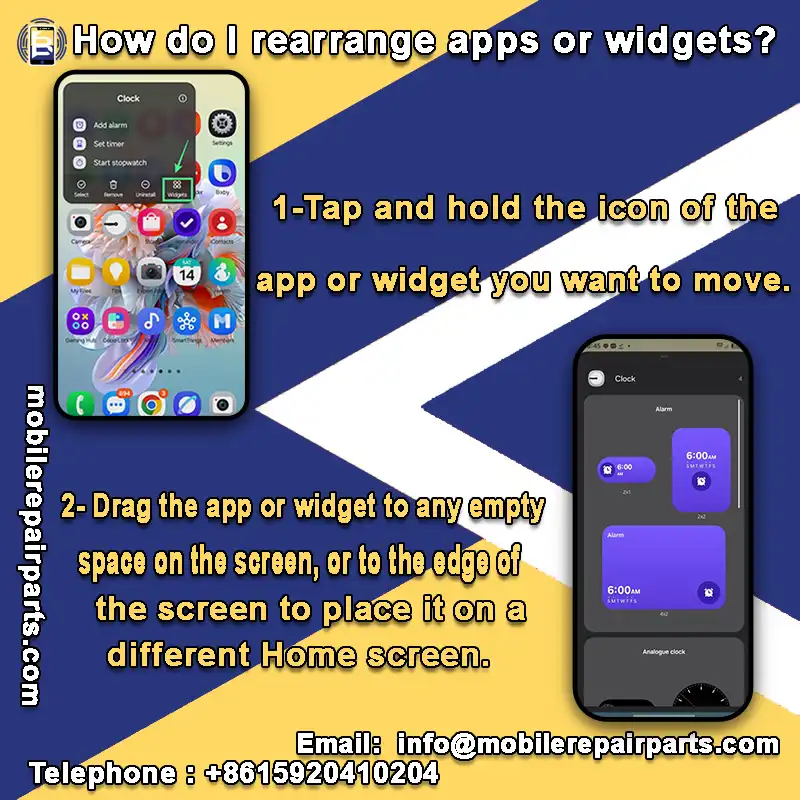
1-Tap and hold the icon of the app or widget you want to move.

2- Drag the app or widget to any empty space on the screen, or to the edge of the screen to place it on a different Home screen.

*The icon of a widget can be resized by long-pressing the widget and dragging the corner.

*Application icons cannot be resized.

Connected devices is the second update for Samsung One Ui.7.

The new One UI.7 update allows users to see connected and nearby devices from the quick settings panel.

*To access connected devices, proceed as follows:

1- Open the Quick Settings panel by swiping down from the top right of the screen.

2- Tap and hold Nearby Devices, then tap and hold the device you want.

3- Drag the device onto another device icon to connect it.

*To learn more about the connected device, tap its name.

*You can tap the Settings icon to configure device options.

The latest update to Samsung One UI.7 is called 'Galaxy AI' and includes the following new features:

1-Productivity features.

2-Personalization features.

3-Image, video, and gallery app features.

4-Call features.

5- Lifestyle features.

*Let's start with the "Productivity features":

Productivity features are tools designed to help you get things done smoothly, quickly and intelligently. Here are the key productivity features in One UI 7:

Cross-application actions: With Google Gemini, you can perform many different tasks using different applications by simply pressing the side button on your phone and then asking or typing your question. For example: Find local phone repair shops, or call Sarah.

Gemini Live: Maximize your productivity with Gemini Live, just hold down the side button to launch Gemini, click the Gemini Live icon, and start chatting with Gemini Live.

Gallery Search: This feature allows you to perform an advanced search within the Gallery app, enter some text such as 'sky photos', click the search icon and all photos related to what you are searching for appear.

Search settings: Instead of scrolling through the Settings menu to find a specific setting such as 'Sound, Screen & Lock or Battery', this feature allows you to search for a setting.

1 - Open your phone's Settings

2 - Tap the search bar at the top

 3 - Enter the name of the setting, such as 'App Permissions'

4 - Your phone will take you directly to the correct setting.

Summary feature: The Circle to Search feature lets you get an AI-powered overview of something that appears on your phone's Home screen. When you see a topic that interests you, long-tap the Home button, circle the word, phrase, or object, and tap "View More" to see more information.

Action chips: With the One UI.7 update, the Circle to Search feature introduces actions related to your searches. When you press and hold the Home button and circle the word or phrase on the screen, icons for different actions appear, such as phone numbers, addresses, emails and websites.

AI Select: Easily switch between apps or other screens to perform a single action. You can open the 'Edge Panel', then select 'AI Select' and draw around what you want to select. Galaxy AI will show you the actions associated with using it, such as typing assistance, drawing assistance, set as wallpaper and more.

Want to know more about the Edge Panel or how to activate it? Read this article "What is Edge Panel and how to use it on Samsung Mobile?" to learn everything you need to know about Edge Panel.

Writing Assistant: This feature can be used on any specific text you have typed, such as an email, select the text and then tap the Galaxy AI icon on the keyboard to get typing assistance.

*Now, we'll talk about the :Personalization features

This feature refers to all the tools and settings that allow you to customize your phone to suit your style, preferences and workflow. Here are the personalization features in One UI 7:

Now Brief: This feature helps you get brief summaries throughout the day, such as weather updates and health information. You can access the summary from the Now bar on the lock screen, the Now Brief widget on the home screen, or the Edge panel.

Now bar: Displays important information in real time on the lock screen so you don't have to unlock your phone to stay informed. This feature displays:

*Basic information such as weather and battery level.

*Morning brief: Gives you a quick summary as you start your day, such as the day's schedule, alarms, or news updates.

*Music and recording control: Play/pause your music or manage your voice recordings without unlocking your phone.

*Galaxy Watch integration: Easily check out the features connected to your Galaxy Watch.

Home AI: The "Smart Thing app" includes useful and advanced features to help you create a comfortable home environment. Open the "Smart Thing" app and tap the menu at the bottom of the screen, then tap Explore to see details of the features.

AI privacy: Configure AI features to keep your personal information safe.

*Open Settings on your phone.

*Tap Galaxy AI.

*Select the check box next to Data processing on device only.

AI Stickers: Use text prompts and patterns to design your own AI stickers.

*Open the Messages app, then press the text box to open the Samsung Keyboard.

*Then, on the toolbar, tap the emoji icon.

*Next, tap the Galaxy AI icon. To create a pattern, first describe an image, then tap 'Pattern'. Tap "Create", then tap "Done" to design the AI sticker you want to send.

*Now, let's talk about the: Image, Video, and Gallery App Features

This feature refers to all the tools, functions, and enhancements for viewing, editing, organizing, or sharing photos and videos on your phone, usually through the Gallery app and related apps. Here are the Image, Video, and Gallery App Features in One UI 7:

Image generation: Use the Drawing Assistant to turn text instructions, sketches or photos into images.

Portrait Studio: Use the Photo Assistant to make a realistic portrait that looks natural.

Evolved Story: You can also make personalized story videos with language prompts.

Live Effect: You can make your photos look more interesting by using various visuals.

Generative edit: Use Photo Assistant to remove anything in your photos that you don't want.

Best Face: Choose the most attractive facial expressions with animated images.

Audio Eraser: Use this feature to cut out unwanted noise from videos.

Auto Trim: Make unique videos Instantly

Log Video: Make professional videos in log format that you can edit however you like.

Now, let's have a look at: Call features

This feature refers to the new and improved tools and options available when making or receiving calls:

Barrier-free communication: This feature supports the translation of 20 languages during a call and other third-party applications. This makes it easier to communicate with other people.

Record and summarize: You can summarize calls with texts and text summaries.

Video Call Reactions: You can send animated emojis in other apps by using gestures.

The last one is: Lifestyle features

The lifestyle features in Samsung One UI 7 are designed to make your phone more helpful and personal to you. They include smart tools and customizations that improve your daily life.

Mindfulness: Practice breathing exercises and meditation using the Samsung Health app.

Parental controls: This feature helps parents safely and easily manage and monitor their children's phone use. You can add children over the age of 13 to the Samsung Family Group.

App Archiving: Get suggestions to archive apps that have been unused for 30 days.

Samsung One UI. 7 supported devices

Here is a list of Samsung devices that work with One UI.7:

*Galaxy S Series

  1. Galaxy S25 / S25+ / S25 Ultra
  2. Galaxy S24 / S24+ / S24 Ultra
  3. Galaxy S23 / S23+ / S23 Ultra
  4. Galaxy S23 FE
  5. Galaxy S22 / S22+ / S22 Ultra

*Galaxy Z Series (Foldables)

  1. Galaxy Z Fold 6
  2. Galaxy Z Flip 6
  3. Galaxy Z Fold 5
  4. Galaxy Z Flip 5
  5. Galaxy Z Fold 4
  6. Galaxy Z Flip 4

*Galaxy A Series

  1. Galaxy A56
  2. Galaxy A36
  3. Galaxy A26

*Galaxy M & F Series

  1. Galaxy M54 / M34
  2. Galaxy F54 / F34

*Galaxy Tablets

  1. Galaxy Tab S10 series
  2. Galaxy Tab S9 / S9+ / S9 Ultra
  3. Galaxy Tab S8

*Rollout Timeline Highlights

April 7, 2025: Began with Galaxy S24 series and foldables

April–May 2025: Rolling out to S23 series, Fold 5/Flip 5, Tab S9/S10

Mid-2025: S22, Flip 4, Fold 4, and select A/M/F models

One UI.7 FAQs

1-How do I check if my phone can be updated to One UI 7?

Go to: Settings > Software update > Download and install If One UI 7 is available for your device, you'll see the update option there.

2- Will One UI 7 slow down my phone?

No. In fact, One UI 7 is optimized for smoother performance, faster animations and better battery efficiency, even on older models like the S22 series.

3- Can I downgrade from One UI 7?

Technically, yes, but it requires flashing your device with older firmware something we don't recommend unless you're very experienced. It may also void your warranty.

4- Is One UI 7 safe to install?

Yes, it is. It has been officially released by Samsung and tested on multiple devices. Make sure you back up your data before installing any major update.

In short, with One UI 7, Samsung isn't just upgrading software, it's upgrading your everyday experience. Smarter, faster, and more personal than ever, this update proves that the future of Galaxy devices is as intuitive as it is powerful. Whether you're a tech enthusiast or a casual user, One UI 7 is designed to fit seamlessly into your life.

Share your thoughts on the new Samsung One UI.7 updates. Which feature caught your eye?

Leave a Reply

Your email address will not be published. Required fields are marked *


Table of contents

  1. Overview of Samsung One UI.7
  2. One UI.7 new updates list
    1. The First update is: Home screen, Notifications, and Quick settings
      1. Notifications, and Quick settings:
      2. How do I open the Notification Panel?
      3. How do I open the quick settings panel?
      4. How do I navigate between the Notifications panel and the quick settings panel?
      5. Home screen and widgets
    2. Connected devices is the second update for Samsung One Ui.7.
    3. The latest update to Samsung One UI.7 is called 'Galaxy AI' and includes the following new features:
      1. 1-Productivity features.
      2. 2-Personalization features.
      3. 3-Image, video, and gallery app features.
      4. 4-Call features.
      5. 5- Lifestyle features.
      6. Cross-application actions: With Google Gemini, you can perform many different tasks using different applications by simply pressing the side button on your phone and then asking or typing your question. For example: Find local phone repair shops, or call Sarah.
      7. Gemini Live: Maximize your productivity with Gemini Live, just hold down the side button to launch Gemini, click the Gemini Live icon, and start chatting with Gemini Live.
      8. Gallery Search: This feature allows you to perform an advanced search within the Gallery app, enter some text such as 'sky photos', click the search icon and all photos related to what you are searching for appear.
      9. Search settings: Instead of scrolling through the Settings menu to find a specific setting such as 'Sound, Screen & Lock or Battery', this feature allows you to search for a setting.
      10. Summary feature: The Circle to Search feature lets you get an AI-powered overview of something that appears on your phone's Home screen. When you see a topic that interests you, long-tap the Home button, circle the word, phrase, or object, and tap "View More" to see more information.
      11. Action chips: With the One UI.7 update, the Circle to Search feature introduces actions related to your searches. When you press and hold the Home button and circle the word or phrase on the screen, icons for different actions appear, such as phone numbers, addresses, emails and websites.
      12. AI Select: Easily switch between apps or other screens to perform a single action. You can open the 'Edge Panel', then select 'AI Select' and draw around what you want to select. Galaxy AI will show you the actions associated with using it, such as typing assistance, drawing assistance, set as wallpaper and more.
      13. Writing Assistant: This feature can be used on any specific text you have typed, such as an email, select the text and then tap the Galaxy AI icon on the keyboard to get typing assistance.
      14. *Now, we'll talk about the :Personalization features
      15. Now Brief: This feature helps you get brief summaries throughout the day, such as weather updates and health information. You can access the summary from the Now bar on the lock screen, the Now Brief widget on the home screen, or the Edge panel.
      16. Now bar: Displays important information in real time on the lock screen so you don't have to unlock your phone to stay informed. This feature displays:
      17. Home AI: The "Smart Thing app" includes useful and advanced features to help you create a comfortable home environment. Open the "Smart Thing" app and tap the menu at the bottom of the screen, then tap Explore to see details of the features.
      18. AI privacy: Configure AI features to keep your personal information safe.
      19. AI Stickers: Use text prompts and patterns to design your own AI stickers.
      20. *Now, let's talk about the: Image, Video, and Gallery App Features
      21. Image generation: Use the Drawing Assistant to turn text instructions, sketches or photos into images.
      22. Portrait Studio: Use the Photo Assistant to make a realistic portrait that looks natural.
      23. Evolved Story: You can also make personalized story videos with language prompts.
      24. Live Effect: You can make your photos look more interesting by using various visuals.
      25. Generative edit: Use Photo Assistant to remove anything in your photos that you don't want.
      26. Best Face: Choose the most attractive facial expressions with animated images.
      27. Audio Eraser: Use this feature to cut out unwanted noise from videos.
      28. Auto Trim: Make unique videos Instantly
      29. Log Video: Make professional videos in log format that you can edit however you like.
      30. Now, let's have a look at: Call features
      31. Barrier-free communication: This feature supports the translation of 20 languages during a call and other third-party applications. This makes it easier to communicate with other people.
      32. Record and summarize: You can summarize calls with texts and text summaries.
      33. Video Call Reactions: You can send animated emojis in other apps by using gestures.
      34. The last one is: Lifestyle features
      35. Mindfulness: Practice breathing exercises and meditation using the Samsung Health app.
      36. Parental controls: This feature helps parents safely and easily manage and monitor their children's phone use. You can add children over the age of 13 to the Samsung Family Group.
      37. App Archiving: Get suggestions to archive apps that have been unused for 30 days.
  3. Samsung One UI. 7 supported devices
  4. One UI.7 FAQs
    1. 1-How do I check if my phone can be updated to One UI 7?
    2. 2- Will One UI 7 slow down my phone?
    3. 3- Can I downgrade from One UI 7?
    4. 4- Is One UI 7 safe to install?

Samsung has introduced a new and unique user experience with the launch of One UI.7 based on Android 15, Let's take a look at what's new in the Android 15 update in this article." Android 15: Redefining Innovation, Privacy, and Performance". Samsung One UI.7 was officially launched on 7 April 2025. This new update includes many advanced improvements such as 'AI-powered tools', 'Now bar' notifications, automatic screen dimming, etc. One UI 7 is set to deliver a smarter, smoother and more intuitive experience across all Samsung Galaxy devices. In this article, we will discuss all the updates included in Samsung One UI.7.

Overview of Samsung One UI.7

The Samsung UI.7 update provides a great experience for users of Samsung phones, whether they are newly released phones or older versions such as the S23 series. This update focuses on AI tool improvements, visual redesign, improved navigation interface, quick settings, and connected devices. This update focuses on delivering a seamless user experience that is more sophisticated and better understands user needs.

One UI.7 new updates list

We're going to explain all the updates to One UI.7 in detail, so let's start with the first update.

The First update is: Home screen, Notifications, and Quick settings

This update includes changes to the Home screen, the Notification, and the Quick settings. Here are the changes to the notification panel and quick settings.

Notifications, and Quick settings:

The notification and quick settings panels in the Samsung One UI.7 update have a new look with new navigation icons for the notification and quick settings panels.

How do I open the Notification Panel?

To open the Notifications panel, a Samsung phone user must swipe from the top left of the screen to the bottom or center of the screen.

How do I open the quick settings panel?

Swipe down from the top right of the screen.

How do I navigate between the Notifications panel and the quick settings panel?

You can move between them by swiping left and right.

With the Samsung One UI.7 update, you can combine the notification and quick settings panels by following these simple steps:

1-Drag from the top right of the screen.

2-Tap the Edit icon, which is shaped like a pencil

3-Tap the Panel Settings icon, then tap Show Notification Panel and Quick Settings Panel

4-Tap the 'Together' option

By following these steps, you can integrate the Notification Panel and Quick Settings Panel.

Let's explore the new changes to the Home screen and widgets.

Home screen and widgets

As you know, the Home screen is the screen that appears when you unlock your phone and contains all your apps, widgets, etc. With the One UI.7 update, your phone's Home screen has a new look, with new icons and simple, attractive element templates. You can add or remove an app or widget from the Home screen and rearrange the order of apps or widgets.

To add an app to the Home screen, follow these steps:

Swipe up on the Home screen to see the list of apps, tap and hold the app you want to add, then tap 'Add to Home screen'.

*To remove an application from the Home screen, tap the application for a long time and select 'Remove'.

To add a widget to the home screen, long tap on an empty space on the screen and then tap on ‘Widgets’, locate the widget, tap on it and then select ‘Add’.

Remove a widget from the home screen Perform this step: Long tap on the widget to be removed and then tap on the ‘Remove’ option.

Want to rearrange apps or widgets? Follow these steps:

1-Tap and hold the icon of the app or widget you want to move.

2- Drag the app or widget to any empty space on the screen, or to the edge of the screen to place it on a different Home screen.

*The icon of a widget can be resized by long-pressing the widget and dragging the corner.

*Application icons cannot be resized.

Connected devices is the second update for Samsung One Ui.7.

The new One UI.7 update allows users to see connected and nearby devices from the quick settings panel.

*To access connected devices, proceed as follows:

1- Open the Quick Settings panel by swiping down from the top right of the screen.

2- Tap and hold Nearby Devices, then tap and hold the device you want.

3- Drag the device onto another device icon to connect it.

*To learn more about the connected device, tap its name.

*You can tap the Settings icon to configure device options.

The latest update to Samsung One UI.7 is called 'Galaxy AI' and includes the following new features:

1-Productivity features.

2-Personalization features.

3-Image, video, and gallery app features.

4-Call features.

5- Lifestyle features.

*Let's start with the "Productivity features":

Productivity features are tools designed to help you get things done smoothly, quickly and intelligently. Here are the key productivity features in One UI 7:

Cross-application actions: With Google Gemini, you can perform many different tasks using different applications by simply pressing the side button on your phone and then asking or typing your question. For example: Find local phone repair shops, or call Sarah.

Gemini Live: Maximize your productivity with Gemini Live, just hold down the side button to launch Gemini, click the Gemini Live icon, and start chatting with Gemini Live.

Gallery Search: This feature allows you to perform an advanced search within the Gallery app, enter some text such as 'sky photos', click the search icon and all photos related to what you are searching for appear.

Search settings: Instead of scrolling through the Settings menu to find a specific setting such as 'Sound, Screen & Lock or Battery', this feature allows you to search for a setting.

1 - Open your phone's Settings

2 - Tap the search bar at the top

 3 - Enter the name of the setting, such as 'App Permissions'

4 - Your phone will take you directly to the correct setting.

Summary feature: The Circle to Search feature lets you get an AI-powered overview of something that appears on your phone's Home screen. When you see a topic that interests you, long-tap the Home button, circle the word, phrase, or object, and tap "View More" to see more information.

Action chips: With the One UI.7 update, the Circle to Search feature introduces actions related to your searches. When you press and hold the Home button and circle the word or phrase on the screen, icons for different actions appear, such as phone numbers, addresses, emails and websites.

AI Select: Easily switch between apps or other screens to perform a single action. You can open the 'Edge Panel', then select 'AI Select' and draw around what you want to select. Galaxy AI will show you the actions associated with using it, such as typing assistance, drawing assistance, set as wallpaper and more.

Want to know more about the Edge Panel or how to activate it? Read this article "What is Edge Panel and how to use it on Samsung Mobile?" to learn everything you need to know about Edge Panel.

Writing Assistant: This feature can be used on any specific text you have typed, such as an email, select the text and then tap the Galaxy AI icon on the keyboard to get typing assistance.

*Now, we'll talk about the :Personalization features

This feature refers to all the tools and settings that allow you to customize your phone to suit your style, preferences and workflow. Here are the personalization features in One UI 7:

Now Brief: This feature helps you get brief summaries throughout the day, such as weather updates and health information. You can access the summary from the Now bar on the lock screen, the Now Brief widget on the home screen, or the Edge panel.

Now bar: Displays important information in real time on the lock screen so you don't have to unlock your phone to stay informed. This feature displays:

*Basic information such as weather and battery level.

*Morning brief: Gives you a quick summary as you start your day, such as the day's schedule, alarms, or news updates.

*Music and recording control: Play/pause your music or manage your voice recordings without unlocking your phone.

*Galaxy Watch integration: Easily check out the features connected to your Galaxy Watch.

Home AI: The "Smart Thing app" includes useful and advanced features to help you create a comfortable home environment. Open the "Smart Thing" app and tap the menu at the bottom of the screen, then tap Explore to see details of the features.

AI privacy: Configure AI features to keep your personal information safe.

*Open Settings on your phone.

*Tap Galaxy AI.

*Select the check box next to Data processing on device only.

AI Stickers: Use text prompts and patterns to design your own AI stickers.

*Open the Messages app, then press the text box to open the Samsung Keyboard.

*Then, on the toolbar, tap the emoji icon.

*Next, tap the Galaxy AI icon. To create a pattern, first describe an image, then tap 'Pattern'. Tap "Create", then tap "Done" to design the AI sticker you want to send.

*Now, let's talk about the: Image, Video, and Gallery App Features

This feature refers to all the tools, functions, and enhancements for viewing, editing, organizing, or sharing photos and videos on your phone, usually through the Gallery app and related apps. Here are the Image, Video, and Gallery App Features in One UI 7:

Image generation: Use the Drawing Assistant to turn text instructions, sketches or photos into images.

Portrait Studio: Use the Photo Assistant to make a realistic portrait that looks natural.

Evolved Story: You can also make personalized story videos with language prompts.

Live Effect: You can make your photos look more interesting by using various visuals.

Generative edit: Use Photo Assistant to remove anything in your photos that you don't want.

Best Face: Choose the most attractive facial expressions with animated images.

Audio Eraser: Use this feature to cut out unwanted noise from videos.

Auto Trim: Make unique videos Instantly

Log Video: Make professional videos in log format that you can edit however you like.

Now, let's have a look at: Call features

This feature refers to the new and improved tools and options available when making or receiving calls:

Barrier-free communication: This feature supports the translation of 20 languages during a call and other third-party applications. This makes it easier to communicate with other people.

Record and summarize: You can summarize calls with texts and text summaries.

Video Call Reactions: You can send animated emojis in other apps by using gestures.

The last one is: Lifestyle features

The lifestyle features in Samsung One UI 7 are designed to make your phone more helpful and personal to you. They include smart tools and customizations that improve your daily life.

Mindfulness: Practice breathing exercises and meditation using the Samsung Health app.

Parental controls: This feature helps parents safely and easily manage and monitor their children's phone use. You can add children over the age of 13 to the Samsung Family Group.

App Archiving: Get suggestions to archive apps that have been unused for 30 days.

Samsung One UI. 7 supported devices

Here is a list of Samsung devices that work with One UI.7:

*Galaxy S Series

  1. Galaxy S25 / S25+ / S25 Ultra
  2. Galaxy S24 / S24+ / S24 Ultra
  3. Galaxy S23 / S23+ / S23 Ultra
  4. Galaxy S23 FE
  5. Galaxy S22 / S22+ / S22 Ultra

*Galaxy Z Series (Foldables)

  1. Galaxy Z Fold 6
  2. Galaxy Z Flip 6
  3. Galaxy Z Fold 5
  4. Galaxy Z Flip 5
  5. Galaxy Z Fold 4
  6. Galaxy Z Flip 4

*Galaxy A Series

  1. Galaxy A56
  2. Galaxy A36
  3. Galaxy A26

*Galaxy M & F Series

  1. Galaxy M54 / M34
  2. Galaxy F54 / F34

*Galaxy Tablets

  1. Galaxy Tab S10 series
  2. Galaxy Tab S9 / S9+ / S9 Ultra
  3. Galaxy Tab S8

*Rollout Timeline Highlights

April 7, 2025: Began with Galaxy S24 series and foldables

April–May 2025: Rolling out to S23 series, Fold 5/Flip 5, Tab S9/S10

Mid-2025: S22, Flip 4, Fold 4, and select A/M/F models

One UI.7 FAQs

1-How do I check if my phone can be updated to One UI 7?

Go to: Settings > Software update > Download and install If One UI 7 is available for your device, you'll see the update option there.

2- Will One UI 7 slow down my phone?

No. In fact, One UI 7 is optimized for smoother performance, faster animations and better battery efficiency, even on older models like the S22 series.

3- Can I downgrade from One UI 7?

Technically, yes, but it requires flashing your device with older firmware something we don't recommend unless you're very experienced. It may also void your warranty.

4- Is One UI 7 safe to install?

Yes, it is. It has been officially released by Samsung and tested on multiple devices. Make sure you back up your data before installing any major update.

In short, with One UI 7, Samsung isn't just upgrading software, it's upgrading your everyday experience. Smarter, faster, and more personal than ever, this update proves that the future of Galaxy devices is as intuitive as it is powerful. Whether you're a tech enthusiast or a casual user, One UI 7 is designed to fit seamlessly into your life.

Share your thoughts on the new Samsung One UI.7 updates. Which feature caught your eye?
Leave a Reply

Your email address will not be published. Required fields are marked *


Products

Samsung One UI 7: Smarter Features, Smoother Experience
This website uses cookies to improve your experience. By using this website you agree to our Data Protection Policy.
Read more