


Maximizing your repair margins relies on precise technical knowledge and sourcing efficiency. Every minute a device spends on your workbench is lost profit, and using the wrong specifications can lead to costly returns.
For technicians and distributors, mastering the Huawei Nova 12 ensures higher turnover rates in competitive markets like Mexico City and São Paulo. This guide provides actionable repair insights and sourcing strategies directly from Shenzhen.
|
📘 Summary This guide demystifies the Huawei Nova 12 for Latin American wholesalers, offering a deep dive into repair workflows that maximize profitability. From navigating complex disassembly of the OLED display to diagnosing charging failures, we provide the technical precision needed to reduce turnaround times. By sourcing high-quality components directly from Shenzhen and adhering to strict safety protocols, you can significantly lower your return rates and secure a competitive edge in the booming secondary phone market. |
🔍 Key Highlights
|
Table of Contents
Huawei Nova 12 specifications
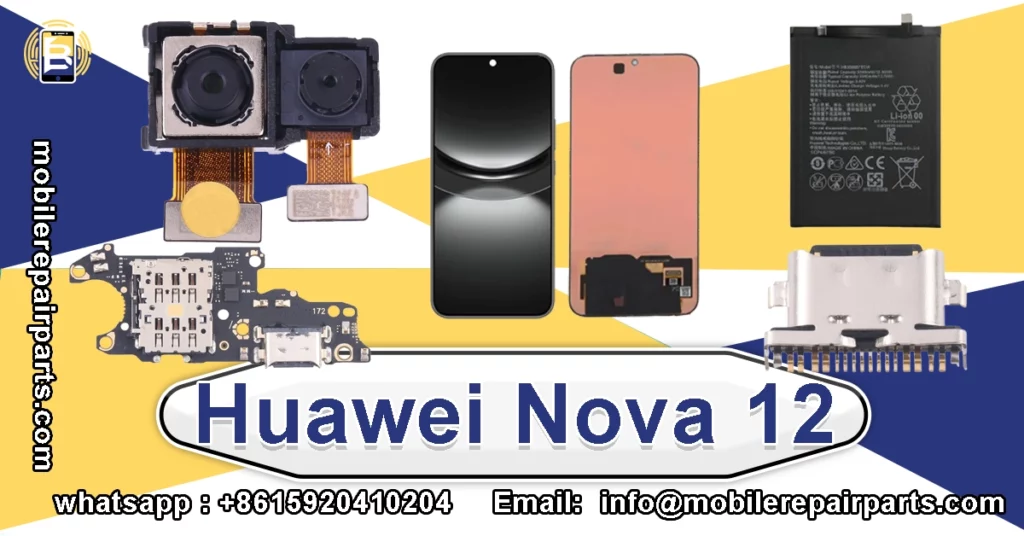
Understanding the core hardware is the first step in efficient troubleshooting and parts inventory management for your wholesale business:
- Display: 6.7 inches OLED, 120Hz refresh rate
- Processor: Kirin 9000SL (4G)
- Battery: 4600 mAh Li-Po (Non-removable)
- Main Camera: 50 MP (Wide)
- Selfie Camera: 60 MP (Ultrawide)
- Charging: 100W Wired, PD3.0 / PPS
- OS: HarmonyOS 4.0 (No Google Play Services)
- Dimensions: 161.5 x 74.8 x 6.98 mm
- Weight: 168 g
Comprehensive Disassembly Guide for the Huawei Nova 12 Display Assembly
Opening the device requires care due to the thin OLED Huawei Nova 12 panel and extensive adhesive used for water resistance. Follow these detailed steps to access the internal motherboard safely:
- Power down the phone completely and remove the SIM card tray to ensure no physical obstructions exist.
- Heat the perimeter of the rear glass cover or screen edge to approximately 80°C using a heat gun to soften the waterproof adhesive.
- Apply a strong suction cup near the bottom edge of the device and pull up steadily to create a small gap between the frame and the glass.
- Insert a precision opening pick or thin playing card into the gap and carefully slice through the adhesive around the entire perimeter.
- Once the adhesive is cut, gently lift the display assembly but be careful not to tear the fragile fingerprint sensor flex cable located at the bottom.
- Disconnect the fingerprint ribbon cable from the motherboard using a spudger or plastic tweezers to avoid ripping the connector.
- Remove the seven Phillips-head screws securing the RF and antenna shield covering the top of the motherboard.
- Lift the metal shield off carefully to expose the battery, display connectors, and the main flex cable interconnects.
- Disconnect the battery connector first to prevent any short circuits, followed by the screen display cable.
- Remove the display assembly from the chassis and place it face down on a clean microfiber cloth to protect the OLED panel.
Advanced Troubleshooting for Huawei Nova 12 Battery and Charging Issues
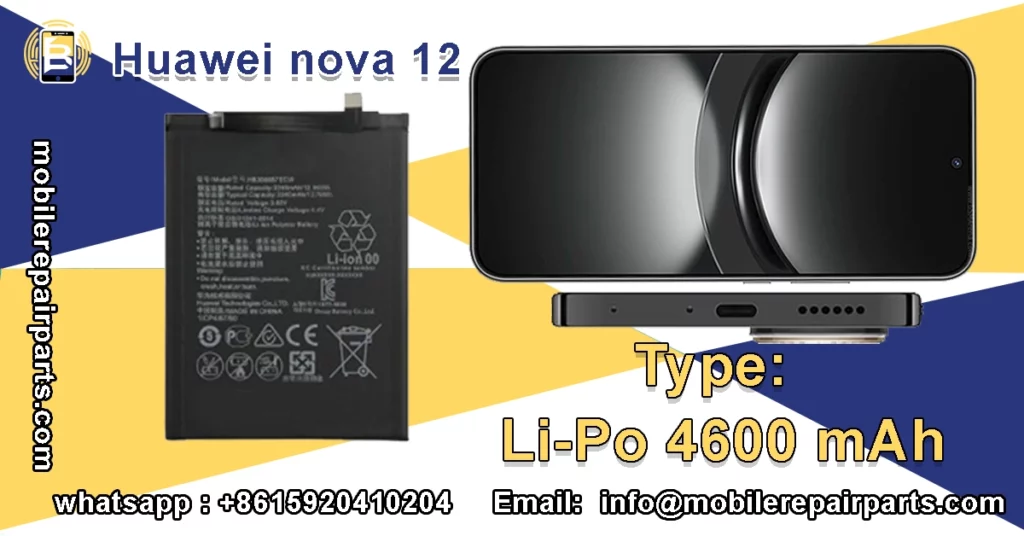
Battery Huawei Nova 12 swelling and slow charging are frequent complaints in high-humidity Latin American climates. Diagnosing the root cause accurately prevents unnecessary parts replacement:
| Problem | Likely Cause | Recommended Repair |
|---|---|---|
| Device not charging | Damaged USB-C port or debris | Clean port or replace charging board |
| Battery drains fast | Background apps or aged cell | Replace 4600 mAh battery |
| Phone overheats while charging | Faulty PMIC or tristar | Microsoldering mainboard repair |
| Intermittent charge | Loose flex cable connection | Reseat or replace flex cable |
“Proper diagnostics of charging systems can reduce part wastage by up to 40% in repair shops.”
Step-by-Step Replacement of the 60Hz OLED Screen and Digitizer
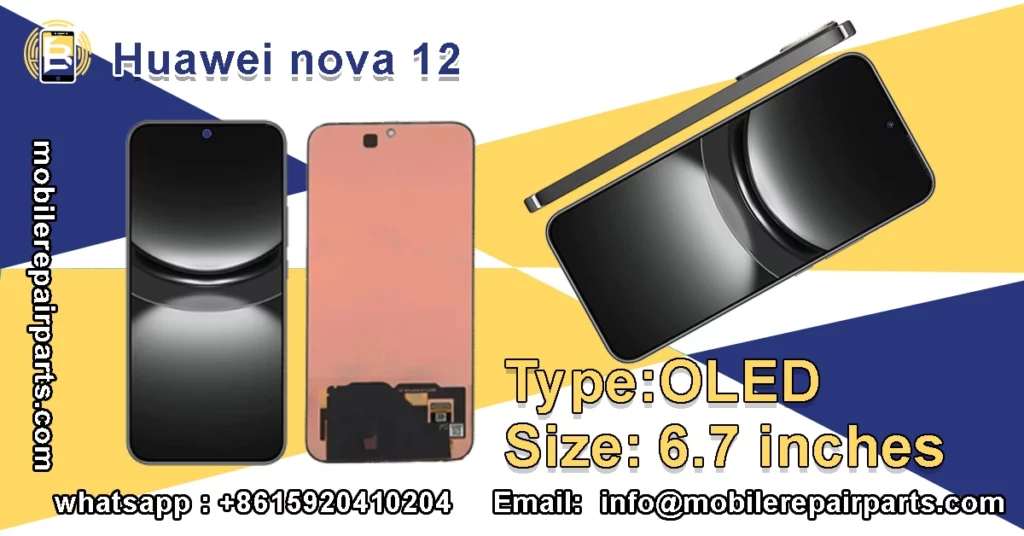
The display assembly is the most fragile component and requires a steady hand to avoid damaging the fingerprint ribbon cable. Ensure you organize your workspace before beginning this detailed procedure:
- Place the device on a non-slip mat and remove the two bottom Pentalobe screws securing the screen to the mid-frame.
- Use a suction cup to lift the screen slightly, then insert a thin plastic opening pick to slice through the adhesive seal around the display.
- Gently pry the display up from the bottom, keeping the hinge angle below 90 degrees to avoid straining the flex cables.
- Locate the display connector shield plate on the motherboard and remove the four Y-triangular or Phillips screws holding it in place.
- Disconnect the OLED flex cable connector by flipping the small metal ZIF latch up and pulling the cable straight out.
- Remove the old adhesive residue from the frame carefully using high-concentration isopropyl alcohol (90%+) and a lint-free cloth.
- Align the new OLED replacement perfectly with the frame, ensuring the earpiece mesh and sensor cutouts line up correctly.
- Press the edges firmly to activate the pre-installed adhesive, or use new T-7000 adhesive strips for a water-resistant seal.
- Reconnect the display cable, flip the ZIF latch down to lock it, and screw the shield plate back into place.
- Test touch functionality and display pixel integrity before finalizing the seal and screwing the bottom chassis screws back in.
Diagnosing and Repairing the Nova 12 Main Camera Module
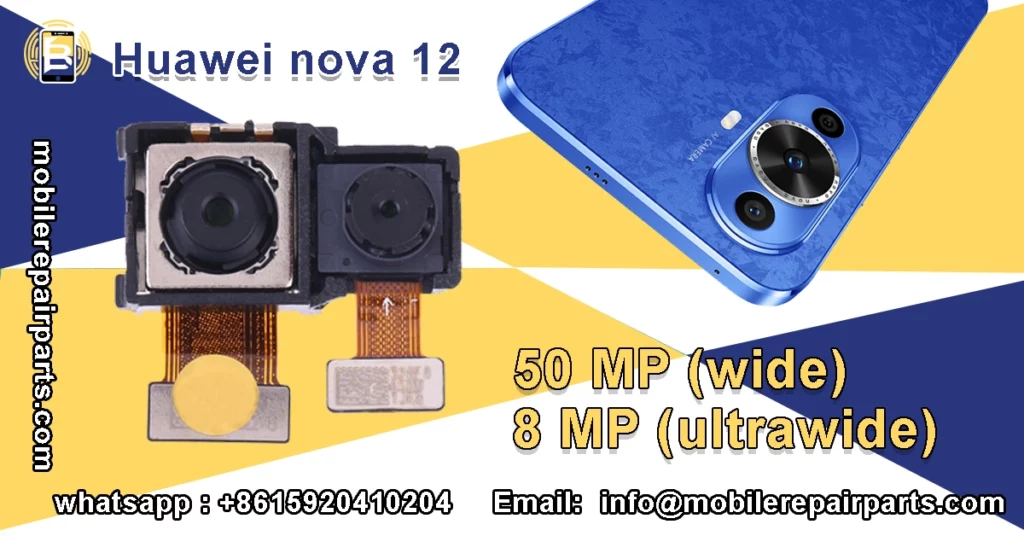
Blurry photos or focus failure often result from physical shock or flex cable damage rather than sensor failure. Thorough inspection saves you the cost of replacing a functional camera unit:
- Access the rear camera module by removing the back cover and disconnecting the battery for safety.
- Locate the camera bracket and remove the screws holding the main wide back camera in place.
- Inspect the lens glass externally for cracks or scratches that might interfere with light entry.
- Disconnect the camera flex cable from the motherboard socket, checking for any signs of corrosion or liquid damage on the pins.
- If replacing the camera, align the new unit with the socket and press down gently until it clicks into place.
- Reinstall the camera bracket and ensure the gasket or rubber seal is intact to maintain dust and water resistance.
- Before sealing the phone, open the default camera app to test focus speed and clarity, checking for any error messages.
- Check the secondary ultrawide back camera using the same procedure to ensure stability across all lenses.
Managing USB-C Port Failures in High-Density PCBs
Charging port issues are common due to frequent plugging and physical stress on the small connector area. When the port fails, replacing the entire daughter board is often more efficient than microsoldering:
- Disconnect the battery immediately upon opening the device to prevent short circuits on the logic board.
- Remove the motherboard shield and the antenna covers that obscure the bottom charging board assembly.
- Disconnect the interconnect flex cables that link the charging board to the main logic board.
- Locate and remove the grounding screws that secure the charging board to the metal frame chassis.
- Use a hot air rework station set to around 350°C to loosen the solder joints holding the USB connector to the board.
- Desolder any capacitors or resistors connected to the old port and carefully lift the damaged charging board assembly out.
- Clean the contact pads on the logic board with flux to ensure a clean connection for the new component.
- Position the new charging board assembly and solder the ground tabs securely, ensuring a strong mechanical bond.
- Reconnect the interconnect cables and verify voltage input using a USB-C power meter before final assembly.
Critical Analysis of Internal Components and Heat Dissipation
The Kirin 9000SL is efficient, but the thin chassis relies heavily on thermal paste and a graphite film to manage heat. During repairs, ensure you do not block these thermal pathways with excessive adhesive or misaligned shields. Reapplying thermal compound is recommended when servicing the motherboard. Proper heat management is essential for maintaining the longevity of the processor and preventing thermal throttling during extended use.
Furthermore, the internal layout places the RF boards near the charging port, making them susceptible to moisture damage. Check the signal flex cable and antenna connections if customers report weak reception. The compact nature of the PCB means that a failure in one area, such as the charging port, can easily propagate to the power management IC if not addressed promptly. Always inspect for corrosion or water damage indicators near the SIM tray and bottom speakers.
“Efficient thermal management extends device lifecycle by up to 25% in hot climates.”
Essential Diagnostic Tools for Huawei Nova 12 Maintenance
Precision tools are non-negotiable for modern smartphones where clearances are measured in microns. Using high-quality equipment ensures you do not damage delicate ribbon cables or brittle glass components:
- Precision Screwdriver Set: Phillips #00 and Torx T5/T6.
- Hot Air Rework Station: For loosening adhesive and shield removal.
- Digital Multimeter: To check voltage and continuity.
- Suction Cup & Thin Pry Tools: For safe display separation.
- Anti-Static Mat: To protect components from ESD damage.
- USB-C Power Meter: To verify charging speed and health.
Safety Protocols for Handling Non-Removable Li-Po Batteries
Lithium-polymer batteries pose a significant fire risk if punctured or swollen during removal procedures. Always keep a Class D fire extinguisher nearby and never bend the battery excessively. If a battery is punctured, immediately place it in a fireproof sand container. Do not use metal tools to pry the battery; instead, use non-conductive plastic spudgers. Ventilate your workspace properly to avoid inhalation of hazardous fumes if a cell vents.
Software Calibration Guide Post-Hardware Repair
Hardware replacements often require software intervention to restore full functionality. Follow these detailed steps to ensure the new parts communicate correctly with the HarmonyOS operating system:
- Power on the device and enter “Safe Mode” by pressing and holding the power button and the “Volume Down” key simultaneously.
- Once in Safe Mode, observe if the device operates stably without third-party app interference affecting hardware sensors.
- Access the hidden factory menu by dialing
*#*#2846579#*#*to open the ProjectMenu for engineering tests. - Navigate to the “Touch Screen Calibration” option and follow the on-screen prompts to reset the digitizer sensitivity.
- Select the “Battery Information” tab to reset the fuel gauge chip, which helps the system recognize the new 4600 mAh battery capacity correctly.
- clear the cache partition from the recovery mode to ensure no conflicting software remnants remain from the old hardware setup.
- Restart the phone normally and navigate to “Settings” > “System & Updates” to check for the latest HarmonyOS patches.
- Run a full system diagnostic using the built-in “Phone Manager” app to verify that the camera, charging, and sensors report as “Normal.”
Wholesale Sourcing Strategies for Huawei Nova 12 Spare Parts
Sourcing components directly from Shenzhen offers the best margins, but vetting suppliers is crucial to avoid counterfeit or incompatible stock. Focus on suppliers who offer rigorous quality control testing and provide clear warranty terms. BETA Electronic Co LTD ensures that every LCD frame middle chassis and earpiece speaker meets OEM standards. Establishing a direct relationship with a Shenzhen partner allows you to bypass intermediaries, reducing costs by 15-20%. Always request photos of the actual stock and order small sample quantities before committing to bulk purchases of items like the battery back cover or vibration motor.
Is the Huawei Nova 12 water-resistant?
The device lacks an official IP68 rating, so it is not fully waterproof. It is best to avoid submerging it in water, as this can void the warranty and damage the internal components.
What type of charging cable is included in the box?
The device comes with a USB Type-C to Type-C cable inside the box. It supports 100W fast charging, but you must use the original Huawei brick to achieve maximum speeds.
Does the device support expandable storage via a microSD card?
No, the Huawei Nova 12 does not feature a microSD card slot. Users must rely on the internal storage options available (256GB or 512GB) or use cloud storage solutions.
Can the Huawei Nova 12 charge wirelessly?
No, this model does not support wireless charging or reverse wireless charging. It relies exclusively on its wired 100W SuperCharge technology.
Is the back panel made of glass or plastic?
The back cover is made of 3D curved glass, giving it a premium feel. However, this makes it more susceptible to cracking if dropped, necessitating a protective case.
What is the refresh rate of the Huawei Nova 12 display?
The phone features a 120Hz refresh rate on its OLED display. This allows for smoother scrolling and a more responsive gaming experience compared to standard 60Hz screens.
Optimizing your repair workflow for the Huawei Nova 12 directly improves your profitability and customer satisfaction.